# A B C D E F G H I J K L M N O P Q R S T U V W X Y Z

HP Deskjet 3510 Series Reference Guide for Digital Multifunction Printers

Summary

This comprehensive guide provides everything you need to set up, operate, and troubleshoot your HP Deskjet Ink Advance All-in-One series printer. It walks first-time users through initial setup, including cartridge loading, paper handling, and connecting services like ePrint. The manual covers detailed operation instructions, advanced troubleshooting steps for both Windows and Mac systems, vital product specifications, and comprehensive regulatory information to ensure seamless printing success.
📄 Preview PAGE OF 36

Page 1 Text Content

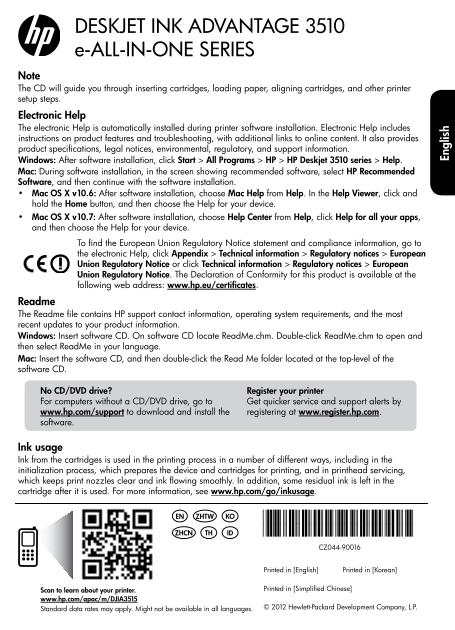
DESKJET INK ADVANTAGE 3510 e-ALL-IN-ONE SERIES Note The CD will guide you through inserting cartridges, loading paper, aligning cartridges, and other printer setup steps.

Electronic Help The electronic Help is automatically installed during printer software installation. Electronic Help includes instructions on product features and troubleshooting, with additional links to online content. It also provides product specifications, legal notices, environmental, regulatory, and support information. Windows: After software installation, click Start > All Programs > HP > HP Deskjet 3510 series > Help . Mac: During software installation, in the screen showing recommended software, select HP Recommended Software , and then continue with the software installation. Mac OS X v10.6: After software installation, choose Mac Help from Help . In the Help Viewer , click and hold the Home button, and then choose the Help for your device. Mac OS X v10.7: After software installation, choose Help Center from Help , click Help for all your apps , and then choose the Help for your device.

To find the European Union Regulatory Notice statement and compliance information, go to the electronic Help, click Appendix > Technical information > Regulatory notices > European Union Regulatory Notice or click Technical information > Regulatory notices > European Union Regulatory Notice . The Declaration of Conformity for this product is available at the following web address: www.hp.eu/certificates .

Readme The Readme file contains HP support contact information, operating system requirements, and the most recent updates to your product information. Windows: Insert software CD. On software CD locate Read Me.chm. Double-click Read Me.chm to open and then select Read Me in your language. Mac: Insert the software CD, and then double-click the Read Me folder located at the top-level of the software CD.

No CD/DVD drive? Register your printer For computers without a CD/DVD drive, go to Get quicker service and support alerts by www.hp.com/support to download and install the registering at www.register.hp.com . software.

Ink usage En gl is

Ink from the cartridges is used in the printing process in a number of different ways, including in the initialization process, which prepares the device and cartridges for printing, and in printhead servicing, which keeps print nozzles clear and ink flowing smoothly. In addition, some residual ink is left in the cartridge after it is used. For more information, see www.hp.com/go/inkusage .

ZHTW KOEN *CZ044-90016*

THZHCN ID *CZ044-90016*

CZ044-90016

Printed in [English] Printed in [Korean]

Scan to learn about your printer. Printed in [Simplifi ed Chinese]

www.hp.com/apac/m/DJIA3515

Standard data rates may apply. Might not be available in all languages. © 2012 Hewlett-Packard Development Company, L.P.

Page Summary Contents For HP Deskjet 3510 Series Reference Guide for Digital Multifunction Printers

Page 1 DESKJET INK ADVANTAGE 3510 e-ALL-IN-ONE SERIES Note The CD will guide you through inserting cartridges, loading paper, aligning cartridges, and other printer setup steps. Electronic Help The electroni...
Page 2 Control panel Back: Returns to the previous screen. Cancel: Stops the current operation or goes back to the home screen. Selection: Contextual button that changes depending on what is displayed on the...
Page 3 Basic troubleshooting Windows Mac If you are unable to print: If you are unable to print: 1. If your printer is connected directly to your 1. If your printer is connected to your computer computer wit...
Page 4 Networked printer use Learn about wireless printing For the most complete, up-to-date information about wireless printing, go to the HP Wireless Printing Center at www.hp.com/go/wirelessprinting. Chan...
Page 5 Networked printer troubleshooting If you cannot connect the printer to your wireless network… Get help from HP Wireless Printing Center: The HP Wireless Printing Center (www.hp.com/go/wirelessprinting...
Page 6 HP printer limited warranty statement HP product Duration of limited warranty Software Media 90 days Printer 1 year Print or Ink cartridges Until the HP ink is depleted or the “end of warranty” date p...
Page 7 DESKJET INK ADVANTAGE 3510 e-ALL-IN-ONE SERIES 注意 CD 會引導您進行插入墨匣、裝入紙張、對齊墨匣及其他印表機設定步驟。 電子版說明 安裝印表機軟體期間,將自動安裝電子版說明。電子版說明包含產品功能和疑難排解指示,以及線上內容 的額外連結。另外還提供產品規格、法律注意事項、環保資訊、法規及支援資訊。 Windows: 安裝軟體後,按一下 開始 &gt...
Page 8 OK:確認目前所做的選擇。 e Print 狀態指示燈和按鈕:按下按鈕即可顯示 Web 服務功能表,您可以在此檢視印表機的 電子郵件地址並檢視/調整 e Print 設定。e Print 是由 HP 所提供的免費服務,讓您在任何可 傳送電子郵件的地方,使用啟用 e Print 的印表機列印。與連線到 Web 的 HP 印表機配合使用 e PRINT、列印應用程式及 e Print Center 功...
Page 9 基本疑難排解 Windows Mac 如果您無法列印: 如果您無法列印: 1. 如果您的印表機是使用 USB 纜線直接連接至 1. 如果您的印表機是使用 USB 纜線連接至電腦, 電腦,請確認纜線已接妥。 請確認纜線已接妥。 2. 請確定印表機電源已接通。開啟按鈕將亮起。 2. 請確定印表機電源已接通。開啟按鈕將亮起。 確定已將印表機設定為預設列印裝置: 檢查列印佇列: 1. Windows 7®...
Page 10 使用網路印表機 詳細瞭解無線列印 若需無線列印之最完整且最新資訊,請前往 HP 無線列印中心,網址是 www.hp.com/go/wirelessprinting。 從 USB 連線變更為無線連線。 如果最初是採用 USB 連線安裝印表機,您日後可以切換到無線網路連線。如欲變更連線,請執行下列步驟: Windows Mac 1. 在電腦的開始功能表中,選擇所有程式或 使用應用程式/Hewlett-...
Page 11 網路印表機疑難排解 如果無法將印表機連線至無線網路... 從 HP 無線列印中心取得說明:HP 無線列印中心 (www.hp.com/go/wirelessprinting) 是線上參考指南, 可協助您對家用網路和 HP 印表機進行無線列印的相關設定。在此網站上,您可以找到各種實用資訊, 以協助您備妥無線網路、設定或重新架構印表機、為設定進行疑難排解 (包括僅限在 Windows 使用的 「網路診...
Page 12 HP 印表機有限保固聲明
Page 13 DESKJET INK ADVANTAGE 3510 e-ALL-IN-ONE SERIES 참고 CD를 통해 카트리지 삽입, 용지 로드, 잉크 카트리지 정렬 및 기타 프린터 설치 절차들을 확인하십시오. 전자 도움말 이 전자 도움말은 프린터 소프트웨어를 설치하면 자동으로 설치됩니다. 전자 도움말에는 제품 특징, 문제 해결이 온라인 컨텐츠에 추가 링크되어 들어 있습니...
Page 14 OK: 현재 선택한 내용을 확인합니다. e Print 상태 표시등 및 버튼: 버튼을 누르면 프린터의 이메일 주소를 보여주고 e Print 설정을 보기 및 조정할 수 있는 웹 서비스 메뉴가 나타납니다. e Print는 HP에서 제공하는 무료 서비스로, 이메일을 보낼 수 있는 어느곳에서나 e Print 지원 프린터로 인쇄를 가능하게 합니다. HP 웹 연결 프린...
Page 15 기본적인 문제 해결 Windows Mac 인쇄가 안 되는 경우 인쇄가 안 되는 경우 1. 프린터가 USB 케이블을 통해 컴퓨터에 직접 1. 프린터가 USB 케이블을 통해 컴퓨터에 연결되어 있을 경우, 케이블 연결에 이상이 연결되어 있는 경우, 케이블이 제대로 없는지 확인합니다. 연결되어 있는지 확인합니다. 2. 프린터 전원이 켜져 있는지 확인합니다. 2. ...
Page 16 네트워크에 연결된 프린터 사용 무선 인쇄에 대해 알아보기 무선 인쇄에 대해 완벽한 최신 정보를 얻으려면 www.hp.com/go/wirelessprinting에서 HP 무선 인쇄 센터를 방문하십시오. USB 연결을 무선 연결로 변경 USB 연결을 이용하여 프린터를 먼저 설치한 경우, 나중에 무선 네트워크 연결로 변경할 수 있습니다. 연결을 변경하려면 다음 ...
Page 17 네트워크 인쇄 문제 해결 프린터를 무선 네트워크에 연결할 수 없는 경우... HP 무선 인쇄 센터에서 도움말 얻기: HP 무선 인쇄 센터(www.hp.com/go/wirelessprinting)에는 무선 인쇄를 위한 홈 네트워크 및 HP 프린터 설치에 대한 온라인 참조 설명서가 있습니다. 이 웹 사이트에서는 무선 네트워크 준비, 프린터 설정 또는 재구성, ...
Page 18 HP 프린터 제한 보증서
Page 19 DESKJET INK ADVANTAGE 3510 e-ALL-IN-ONE SERIES 备注 CD 将指导您完成插入墨盒、装入纸张、校准墨盒及其他打印机安装步骤。 电子版帮助 在打印机软件安装期间将自动安装电子版帮助。电子版帮助包含有关产品功能和故障排除的说明,以及其他 指向在线内容的链接。另外还提供有关产品规格、法律声明、环境、管制和支持的信息。 Windows: 软件安装后,单击 开始 ...
Page 20 OK:确认当前的选择。 e Print 状态指示灯和按钮:按下该按钮将显示 Web 服务菜单,您可在此菜单中查看打印机的电子邮件 地址,并查看/调整 e Print 设置。e Print 是 HP 推出的一项免费服务。通过该项服务,可以在任何地方通过 发送电子邮件在已启用 e Print 的打印机上进行打印。将 e Print、打印应用程序和 e Print Center 与 HP 网络 打印机(...
Page 21 基本故障排除 Windows Mac 如果无法打印: 如果无法打印: 1. 如果打印机使用 USB 电缆直接连接到计算机 1. 如果打印机使用 USB 电缆连接到计算机上, 上,请确保电缆连接牢固。 请确保电缆连接牢固。 2. 确保打印机电源接通。开/关机按钮将变为 2. 确保打印机电源接通。开/关机按钮将变为 亮白色。 亮白色。 确保将打印机设置为您的默认打印设备: 检查打印队列: 1. Win...
Page 22 网络打印机的使用 详细了解无线打印 要获取有关无线打印的最完整和最新信息,请转到 HP 无线打印中心:www.hp.com/go/wirelessprinting。 将 USB 连接更改为无线连接 如果最初安装打印机时使用了 USB 连接,则可以在以后更改为无线网络连接。要更改连接,请执行以下步骤: Windows Mac 1. 从计算机的开始菜单,选择所有程序或程序, 使用“应用程序/Hewle...
Page 23 网络打印机故障排除 如果无法将打印机连接到无线网络… 从 HP 无线打印中心获取帮助:HP 无线打印中心 (www.hp.com/go/wirelessprinting) 是在线参考指南, 可用来设置家庭网络和 HP 打印机进行无线打印。在该网站上,您将发现相关信息,可帮助您准备无线网络、 设置或重新配置打印机,以及对设置故障排除(包括仅在 Windows 上使用网络诊断实用程序)。 确认打印机上...
Page 24 HP 打印机有限保修声明
Page 25 DESKJET INK ADVANTAGE 3510 e-ALL-IN-ONE SERIES หม�ยเหตุ แผ่นซีดีจะให้รายละเอียดเกี่ยวกับการใส่ตลับหมึกพิมพ ์การใส่กระดาษ การปรับตำาแหน่งตลับหมึกพิมพ ์และขั้นตอนอื่นๆ ในการติดตั้งเครื่องพิมพ ์ วิธีใช้แ...
Page 26 Back (ย้อนกลับ): กลับไปยังหน้าจอก่อนหน้า Cancel (ยกเลิก): หยุดการทำางานในปัจจุบัน หรือกลับไปที่หน้าจอหลัก Selection (การเลือก): ปุ่มที่เปลี่ยนตามบริบท โดยขึ้นอยู่กับสิ่งที่แสดงบนหน้าจอ Up (ขึ้น): ใช้ป...
Page 27 ก�รแก้ไขปัญห�เบื้องต้น Windows Mac ห�กคุณไม่ส�ม�รถพิมพ์ง�นได:้ ห�กคุณไม่ส�ม�รถพิมพ์ง�นได:้ 1. หากเครื่องพิมพ์ของคุณเชื่อมต่อโดยตรงกับคอมพิวเตอร์โดยใช้สาย 1. หากเครื่องพิมพ์ของคุณเชื่อมต่อกับคอมพิวเตอร...
Page 28 ก�รใช้ง�นเครื่องพิมพ์บนเครือข่�ย เรียนรู้เกี่ยวกับก�รพิมพ์แบบไร้ส�ย สำาหรับข้อมูลล่าสุดที่สมบูรณ์เกี่ยวกับการพิมพ์แบบไร้สาย โปรดไปที่ศูนย์การพิมพ์แบบไร้สาย HP ที่ www.hp.com/go/wirelessprinting เปลี่ย...
Page 29 ก�รแก้ไขปัญห�เครื่องพิมพ์บนเครือข่�ย ห�กคุณไม่ส�ม�รถเชื่อมต่อเครื่องพิมพ์กับเครือข่�ยไร้ส�ย… ก�รขอรับคว�มช่วยเหลือจ�กศูนย์ก�รพิมพ์ไร้ส�ย HP เว็บไซต์ศูนย์การพิมพ์ไร้สาย HP (www.hp.com/go/wirelessprinti...
Page 30 ร�ยละเอียดก�รรับประกันแบบจำ�กัดของเครื่องพิมพ์ของ HP ผลิตภัณฑของ HP ระยะเวลารับประกัน ซอฟตแวร 90 วัน ฮารดแวรสวนเสริมของเครื่องพิมพ 1 ป ตลับหมึก จนกวาหมึกของ HP จะหมด หรือพนจากวันที่ของการรับ...
Page 31 DESKJET INK ADVANTAGE 3510 e-ALL-IN-ONE SERIES Catatan CD ini akan memandu Anda dalam memasang kartrid, memuatkan kertas, menyetel kartrid, dan tahapan lainnya dalam penyiapan printer. Bantuan Elektro...
Page 32 Panel kontrol Kembali: Kembali ke layar sebelumnya. Batal: Menghentikan pengoperasian yang tengah berlangsung dan kembali ke layar depan. Pemilihan: Tombol kontekstual yang akan berubah sesuai konteks...
Page 33 Mengatasi masalah umum Windows Mac Jika Anda tidak dapat mencetak: Jika Anda tidak dapat mencetak: 1. Jika printer Anda dihubungkan langsung ke 1. Jika printer Anda dihubungkan ke komputer komputer me...
Page 34 Penggunaan printer berjaringan Pelajari pencetakan nirkabel Untuk informasi teraktual dan terlengkap tentang pencetakan nirkabel, kunjungi Pusat Pencetakan Nirkabel HP di www.hp.com/go/wirelessprintin...
Page 35 Pemecahan masalah printer berjaringan Jika Anda tidak dapat menghubungkan printer ke jaringan nirkabel… Dapatkan bantuan dari Pusat Pencetakan Nirkabel HP: Situs web Pusat Pencetakan Nirkabel HP di (w...
Page 36 Pernyataan jaminan terbatas printer HP 1 tahun Kepala cetak (hanya berlaku untuk produk dengan kepala cetak yang dapat diganti oleh pelanggan)

Manual Details

Brand HP
Pages 36
File Size 4.22 MB
Published May 30, 2026
69 views

Enter the captcha to get the download link:

captcha

Frequently Asked Questions

Where can I find product specifications and troubleshooting guides?

Product details, features, and troubleshooting links are available in the electronic Help. On Windows, navigate via Start > All Programs > HP > HP Deskjet 3510 series > Help.

What steps should I check if printing fails?

Ensure the printer is powered on (On button lit white) and verify that all USB cable connections are secure.

How does the ePrint service work?

ePrint allows you to print to your enabled printer from anywhere you receive an email. Pressing button 7 displays the Web Services menu to adjust ePrint settings.

Does using generic or refilled ink cartridges affect my warranty?

Yes, the use of non-HP or newly filled cartridges will void customer warranty or support agreements with HP.