# A B C D E F G H I J K L M N O P Q R S T U V W X Y Z

HP Deskjet Ink Advantage 5520 Series Reference Guide for Digital Multifunction Printers

Summary

Get comprehensive instructions for setting up your reliable HP Deskjet all-in-one printer. This manual guides users through initial unboxing, wireless connection setup, and advanced features like ePrint and printing from memory cards. It covers everything needed—from basic operation using the touch panel controls to detailed troubleshooting, software installation on Windows/Mac, and compliance information. Ideal for new owners seeking a seamless start with their multi-function printer.
📄 Preview PAGE OF 36

Page 1 Text Content

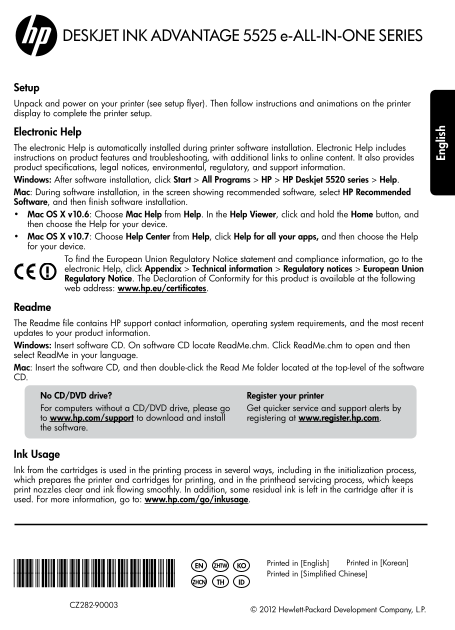
DESKJET INK ADVANTAGE 5525 e-ALL-IN-ONE SERIES

Setup Unpack and power on your printer (see setup flyer). Then follow instructions and animations on the printer display to complete the printer setup.

Electronic Help The electronic Help is automatically installed during printer software installation. Electronic Help includes instructions on product features and troubleshooting, with additional links to online content. It also provides product specifications, legal notices, environmental, regulatory, and support information. Windows: After software installation, click Start > All Programs > HP > HP Deskjet 5520 series > Help. Mac: During software installation, in the screen showing recommended software, select HP Recommended Software, and then finish software installation. Mac OS X v10.6: Choose Mac Help from Help. In the Help Viewer, click and hold the Home button, and then choose the Help for your device. Mac OS X v10.7: Choose Help Center from Help, click Help for all your apps, and then choose the Help for your device.

To find the European Union Regulatory Notice statement and compliance information, go to the electronic Help, click Appendix > Technical information > Regulatory notices > European Union Regulatory Notice. The Declaration of Conformity for this product is available at the following web address: www.hp.eu/certificates.

Readme The Readme file contains HP support contact information, operating system requirements, and the most recent updates to your product information. Windows: Insert software CD. On software CD locate Read Me.chm. Click Read Me.chm to open and then select Read Me in your language. Mac: Insert the software CD, and then double-click the Read Me folder located at the top-level of the software CD.

No CD/DVD drive? Register your printer For computers without a CD/DVD drive, please go Get quicker service and support alerts by to www.hp.com/support to download and install registering at www.register.hp.com. the software.

En gl is

Ink Usage Ink from the cartridges is used in the printing process in several ways, including in the initialization process, which prepares the printer and cartridges for printing, and in the printhead servicing process, which keeps print nozzles clear and ink flowing smoothly. In addition, some residual ink is left in the cartridge after it is used. For more information, go to: www.hp.com/go/inkusage.

Printed in [English] Printed in [Korean] ZHTW

*CZ282-90003* KOEN Printed in [Simplified Chinese]

*CZ282-90003* TH IDZHCN

CZ282-90003

© 2012 Hewlett-Packard Development Company, L.P.

Page Summary Contents For HP Deskjet Ink Advantage 5520 Series Reference Guide for Digital Multifunction Printers

Page 1 DESKJET INK ADVANTAGE 5525 e-ALL-IN-ONE SERIES Setup Unpack and power on your printer (see setup flyer). Then follow instructions and animations on the printer display to complete the printer setup. E...
Page 2 Get to know your HP Deskjet Control panel buttons: 1. Home: Returns you to the Home screen. the Preferences menu and use tools to perform maintenance functions. 2. Help: On the Home screen, shows all ...
Page 3 Setup and troubleshooting If you are unable to print... Check for error messages and resolve them. If you are still unable to print, try the following in order: Windows Mac Make sure that your HP Desk...
Page 4 Networked printer use Change from USB to wireless network connection If you initially set up your printer using a USB connection to your computer, you can switch the connection to a wireless network c...
Page 5 Networked printer troubleshooting If you cannot connect the printer to the network… Get help from Wireless Printing Center: The HP Wireless Printing Center website (www.hp.com/go/wirelessprinting) is ...
Page 6 HP printer limited warranty statement HP product Duration of limited warranty Software Media 90 days Printer Technical support by phone: 1 year worldwide Parts and labor: 90 days in US and Canada (out...
Page 7 DESKJET INK ADVANTAGE 5525 e-ALL-IN-ONE SERIES 電子說明 安裝印表機軟體期間,將自動安裝電子說明。電子說明包括產品功能和疑難排解的指示,以及線上內容的額 外連結。另外還提供產品規格、法律注意事項、環保資訊、法規及支援資訊。 Windows: 安裝軟體後,按一下開始 > 所有程式 > HP > HP Deskjet 5520 serie...
Page 8 瞭解 HP Deskjet 6. e Print 圖示和 e Print 按鈕:顯示印表機的電子郵 邊界) 及影像品質 (變亮/變暗、增強)。 件地址、e Print 狀態及 e Print 功能。您可以變更 e Print 設定或列印資訊頁。 7. 無線圖示和無線按鈕:顯示無線狀態、IP 位址、 進階功能。 網路名稱、硬體位址 (MAC) 及 Wireless Direct
Page 9 Windows Mac 確定 HP Deskjet 已經設定為預設印表機,且並非離 檢查列印佇列: 列印與傳真 (Mac OS X v10.6) 1. 在 Windows 工作列上,按一下開始。 列印與掃描 (Mac OS X v10.7) 裝置和印表機 (Windows 7®) 印表機 (Windows Vista®) (Windows XP®) 如果 HP 印表機軟體安裝失敗: 1. 從電腦的...
Page 10 將 USB 連線變更為無線網路連線 如果您最初使用 USB 連線將印表機連接至電腦,則可以透過執行下列步驟將連線切換為無線網路連線。 Windows Mac 從 USB 連線變更為無線連線: 從 USB 連線變更為無線連線: 1. 從您的電腦中,按一下開始 > 所有程式 > HP > 1. 從您印表機的控制台,觸碰無線按鈕。 HP Deskjet 5520 series >...
Page 11 如果無法將印表機連線到網路... 從無線列印中心取得說明:HP 無線列印中心網站 (www.hp.com/go/wirelessprinting) 是將家用網路和 HP 印表 機設定用於無線列印的線上參考指南。在此網站上,您將找到所需資訊,協助您準備無線網路、設定或 重新設定印表機及疑難排解您的設定 (包括使用 Windows 網路診斷公用程式)。 確認您的印表機無線通訊已開啟。從印表機的控制台,...
Page 12 HP 印表機有限保固聲明
Page 13 DESKJET INK ADVANTAGE 5525 e-ALL-IN-ONE SERIES 설정 포장을 풀고 프린터에 전원을 연결합니다(설치 전단 참조). 그런 다음 프린터 디스플레이의 지침 및 동영상에 따라 프린터 설치를 완료합니다. 전자 도움말 이 전자 도움말은 프린터 소프트웨어를 설치할 때 자동으로 설치됩니다. 전자 도움말에는 추가 온라인 링크와 함께 제품 ...
Page 14 HP Deskjet 알아보기 미리보기, apps, 그리고 수평 메뉴 옵션을 11. Apps: 웹에서 지도, 컬러링 페이지, 퍼즐 등에 액세스하여 정보를 인쇄할 수 있는 빠르고 쉬운 6. e Print 아이콘 및 e Print 버튼: 프린터의 이메일 방법을 제공합니다. 주소, e Print 상태 및 e Print 기능이 표시됩니다. e Print 설정을 변경...
Page 15 Windows Mac HP Deskjet 가 기본 프린터로 설정되어 있고 인쇄 대기열 확인: 오프라인 상태가 아닌지 확인합니다. 1. 시스템 등록정보에서 다음을 누릅니다: 방법은 다음과 같습니다: 인쇄 및 팩스 (Mac OS X v10.6) 1. Windows 작업 표시줄에서 시작을 클릭합니다. 인쇄 및 스캔 (Mac OS X v10.7) 2. 다음을 선택...
Page 16 USB 연결에서 무선 네트워크 연결로 변경 USB 연결을 이용하여 프린터를 컴퓨터에 설치한 경우, 다음과 같은 단계에 따라 무선 네트워크 연결로 다시 전환할 수 있습니다. Windows Mac USB 연결에서 무선 연결로 변경하려면: USB 연결에서 무선 연결로 변경하려면: 1. 컴퓨터에서 시작 > 모든 프로그램 > HP > 1. 프린터 제...
Page 17 프린터를 네트워크에 연결할 수 없는 경우... 무선 인쇄 센터에서 도움말 얻기: HP 무선 인쇄 센터 웹 사이트(www.hp.com/go/wirelessprinting) 에는 무선 인쇄를 위한 홈 네트워크 및 HP 프린터 설치에 대한 온라인 참조 설명서가 있습니다. 이 웹 사이트에서 사용자는 무선 네트워크 준비, 프린터 설정 또는 재구성, 그리고 설치 문제...
Page 18 HP 프린터 제한 보증서
Page 19 DESKJET INK ADVANTAGE 5525 e-ALL-IN-ONE SERIES 电子版帮助 在打印机软件安装期间将自动安装电子版帮助。电子版帮助包含有关产品功能和故障排除的说明,以及其他 指向在线内容的链接。另外还提供有关产品规格、法律声明、环境、管制和支持的信息。 Windows:软件安装后,单击开始 > 所有程序 > HP > HP Deskjet 5520 s...
Page 20 HP Deskjet 入门 自 Web 的信息,如地图、着色页和迷题。 6. e Print 图标和 e Print 按钮:显示打印机的电子邮 页边距)和图像质量(变浅/变深、增强)。 件地址、e Print 状态和 e Print 功能。您可以更改 e Print 设置,或者打印“信息”页面。 7. 无线图标和无线按钮:显示无线状态、IP 地址、网 件开始扫描。 络名称、硬件地址 (MAC) 和...
Page 21 Windows Mac 确保 HP Deskjet 设置为默认打印机且未处于脱机状态。 检查打印队列: 为此请: 1. 在“系统首选项”中,单击: 1. 在 Windows 任务栏上,单击开始。 打印并传真 (Mac OS X v 10.6) 2. 然后,单击: 打印并扫描 (Mac OS X v 10.7) 设备和打印机 (Windows 7®) 2. 单击打开打印队列按钮。 打印机 (Wind...
Page 22 将 USB 连接更改为无线网络连接 如果您最初是用 USB 连接至计算机来设置打印机的,可以通过以下步骤将连接改为无线网络连接。 Windows Mac 从 USB 改为无线连接的步骤: 从 USB 改为无线连接的步骤: 1. 在计算机中,单击开始 > 所有程序 > HP > HP 1. 从打印机的控制面板,点击无线按钮。 Deskjet 5520 series > 打印机...
Page 23 如果无法将打印机连接至网络... 从无线打印中心获取帮助:HP 无线打印中心网站 (www.hp.com/go/wirelessprinting) 是在线参考指南, 可用来设置家庭网络和 HP 打印机进行无线打印。此网站上找到的信息可以帮助您准备无线网络、设置 或重新配置打印机、对设置进行故障排除(包括使用 Windows 网络诊断实用程序)。 确认已打开打印机的无线功能。从打印机的控制面板,点击...
Page 24 HP 打印机有限保修声明
Page 25 DESKJET INK ADVANTAGE 5525 e-ALL-IN-ONE SERIES วิธีใช้แบบอิเล็กทรอนิกส์ วิธีใช้แบบอิเล็กทรอนิกส์จะติดตั้งโดยอัตโนมัติในระหว่างการติดตั้งซอฟต์แวร์เครื่องพิมพ์ วิธีใช้แบบอิเล็กทรอนิกส์ประกอบด้วย คำาแนะน...
Page 26 ทำาความรู้จักกับ HP Deskjet 6. ไอคอน e Print และปุ่ม e Print: แสดงที่อยู่อีเมลของเครื่องพิมพ์ สถานะ e Print และคุณสมบัติ e Print คุณสามารถเปลี่ยนการตั้งค่า e Print หรือ 7. ไอคอน ไร้สาย และปุ่ม ไร้สาย:...
Page 27 Windows Mac ตรวจสอบให้แน่ใจว่ามีการตั้งค่า HP Deskjet เป็นเครื่องพิมพ์ค่าเริ่มต้น ตรวจสอบคิวการพิมพ์ของคุณ: โดยใช้วิธีการดังนี้: พิมพ์และส่งโทรสาร (Mac OS X v10.6) 1. ในทาสก์บาร์ของ Windows ให้คลิก เร...
Page 28 การใช้งานเครื่องพิมพ์บนเครือข่าย การเปลี่ยนจากการเชื่อมต่อ USB เป็นการเชื่อมต่อเครือข่ายแบบไร้สาย หากคุณใช้การเชื่อมต่อ USB กับคอมพิวเตอร์เพื่อติดตั้งเครื่องพิมพ์ในครั้งแรก คุณสามารถเปลี่ยนการเชื่อมต่...
Page 29 การแก้ไขปัญหาเครื่องพิมพ์บนเครือข่าย หากคุณไม่สามารถเชื่อมต่อเครื่องพิมพ์กับเครือข่าย… การขอรับความช่วยเหลือจากศูนย์การพิมพ์ไร้สาย: เว็บไซต์ศูนย์การพิมพ์ไร้สาย HP (www.hp.com/go/wirelessprinting) เป็น...
Page 30 รายละเอียดการรับประกันแบบจำากัดของเครื่องพิมพ์ของ HP
Page 31 DESKJET INK ADVANTAGE 5525 e-ALL-IN-ONE SERIES Penyiapan Buka kemasan dan nyalakan printer Anda (lihat poster penyiapan). Kemudian ikuti petunjuk dan animasi pada layar printer untuk menyelesaikan pen...
Page 32 Mengenal HP Deskjet Tombol-tombol panel kontrol: 1. Depan: Membawa Anda kembali ke layar Depan. lainnya dari menu Preferensi dan menggunakan alat bantu untuk melakukan fungsi perawatan. 2. Bantuan: Pa...
Page 33 Penyiapan dan Pemecahan masalah Jika Anda tidak dapat mencetak... Periksa pesan kesalahan dan atasi. Jika Anda masih tidak dapat mencetak, cobalah langkah berikut sesuai urutan: Windows Mac Pastikan H...
Page 34 Penggunaan printer berjaringan Mengubah sambungan USB ke jaringan nirkabel Jika awalnya printer dihubungkan melalui sambungan USB ke komputer, sambungan ini dapat diubah ke sambungan jaringan nirkabel...
Page 35 Pemecahan masalah printer berjaringan Jika Anda tidak dapat menghubungkan printer ke jaringan… Dapatkan bantuan dari Pusat Pencetakan Nirkabel: Situs web Pusat Pencetakan Nirkabel HP di (www.hp.com/go...
Page 36 Pernyataan jaminan terbatas printer HP Dukungan teknis melalui telepon: 1 tahun di seluruh dunia Suku cadang dan servis: 90 hari di Amerika Serikat dan Kanada (Di luar Amerika Serikat dan Kanada 1 tah...

Manual Details

Brand HP
Pages 36
File Size 6.62 MB
Published June 20, 2026
5 views

Enter the captcha to get the download link:

captcha

Frequently Asked Questions

How is the electronic Help feature accessed on Windows?

Click Start > All Programs > HP > HP Deskjet 5520 series > Help after software installation.

What must be done if a computer lacks a CD/DVD drive for setup?

Visit www.hp.com/support to download and install the required software, then register at www.register.hp.com.

When is ink used in addition to printing?

Ink is used during initialization (preparing printer/cartridges) and printhead servicing (keeping nozzles clear).

How can I diagnose wireless connectivity problems?

Use the settings menu to cycle through wireless status, IP address, network name, and run a wireless test report.