# A B C D E F G H I J K L M N O P Q R S T U V W X Y Z

HP Deskjet Ink Advantage 2540 Series Reference Guide

Summary

Effortlessly set up and master your HP Deskjet Ink Advantage 2540 All-in-One printer with this comprehensive guide. It provides step-by-step instructions for initial setup, system software installation across all major operating systems (Windows/Mac), and advanced troubleshooting. Learn how to achieve reliable wireless connectivity, troubleshoot connection errors, and access detailed support resources. This manual is perfect for new users or home offices needing expert guidance to maximize the multi-function capabilities of your inkjet printer.
📄 Preview PAGE OF 30

Page 1 Text Content

HP Deskjet Ink Advantage 2540 All-in-One Series

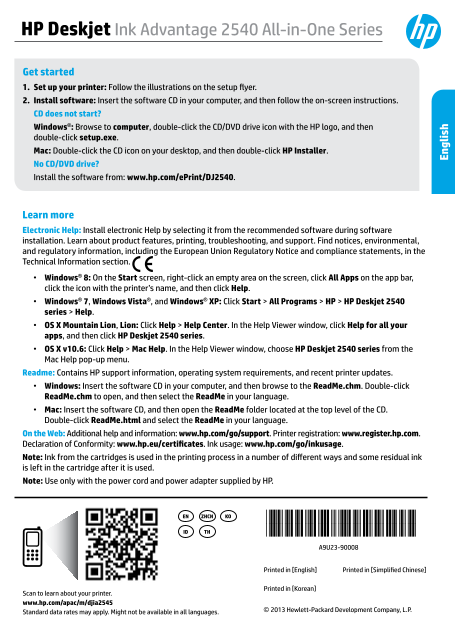
Get started 1. Set up your printer: Follow the illustrations on the setup flyer. 2. Install software: Insert the software CD in your computer, and then follow the on-screen instructions. CD does not start? Windows®: Browse to computer, double-click the CD/DVD drive icon with the HP logo, and then double-click setup.exe. Mac: Double-click the CD icon on your desktop, and then double-click HP Installer. No CD/DVD drive? Install the software from: www.hp.com/e Print/DJ2540.

Learn more Electronic Help: Install electronic Help by selecting it from the recommended software during software installation. Learn about product features, printing, troubleshooting, and support. Find notices, environmental, and regulatory information, including the European Union Regulatory Notice and compliance statements, in the Technical Information section. Windows® 8: On the Start screen, right-click an empty area on the screen, click All Apps on the app bar, click the icon with the printer’s name, and then click Help. Windows® 7, Windows Vista®, and Windows® XP: Click Start > All Programs > HP > HP Deskjet 2540 series > Help. OS X Mountain Lion, Lion: Click Help > Help Center. In the Help Viewer window, click Help for all your apps, and then click HP Deskjet 2540 series. OS X v10.6: Click Help > Mac Help. In the Help Viewer window, choose HP Deskjet 2540 series from the Mac Help pop-up menu. Readme: Contains HP support information, operating system requirements, and recent printer updates. Windows: Insert the software CD in your computer, and then browse to the Read Me.chm. Double-click Read Me.chm to open, and then select the Read Me in your language. Mac: Insert the software CD, and then open the Read Me folder located at the top level of the CD. Double-click Read Me.html and select the Read Me in your language. On the Web: Additional help and information: www.hp.com/go/support. Printer registration: www.register.hp.com. Declaration of Conformity: www.hp.eu/certificates. Ink usage: www.hp.com/go/inkusage. En gl is Note: Ink from the cartridges is used in the printing process in a number of different ways and some residual ink is left in the cartridge after it is used. Note: Use only with the power cord and power adapter supplied by HP.

ZHCN KOEN *A9U23-90008* THID *A9U23-90008*

Printed in [English] Printed in [Simplified Chinese]

Printed in [Korean]

Scan to learn about your printer. www.hp.com/apac/m/djia2545

© 2013 Hewlett-Packard Development Company, L.P.

Standard data rates may apply. Might not be available in all languages.

Page Summary Contents For HP Deskjet Ink Advantage 2540 Series Reference Guide

Page 1 HP Deskjet Ink Advantage 2540 All-in-One Series Get started 1. Set up your printer: Follow the illustrations on the setup flyer. 2. Install software: Insert the software CD in your computer, and then ...
Page 2 Control Panel On button: Turns the printer on or off. Cancel button: Stops the current operation. Wireless button: The light indicates a wireless connection. Press the button to turn on or off. Press ...
Page 3 Basic Troubleshooting If you are unable to print: 1. Make sure the cable connections are secure. 2. Make sure the printer is powered on. The On button will be lit white. 3. If the Attention light and ...
Page 4 Networking Need networking help? www.hp.com/go/wirelessprinting The HP Wireless Printing Center at www.hp.com/go/wirelessprinting can help you prepare your wireless network, set up or reconfigure your...
Page 5 Networking, continued Change from a USB connection to a wireless connection. You must have already successfully installed your printer software. Windows 1. Do one of the following according to your op...
Page 6 HP printer limited warranty statement HP product Duration of limited warranty Software Media 90 days Printer 1 year Print or Ink cartridges Until the HP ink is depleted or the “end of warranty” date p...
Page 7 HP Deskjet Ink Advantage 2540 All-in-One Series 使用入门 1. 设置您的打印机:按照安装传单上的说明执行操作。 2. 安装软件:将软件 CD 插入计算机,然后按照屏幕上的说明执行操作。 CD 没有启动? Windows®:浏览至计算机,双击带有 HP 徽标的 CD/DVD 驱动器图标,然后双击 setup.exe。 Mac:双击桌面上的 CD 图标,...
Page 8 开/关机按钮:打开或关闭打印机。 取消按钮:停止当前操作。 无线按钮:指示灯指示无线连接。按此按钮可打开或关闭。按住此按钮 3 秒以上直到指示灯闪烁为止, 可启动 Wi-Fi 保护设置 (WPS) 按钮模式。 无线直接功能按钮:从计算机、智能手机或其他已启用无线功能的设备使用 HP 无线直接功能(而不 通过路由器)进行无线打印。按此按钮可打开或关闭。有关详细信息,请参阅第 5 页中的章节。 开始黑...
Page 9 基本故障排除 如果无法打印: 1. 确保电缆连接牢固。 2. 确保打印机电源接通。开/关机按钮将变为亮白色。 3. 如果警示指示灯和墨盒指示灯闪烁,请检查墨盒检修门以确保将其关闭。 4. 检查无线状态指示灯,确保您的打印机已连接到网络。 纯蓝色灯代表无线连接已经建立且您可以进行打印。 闪烁的指示灯表示无线连接已打开,但打印机未连接到网络。确保您的打印机在无线信号覆盖范围内。 如果关闭无线功能,无线...
Page 10 需要在线帮助? www.hp.com/go/wirelessprinting 位于 www.hp.com/go/wirelessprinting 的 HP 无线打印中心可帮助您准备您的无线网络,设置或 重新配置您的打印机,以及解决网络问题。 2. 查看报告开头,看测试过程中是否出现故障。 查看执行的所有测试的诊断结果部分,确定您的打印机是否通过了测试。 从当前配置部分找到打印机当前连接的网络名称 ...
Page 11 联网(续) 将 USB 连接更改为无线连接。 您必须已经成功安装打印机软件。 Windows 1. 根据所使用的操作系统执行以下操作之一: Windows 8:在开始屏幕上,右键单击屏幕上的空白区域,单击应用程序栏中的所有应用程序。 Windows 7、Windows Vista 和 Windows XP:从计算机的开始菜单,选择所有程序或程序,然后选择 HP。 2. 选择 HP Deskjet ...
Page 12 HP 打印机有限保修声明
Page 13 HP Deskjet Ink Advantage 2540 All-in-One Series 시작하기 1. 프린터 설치: 설정 전단 그림을 따릅니다. 2. 소프트웨어 설치: 컴퓨터에 소프트웨어 CD를 삽입하고 화면 지침을 따릅니다. CD가 시작되지 않습니까? Windows®: 컴퓨터로 이동하여 HP 로고가 있는 CD/DVD 드라이브 아이콘을 더블 클릭한 다음 se...
Page 14 전원 버튼: 프린터의 전원을 켜거나 끕니다. 취소 버튼: 현재 동작을 중지합니다. 무선 버튼: 표시등은 무선 연결을 나타냅니다. 버튼을 눌러 켜거나 끕니다. 표시등이 깜박일 때까지 3초 이상 버튼을 누르고 있으면 WPS(Wi-Fi Protected Setup) 푸시 버튼 모드가 시작됩니다. 무선 다이렉트 버튼: HP 무선 다이렉트를 사용하여 컴퓨터, 스마트...
Page 15 기본적인 문제 해결 인쇄가 안 되는 경우. 1. 케이블이 확실히 연결되어 있는지 확인합니다. 2. 프린터 전원이 켜져 있는지 확인합니다. 전원 버튼이 흰색으로 켜집니다. 3. 주의 표시등 및 카트리지 표시등이 깜박이는 경우 카트리지 액세스 덮개가 닫혀있는지 확인합니다. 4. 무선 상태 표시등을 확인하여 프린터가 네트워크에 연결되었는지 확인합니다. 파란색 순...
Page 16 네트워킹 도움말 www.hp.com/go/wirelessprinting HP 무선 인쇄 센터 www.hp.com/go/wirelessprinting에서 무선 네트워크 준비, 프린터 설치 또는 재구성, 네트워킹 문제해결을 지원합니다. 자동으로 인쇄됩니다. 2. 보고서의 상단을 확인하여 테스트 중 실패한 것이 있는지 알아봅니다. 수행된 모든 테스트의 진단 결과...
Page 17 네트워킹(계속) USB 연결을 무선 연결로 변경합니다. 프린터 소프트웨어가 이미 성공적으로 설치되어야 합니다. Windows 1. 운영 체제에 따라 다음 중 하나를 수행합니다. Windows 8: 시작 화면에서 화면의 빈 공간을 마우스 오른쪽 버튼으로 클릭하고 앱 바에서 앱 모두 보기를 클릭합니다. Windows 7, Windows Vista, Window...
Page 18 HP 프린터 제한 보증서
Page 19 HP Deskjet Ink Advantage 2540 All-in-One Series Memulai 1. Siapkan printer: Ikuti petunjuk ilustrasi pada lembar penyiapan. 2. Instal perangkat lunak: Masukkan CD perangkat lunak ke komputer, kemudian...
Page 20 Panel Kontrol Tombol Daya: Menghidupkan atau mematikan printer. Tombol Batal: Menghentikan pengoperasian yang sedang berlangsung. Tombol Nirkabel: Indikator lampu menunjukkan koneksi nirkabel. Tekan t...
Page 21 Pemecahan Masalah Dasar Jika tidak dapat mencetak: 1. Pastikan kabel terhubung dengan benar. 2. Pastikan printer telah dihidupkan. Tombol Daya akan menyala putih. 3. Jika lampu Peringatan dan lampu Ka...
Page 22 Jejaring Perlu bantuan mengenai jaringan? www.hp.com/go/wirelessprinting HP Wireless Printing Center (Pusat Percetakan Nirkabel HP) di www.hp.com/go/wirelessprinting dapat membantu Anda menyiapkan jar...
Page 23 Jejaring, (lanjutan) Ubah koneksi USB printer ke nirkabel. Anda sudah harus berhasil menginstal perangkat lunak printer Anda. Windows 1. Lakukan salahsatu petunjuk berikut sesuai sistem operasi Anda: ...
Page 24 Pernyataan jaminan terbatas printer HP Bahasa Indonesia
Page 25 HP Deskjet Ink Advantage 2540 All-in-One Series เริ่มต้นใช้งาน 1. ตั้งค่าเครื่องพิมพ์ของคุณ: ทำ�ต�มภ�พประกอบในเอกส�รก�รตั้งค่� 2. ติดตั้งซอฟต์แวร:์ ใส่ซีดีซอฟต์แวร์ลงในคอมพิวเตอร์ แล้วทำ�ต�มคำ�แนะนำ�บ...
Page 26 ปุ่ม On (เปิด): เปิดหรือปิดเครื่องพิมพ์ ปุ่ม Cancel (ยกเลิก): หยุดก�รทำ�ง�นปัจจุบัน ปุ่ม Wireless (ระบบไร้ส�ย): ไฟหม�ยถึงมีก�รเชื่อมต่อแบบไร้ส�ย กดปุ่มเพื่อเปิดหรือปิด ให้กดปุ่มนี้ค้�งไว้น�นเกิน 3 วิน...
Page 27 การแก้ไขปัญหาเบื้องต้น หากคุณไม่สามารถพิมพ์งานได:้ 1. ตรวจดูให้แน่ใจว่�มีก�รต่อส�ยแน่นดีแล้ว 2. ตรวจดูให้แน่ใจว่�เปิดสวิตช์เครื่องพิมพ์แล้ว ปุ่ม On (เปิด) จะติดสว่�งเป็นสีข�ว 3. ห�กไฟเตือนและไฟตลับหมึ...
Page 28 หากต้องการความช่วยเหลือเกี่ยวกับการเชื่อมต่อเครือข่าย www.hp.com/go/wirelessprinting HP Wireless Printing Center (ศูนย์ก�รพิมพ์แบบไร้ส�ยของ HP) www.hp.com/go/wirelessprinting ส�ม�รถช่วยให้คุณเตรียมเคร...
Page 29 การเชื่อมต่อเครือข่าย (ต่อ) • เปลี่ยนจากการเชื่อมต่อแบบ USB เป็นการเชื่อมต่อแบบไร้สาย คุณต้องติดตั้งซอฟต์แวร์เครื่องพิมพ์ของคุณสำ�เร็จแล้ว Windows 1. โปรดปฏิบัติต�มคำ�แนะนำ�ข้อใดข้อหนึ่งด้�นล่�งนี ้โด...
Page 30 รายละเอียดการรับประกันแบบจำากัดของเครื่องพิมพ์ของ HP ผลิตภัณฑของ HP ระยะเวลารับประกัน ซอฟตแวร 90 วัน ฮารดแวรสวนเสริมของเครื่องพิมพ 1 ป ตลับหมึก จนกวาหมึกของ HP จะหมด หรือพนจากวันที่ของการรับ...

Manual Details

Brand HP
Pages 30
File Size 5.32 MB
Published June 15, 2026
6 views

Enter the captcha to get the download link:

captcha

Frequently Asked Questions

How do I get the software if I don't have a CD/DVD drive?

You can install the necessary software for your model from www.hp.com/ePrint/DJ2540.

What should I do if the Attention and Cartridge lights are blinking?

Check the cartridge access door to make sure it is fully closed.

How is Wireless Direct used?

Pressing the dedicated button for Wireless Direct allows you to print wirelessly from devices without needing a router.

I connected my printer via USB; how do I switch it to Wi-Fi?

You must perform specific steps during software setup, such as selecting 'Convert a USB connected printer to wireless'.