HP Deskjet F2400 Series Reference Guide
Summary
The HP Deskjet F2400 All-in-One printer provides essential printing, copying, and advanced functionality in a compact design. This manual serves as your comprehensive guide, covering everything from simple setup instructions to detailed troubleshooting solutions. Users will find extensive product features and technical specifications within the Electronic Help section and important support information via the Readme file, ensuring optimal performance for all your needs.
Page 1 Text Content
Pr in te in [E ng lis h] Pr in te in [S im pl ifi ed hi ne se Pr in te in [K or ea n]
ew le tt- Pa ck ar ev el op en t C om pa ny , L .P
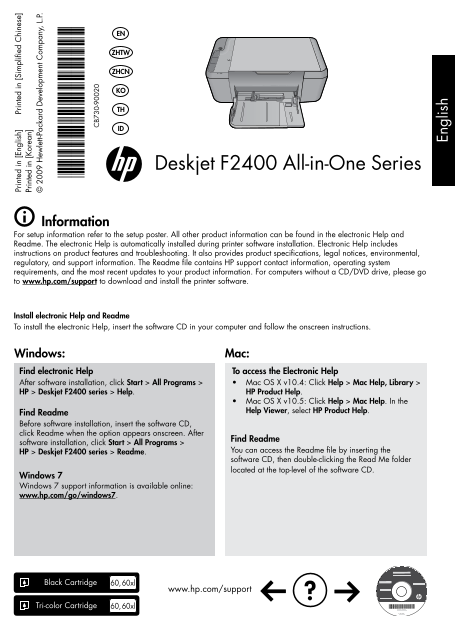
Deskjet F2400 All-in-One Series
Information For setup information refer to the setup poster. All other product information can be found in the electronic Help and Readme. The electronic Help is automatically installed during printer software installation. Electronic Help includes instructions on product features and troubleshooting. It also provides product specifications, legal notices, environmental, regulatory, and support information. The Readme file contains HP support contact information, operating system requirements, and the most recent updates to your product information. For computers without a CD/DVD drive, please go to www.hp.com/support to download and install the printer software.
Install electronic Help and Readme To install the electronic Help, insert the software CD in your computer and follow the onscreen instructions.
Windows: Mac: Find electronic Help To access the Electronic Help After software installation, click Start > All Programs > Mac OS X v10.4: Click Help > Mac Help, Library > HP > Deskjet F2400 series > Help. HP Product Help.
Mac OS X v10.5: Click Help > Mac Help. In the Help Viewer, select HP Product Help.
Find Readme Before software installation, insert the software CD, click Readme when the option appears onscreen. After
Find Readme
software installation, click Start > All Programs > En gl is
HP > Deskjet F2400 series > Readme. You can access the Readme file by inserting the software CD, then double-clicking the Read Me folder located at the top-level of the software CD.
Windows 7 Windows 7 support information is available online: www.hp.com/go/windows7.
Black Cartridge 60, 60xl
www.hp.com/support
Tri-color Cartridge 60, 60xl
Page Summary Contents For HP Deskjet F2400 Series Reference Guide
Manual Details
| Brand | HP |
|---|---|
| Pages | 24 |
| File Size | 5.07 MB |
| Published | June 17, 2026 |
Enter the captcha to get the download link:

Frequently Asked Questions
What is the correct setup procedure for installing the printer software?
Insert the CD, restart, disable security programs, and follow on-screen instructions. Do not plug in the USB cable until prompted.
What should I check if I am unable to print a test page?
Verify that all cable connections are secure, the printer is powered on (and lit green), and it is set as your default printing device.
Do ink cartridges only deplete during actual prints?
No; ink is also used during the initialization process and for printhead servicing to keep nozzles clear.
What power adapter must be used, and what are the consumption limits?
Use only the power adapter supplied by HP. Maximum power consumption is 20 watts during average printing.