Page 1
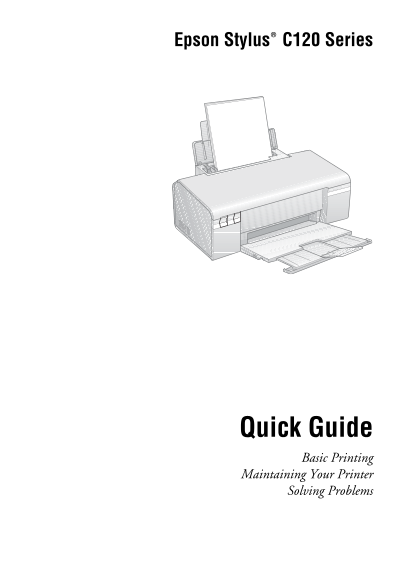
Epson Stylus C120 Series Quick Guide Basic Printing Maintaining Your Printer Solving Problems
Page 2
Contents Introduction . . . . . . . . . . . . . . . . . . . . . . . . . . . . . . . . . . . . . . . . . . . 3 Loading Paper . . . . . . . . . . . . . . . . . . . . . . . . . . . . . . . . . . . . . . ...
Page 3
Introduction After you have set up your Epson Stylus® C120 Series printer as described on the Start Here sheet, turn here to: Load paper Get the basic steps for printing from your computer Perform rou...
Page 4
Loading Paper 1. Open the paper support. 2. Open the output tray and pull out the extensions. 3. Squeeze the tab on the edge guide and slide it left. Loading Paper
Page 5
4. Insert the paper, printable side up, against the right edge guide and beneath the tabs. (The printable side is whiter or brighter on some papers.) Always load paper short edge first, even for lands...
Page 6
Part Sheet Paper type Size number count Epson Premium Photo Paper Borderless 4 × 6 inches S041808 Glossy S041727 Borderless 5 × 7 inches S041464 Borderless 8 × 10 inches S041465 Letter (8.5 × 11 inche...
Page 7
Basic Printing This section describes the basic steps for printing a document or photo stored on your Windows® or Macintosh® computer. Note: For detailed instructions on printing, see the on-screen Us...
Page 8
4. Make sure Epson Stylus C120 Series is selected, then click the Preferences or Properties button. (If you see a Setup, Printer, or Options button, click it. Then click Preferences or Properties on t...
Page 9
8. Click OK to save your settings, then click OK or Print to start printing. This window appears and shows the progress of your print job. Check ink cartridge status Pause or resume Cancel printing pr...
Page 10
5. Select Print from the File menu. You see a window like this one: Select Stylus C120 Select Print Settings 6. Choose Print Settings from the pop-up menu and select the following settings as necessar...
Page 11
Color Sync or Color Management: Select Color Sync® or adjust the color controls, change the gamma setting, or turn off color adjustments in the printer software. Cover Page (OS X 10.4.x only): Add a c...
Page 12
Selecting the Correct Paper Type Select the correct Type (see page 8) or Media Type (see page 10) setting in your printer software: For this paper Select this setting Plain paper Plain Paper/Bright Wh...
Page 13
Maintaining Your Printer If you notice a decline in print quality, follow the instructions in this chapter for: “Checking the Print Head Nozzles” (see below) “Cleaning the Print Head” on page “Checkin...
Page 14
Cleaning the Print Head If your printouts are unexpectedly light or faint, or you notice light or dark bands across your printout, you may need to clean the print head. This unclogs the nozzles so the...
Page 15
Checking the Ink Cartridge Status When the H ink light starts flashing, one or more cartridges are low on ink. When the H ink light stays on, you need to replace the cartridge(s). Caution: You cannot ...
Page 16
Replacing Ink Cartridges Make sure you have a new ink cartridge before you begin. Once you start replacing a cartridge, you must complete all the steps in one session. 1. Make sure the printer is on. ...
Page 17
4. Press the H ink button again. If another cartridge is low or expended, it moves to the _ expended ink mark. Once the printer identifies all of the low or expended ink cartridges, the print head mov...
Page 18
Warning: If ink gets on your hands, wash them thoroughly with soap and water. If ink gets into your eyes, flush them immediately with water. Keep cartridges out of the reach of children. 7. Before you...
Page 19
9. Place the new ink cartridge into the cartridge holder and push it down until it clicks into place. 10. Once you replace any other cartridges that need replacing, close the ink cartridge cover and p...
Page 20
Solving Problems If you have a problem with your Epson Stylus C120 Series printer, check the lights on the control panel to diagnose the cause. You can also check “Problems and Solutions” on page 21 f...
Page 21
Light status Cause Solution An ink cartridge is See page 15. expended or not On On Off installed correctly. A part needs to be Contact your local replaced. authorized servicer or Off Flashing Flashing...
Page 22
If paper is jammed, follow these steps to clear the jam: 1. Press the ) paper button to eject the jammed paper. If the jammed paper is not ejected, go to the next step. 2. If the paper is stuck near t...
Page 23
Where To Get Help Epson Technical Support Epson provides these technical support services: Internet Support Visit Epson’s support website at epson.com/support and select your product for solutions to ...
Page 24
Other Software Technical Support Software Telephone/Fax Online and E-mail Arc Soft (510) 440-9901 www.arcsoft.com Photo Impression 8:30 AM - 5:30 PM, Pacific [email protected] Time, Monday - Friday ...
Page 25
Notices Important Safety Instructions Before using your Epson Stylus C120 Series printer, read and follow these safety instructions: Be sure to follow all warnings and instructions marked on the print...
Page 26
Ink Cartridge Safety Instructions Keep ink cartridges out of the reach of children and do not drink the ink. Be careful when you handle used ink cartridges; there may be ink remaining around the ink s...
Page 27
FCC Compliance Statement For United States Users This equipment has been tested and found to comply with the limits for a Class B digital device, pursuant to Part 15 of the FCC Rules. These limits are...
Page 28
Declaration of Conformity According to 47CFR, Part 2 and 15 for: Class B Personal Computers and Peripherals; and/or CPU Boards and Power Supplies used with Class B Personal Computers: We: Epson Americ...
Page 29
Epson America, Inc., Limited Warranty What Is Covered: Epson America, Inc. (“Epson”) warrants to the original retail purchaser that the Epson printer covered by this limited warranty statement, if pur...
Page 30
fail to be properly maintained or fail to function properly as a result of misuse, abuse, improper installation, neglect, improper shipping, damage caused by disasters such as fire, flood, and lightni...
Page 31
Copyright Notice All rights reserved. No part of this publication may be reproduced, stored in a retrieval system, or transmitted in any form or by any means, electronic, mechanical, photocopying, rec...
Page 32
CPD-23710 Printed in XXXXXX XX.XX-XX XXX