Dell XPS 13 9350 Quick User Guide - Windows 10
Summary
This Quick Start Guide for the Dell XPS 13 ultrabook (Regulatory Model P54G, Type P54G002, Model XPS 9350) provides multilingual setup instructions covering power adapter connection, Windows and Ubuntu operating system configuration, network connectivity, and computer registration. It includes guidance on enabling Dell updates, creating Windows recovery media, using SupportAssist for system health monitoring, and accessing Dell Help and Support resources. Features MCMC certification mark and key
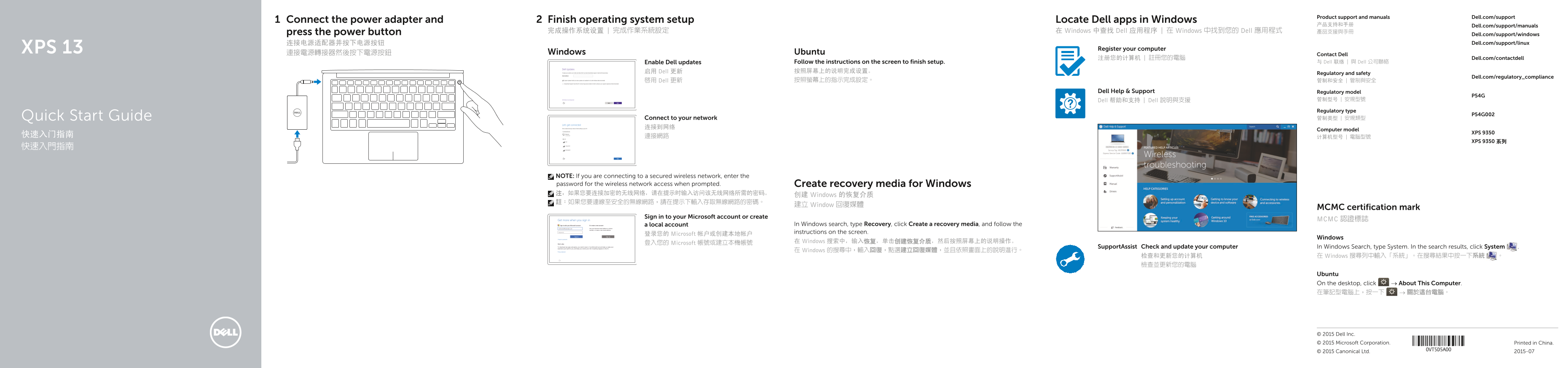
Page 1 Text Content
Product support and manuals Dell.com/support
Connect the power adapter and Finish operating system setup Locate Dell apps in Windows
产品支持和手册 Dell.com/support/manuals
press the power button 完成操作系统设置 | 完成作業系統設定 在 Windows 中查找 Dell 应用程序 | 在 Windows 中找到您的 Dell 應用程式 產品支援與手冊
Dell.com/support/windows 连接电源适配器并按下电源按钮 Dell.com/support/linux
XPS 13 Register your computer
連接電源轉接器然後按下電源按鈕 Windows Ubuntu Contact Dell
注册您的计算机 | 註冊您的電腦 Dell.com/contactdell
Enable Dell updates Follow the instructions on the screen to finish setup. 与 Dell 联络 | 與 Dell 公司聯絡
启用 Dell 更新 按照屏幕上的说明完成设置。
Regulatory and safety
Dell.com/regulatory_compliance
啟用 Dell 更新 按照螢幕上的指示完成設定。 管制和安全 | 管制與安全
Dell Help & Support Regulatory model
Dell 帮助和支持 | Dell 說明與支援 管制型号 | 安規型號
Regulatory type
Quick Start Guide Connect to your network 管制类型 | 安規類型 连接到网络
Computer model
XPS 9350
XPS 9350 系列
NOTE: If you are connecting to a secured wireless network, enter the password for the wireless network access when prompted. Create recovery media for Windows 注:如果您要连接加密的无线网络,请在提示时输入访问该无线网络所需的密码。
创建 Windows 的恢复介质
建立 Window 回復媒體
MCMC certification mark
Sign in to your Microsoft account or create
MCMC 認證標誌
a local account In Windows search, type Recovery, click Create a recovery media, and follow the instructions on the screen.
登录您的 Microsoft 帐户或创建本地帐户
Windows
在 Windows 搜索中,输入恢复,单击创建恢复介质,然后按照屏幕上的说明操作。
登入您的 Microsoft 帳號或建立本機帳號
Support Assist Check and update your computer In Windows Search, type System. In the search results, click System .
在 Windows 的搜尋中,輸入回復,點選建立回復媒體,並且依照畫面上的說明進行。
检查和更新您的计算机 在 Windows 搜尋列中輸入「系統」。在搜尋結果中按一下系統 。 檢查並更新您的電腦
Ubuntu On the desktop, click → About This Computer. 在筆記型電腦上,按一下 → 關於這台電腦。
© 2015 Dell Inc. © 2015 Microsoft Corporation. Printed in China.
© 2015 Canonical Ltd. 2015-07
Page Summary Contents For Dell XPS 13 9350 Quick User Guide - Windows 10
Manual Details
| Brand | Dell |
|---|---|
| Pages | 2 |
| File Size | 407.92 KB |
| Published | July 02, 2026 |
Enter the captcha to get the download link:

Frequently Asked Questions
How do I connect to a secured wireless network?
If connecting to a secured wireless network, you must enter the password for the wireless network access when prompted.
Where can I find system specifications or port details?
For more information, visit Dell.com/support and check the Specifications section of the manual.
How do I create recovery media for Windows?
In Windows search, type Recovery, click Create a recovery media, and follow the instructions on the screen.
What steps should I take to update my computer's software?
You can check and update your computer using SupportAssist or by navigating through system settings after initial setup.