Dell XPS 13 9350 Quick User Guide - Windows 7
Summary
This Quick Start Guide for the Dell XPS 13 ultrabook (Regulatory Model P54G, Type P54G002, Model XPS 9350) provides alternative multilingual setup instructions covering power adapter connection, Windows setup completion, password setup, and computer protection. It documents hardware features including camera, Thunderbolt 3 port, USB 3.0 ports with PowerShare, media card reader, security cable slot, and battery status indicators via labeled diagrams. Keyboard shortcut keys and MCMC certification mark are included. Designed for premium ultrabook users.
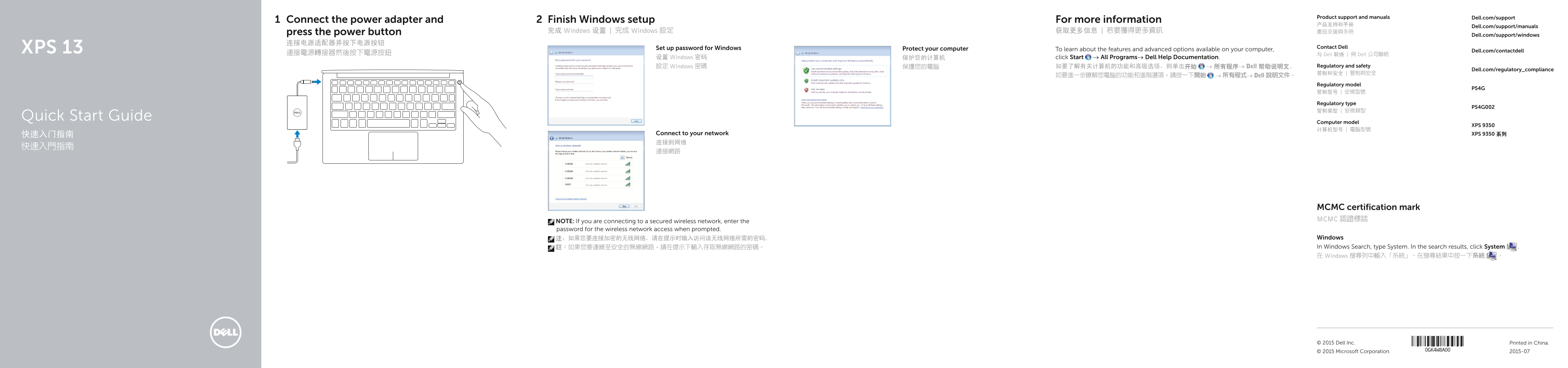
Page 1 Text Content
Product support and manuals Dell.com/support
Connect the power adapter and Finish Windows setup For more information
Dell.com/support/manuals
press the power button 完成 Windows 设置 | 完成 Windows 設定 获取更多信息 | 若要獲得更多資訊 產品支援與手冊
Dell.com/support/windows
XPS 13 Set up password for Windows Contact Dell
Protect your computer To learn about the features and advanced options available on your computer,
Dell.com/contactdell
連接電源轉接器然後按下電源按鈕 与 Dell 联络 | 與 Dell 公司聯絡
设置 Windows 密码 保护您的计算机 click Start → All Programs→ Dell Help Documentation.
設定 Windows 密碼 保護您的電腦 如要了解有关计算机的功能和高级选项,则单击开始 → 所有程序→ Dell 帮助说明文。 Regulatory and safety
Dell.com/regulatory_compliance
如要進一步瞭解您電腦的功能和進階選項,請按一下開始 → 所有程式→ Dell 說明文件。
Regulatory model
Regulatory type
Quick Start Guide
Computer model
XPS 9350
快速入门指南 Connect to your network XPS 9350 系列 连接到网络
MCMC certification mark MCMC 認證標誌
NOTE: If you are connecting to a secured wireless network, enter the password for the wireless network access when prompted.
注:如果您要连接加密的无线网络,请在提示时输入访问该无线网络所需的密码。 Windows 註:如果您要連線至安全的無線網路,請在提示下輸入存取無線網路的密碼。 In Windows Search, type System. In the search results, click System . 在 Windows 搜尋列中輸入「系統」。在搜尋結果中按一下系統 。
© 2015 Dell Inc. Printed in China. © 2015 Microsoft Corporation. 2015-07
Page Summary Contents For Dell XPS 13 9350 Quick User Guide - Windows 7
Manual Details
| Brand | Dell |
|---|---|
| Pages | 2 |
| File Size | 296.13 KB |
| Published | July 02, 2026 |
Enter the captcha to get the download link:

Frequently Asked Questions
What should I do if I am connecting to a secured wireless network?
Enter the necessary password for the wireless network access when prompted.
Where can I find advanced information about my computer's features?
Visit Dell.com/contactdell or click Start → All Programs→ Dell Help Documentation.
How do I connect to the internet on this device?
Connect your system and power adapter, then proceed with setting up Windows.
What does 'PowerShare' indicate for a USB port?
It means the USB 3.0 port has additional charging capabilities.