Dell Vostro 1200 Installation Diagrams
Summary
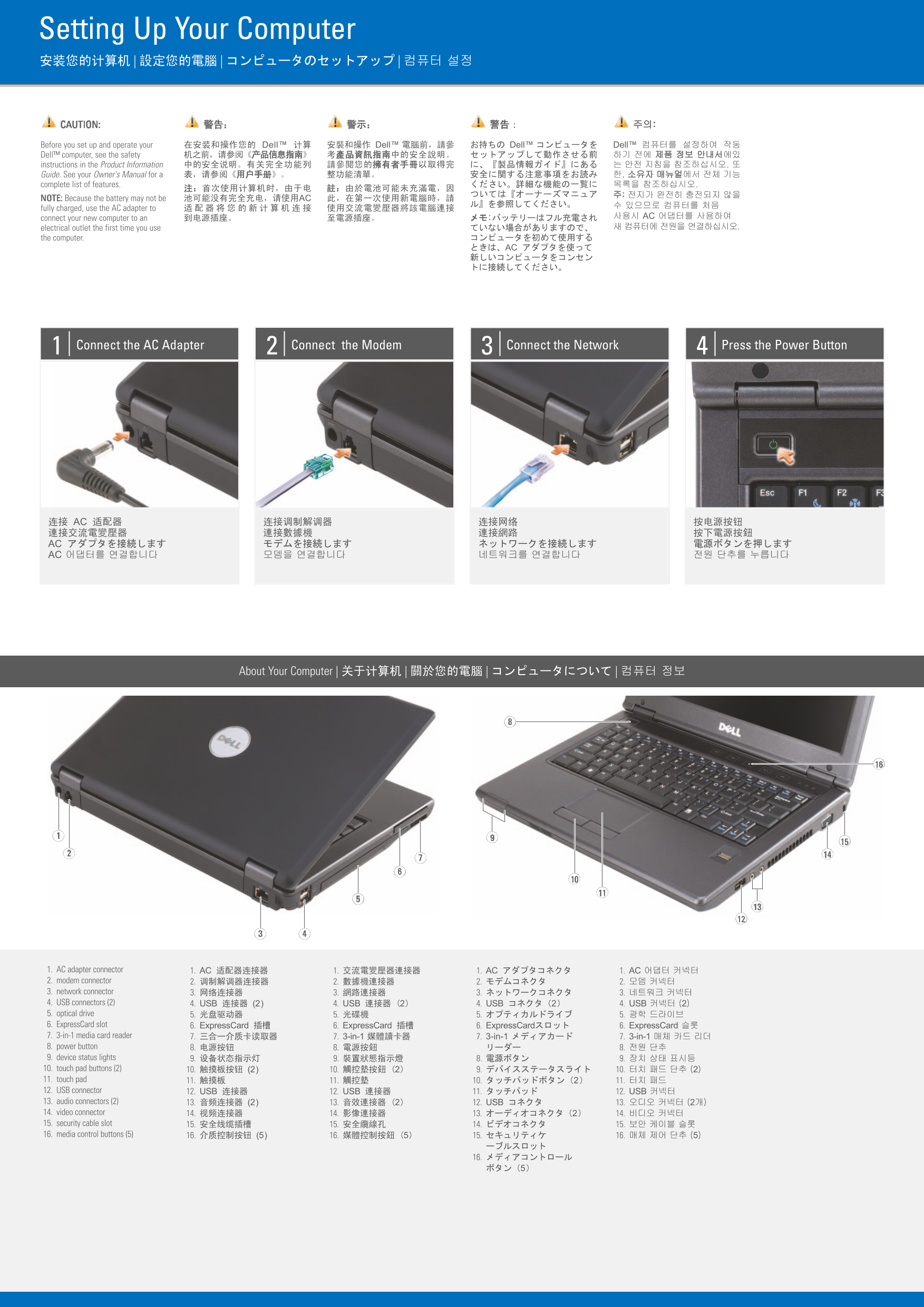
This setup guide for a Dell notebook computer provides multilingual illustrated instructions covering AC adapter connection, modem setup, network connectivity, and powering on. It features a detailed hardware diagram identifying 16 components including the AC adapter connector, modem and network connectors, USB ports, optical drive, ExpressCard slot, 3-in-1 media card reader, power button, device status lights, touchpad, keyboard, display latch, and speakers. Designed for new laptop owners who need a visual reference for basic setup and hardware identification.
Page 1 Text Content
Setting Up Your Computer 安装您的计算机 | 設定您的電腦 | コンピュータのセットアップ | 컴퓨터 설정
CAUTION: 警告: 警示: 警告: 주의:
Before you set up and operate your 在安装和操作您的 Dell™ 计算 安裝和操作 Dell™ 電腦前,請參 お持ちの Dell™ コンピュータを Dell™ 컴퓨터를 설정하여 작동 Dell™ computer, see the safety 机之前,请参阅《产品信息指南》 考產品資訊指南中的安全說明。 セットアップして動作させる前 하기 전에 제품 정보 안내서에있 instructions in the Product Information 中的安全说明。有关完全功能列 請參閱您的擁有者手冊以取得完 に、『製品情報ガイド』にある 는 안전 지침을 참조하십시오. 또 Guide. See your Owner's Manual for a 表,请参阅《用户手册》。 整功能清單。 安全に関する注意事項をお読み 한, 소유자 매뉴얼에서 전체 기능 complete list of features. ください。詳細な機能の一覧に 목록을 참조하십시오.
NOTE: Because the battery may not be 池可能没有完全充电,请使用AC 此,在第一次使用新電腦時,請
fully charged, use the AC adapter to 适配器将您的新计算机连接 使用交流電變壓器將該電腦連接
connect your new computer to an 到电源插座。 至電源插座。 メモ:バッテリーはフル充電され 사용시 AC 어댑터를 사용하여 electrical outlet the first time you use ていない場合がありますので、 새 컴퓨터에 전원을 연결하십시오.
the computer. コンピュータを初めて使用する ときは、AC アダプタを使って 新しいコンピュータをコンセン トに接続してください。
Connect the AC Adapter Connect the Modem Connect the Network Press the Power Button
连接 AC 适配器 连接调制解调器 连接网络 按电源按钮 連接交流電變壓器 連接數據機 連接網路 按下電源按鈕 AC アダプタを接続します モデムを接続します ネットワークを接続します 電源ボタンを押します AC 어댑터를 연결합니다 모뎀을 연결합니다 네트워크를 연결합니다 전원 단추를 누릅니다
About Your Computer | 关于计算机 | 關於您的電腦 | コンピュータについて | 컴퓨터 정보
1. AC adapter connector 1. AC 适配器连接器 1. 交流電變壓器連接器 1. AC アダプタコネクタ 1. AC 어댑터 커넥터 2. modem connector 2. 调制解调器连接器 2. 數據機連接器 2. モデムコネクタ 2. 모뎀 커넥터 3. network connector 3. 网络连接器 3. 網路連接器 3. ネットワークコネクタ 3. 네트워크 커넥터 4. USB connectors (2) 4. USB 连接器 (2) 4. USB 連接器 (2) 4. USB コネクタ(2) 4. USB 커넥터 (2) 5. optical drive 5. 光盘驱动器 5. 光碟機 5. オプティカルドライブ 5. 광학 드라이브 6. Express Card slot 6. Express Card 插槽 6. Express Card 插槽 6. Express Cardスロット 6. Express Card 슬롯 7. 3-in-1 media card reader 7. 三合一介质卡读取器 7. 3-in-1 媒體讀卡器 7. 3-in-1 メディアカード 7. 3-in-1 매체 카드 리더 8. power button 8. 电源按钮 8. 電源按鈕 リーダー 8. 전원 단추 9. device status lights 9. 设备状态指示灯 9. 裝置狀態指示燈 8. 電源ボタン 9. 장치 상태 표시등 10. touch pad buttons (2) 10. 触摸板按钮 (2) 10. 觸控墊按鈕 (2) 9. デバイスステータスライト 10. 터치 패드 단추 (2) 11. touch pad 11. 触摸板 11. 觸控墊 10. タッチパッドボタン(2) 11. 터치 패드 12. USB connector 12. USB 连接器 12. USB 連接器 11. タッチパッド 12. USB 커넥터 13. audio connectors (2) 13. 音频连接器 (2) 13. 音效連接器 (2) 12. USB コネクタ 13. 오디오 커넥터 (2개) 14. video connector 14. 视频连接器 14. 影像連接器 13. オーディオコネクタ(2) 14. 비디오 커넥터 15. security cable slot 15. 安全线缆插槽 15. 安全纜線孔 14. ビデオコネクタ 15. 보안 케이블 슬롯 16. media control buttons (5) 16. 介质控制按钮 (5) 16. 媒體控制按鈕 (5) 15. セキュリティケ 16. 매체 제어 단추 (5)
Page Summary Contents For Dell Vostro 1200 Installation Diagrams
Manual Details
| Brand | Dell |
|---|---|
| Pages | 2 |
| File Size | 446.69 KB |
| Published | July 02, 2026 |
Enter the captcha to get the download link:

Frequently Asked Questions
What must I do when using a new computer for the first time?
Connect it to an AC adapter and plug it into an electrical outlet to ensure it is fully charged.
Where can I find safety instructions and complete feature lists?
Please consult the Product Information Guide or your Owner's Manual for detailed warnings.
How do I set up a wireless network connection?
Refer to the wireless network guide manual provided with either the computer or the router.
What are the main physical connectors available on the device?
The ports include AC adapter, modem, network, USB, optical drive, and video connectors.