Dell Inspiron 20 3048 Quick User Guide - Windows 8
Summary
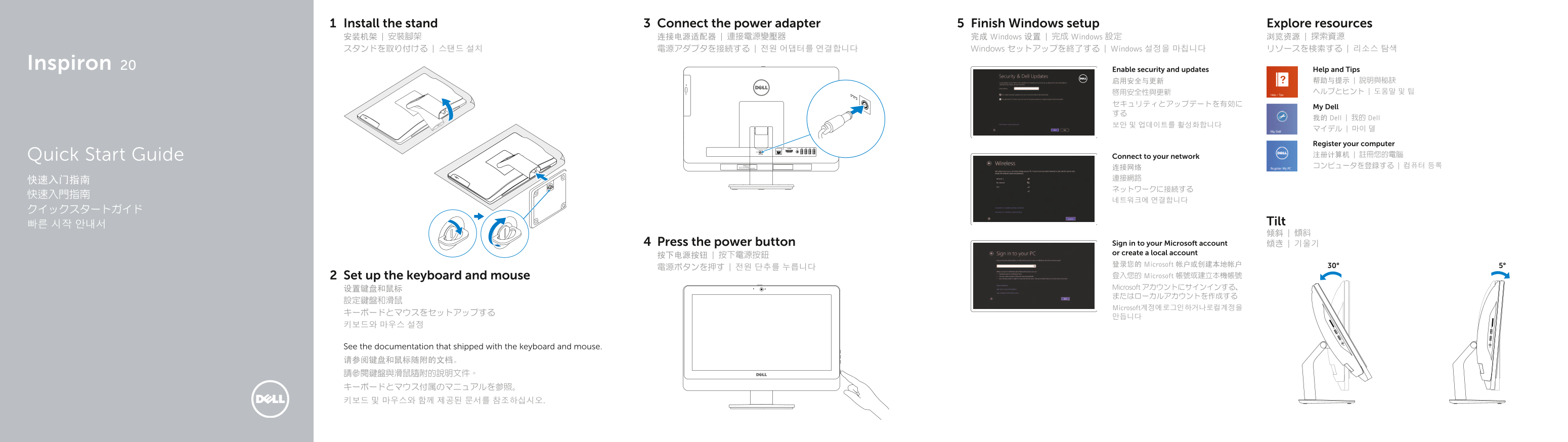
This Quick Start Guide for the Dell Inspiron 20 all-in-one desktop computer provides multilingual setup instructions covering stand installation with tilt adjustment (5 to 30 degrees), keyboard and mouse configuration, power adapter connection, and Windows setup. It includes a detailed hardware features diagram identifying the camera with cover latch, microphones, media card reader, USB ports, HDMI port, audio and network ports, and display controls. Designed for home users seeking a space-saving touchscreen desktop.
Page 1 Text Content
Install the stand Connect the power adapter Finish Windows setup Explore resources 安装机架 | 安裝腳架 连接电源适配器 | 連接電源變壓器 完成 Windows 设置 | 完成 Windows 設定 浏览资源 | 探索資源 スタンドを取り付ける | 스탠드 설치 電源アダプタを接続する | 전원 어댑터를 연결합니다 Windows セットアップを終了する | Windows 설정을 마칩니다 リソースを検索する | 리소스 탐색
Inspiron
Enable security and updates Help and Tips
My Dell
我的 Dell | 我的 Dell
Register your computer Quick Start Guide Connect to your network 注册计算机 | 註冊您的電腦 Express Service Code: 连接网络 コンピュータを登録する | 컴퓨터 등록
빠른 시작 안내서 Tilt 倾斜 | 傾斜
Press the power button Sign in to your Microsoft account 傾き | 기울기 or create a local account
登录您的 Microsoft 帐户或创建本地帐户 30° 5°
Set up the keyboard and mouse 登入您的 Microsoft 帳號或建立本機帳號 设置键盘和鼠标 Microsoft アカウントにサインインする、 またはローカルアカウントを作成する
Microsoft 계정에 로그인 하거나 로컬 계정을
See the documentation that shipped with the keyboard and mouse. 请参阅键盘和鼠标随附的文档。 請參閱鍵盤與滑鼠隨附的說明文件。 キーボードとマウス付属のマニュアルを参照。 키보드 및 마우스와 함께 제공된 문서를 참조하십시오.
Page Summary Contents For Dell Inspiron 20 3048 Quick User Guide - Windows 8
Manual Details
| Brand | Dell |
|---|---|
| Pages | 2 |
| File Size | 333.12 KB |
| Published | July 01, 2026 |
Enter the captcha to get the download link:

Frequently Asked Questions
How do I begin setting up or connecting the peripheral devices?
First, install the stand, connect the power adapter, and then set up the keyboard and mouse using their included documentation.
What are the available ports for external connections?
The model features HDMI and multiple USB ports (2.0 and 3.0), a network port, an audio-out/headset port, and a media card reader.
Where can I find product support manuals or technical help?
You can visit dell.com/support for detailed product information, or use the dedicated links to contact Dell directly at dell.com/contactdell.
Does the computer have any way to protect the camera when it is not in use?
Yes, the device includes a Camera-cover latch (カメラカバーラッチ) for securing the built-in camera.