Page 1
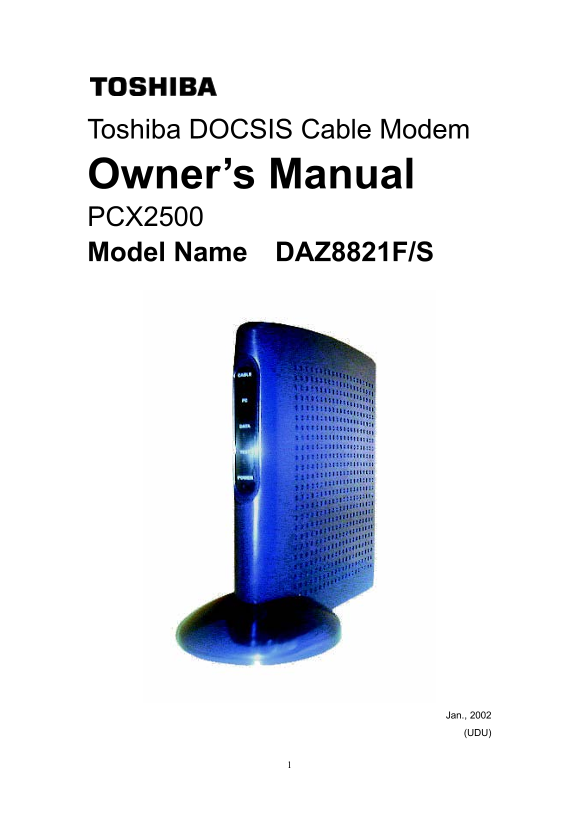
Toshiba DOCSIS Cable Modem Owner’s Manual PCX2500 Model Name DAZ8821F/S Jan., 2002 (UDU)
Page 2
Warning: This product may not be exported outside the US and Canada without US Department of Commerce, Bureau of Export Administration authorization. Any export or re-export by the purchaser, directly...
Page 3
Table of Contents Congratulations on Your Purchase 4 Contact Information 4 Support Information 4 Sales Information 4 Web Page 4 Important Rules for Safe Operation 5 Installation 5 Use 6 Service 7 Over...
Page 4
Congratulations on Your Purchase! Your new Toshiba DOCSIS Cable Modem will provide you with high-speed access to the Internet through your cable TV (CATV) network- accesses at a fraction of the time i...
Page 5
Important Rules for Safe Operation In addition to the careful attention devoted to quality standards in the manufacture of your Toshiba DOCSIS Cable Modem, safety is a major factor in the design of ev...
Page 6
Do Not Use Near Water - Do not use this product near water - for example, near a bath tub, sink or laundry tub, in a wet basement or near a swimming pool, and the like. Do Not Place Near High Temperat...
Page 7
Service Do Not Remove Covers - Do not attempt to service this product yourself, as opening or removing covers may expose you to dangerous voltage or other hazards. Refer all servicing to qualified ser...
Page 8
Overview The modem provides you with high-speed data communications over the television cable network by following the widely accepted DOCSIS/MCNS standards being developed by the Multimedia Cable Net...
Page 9
What is DOCSIS? Data Over Cable Service Interface Specifications. DOCSIS defines interface requirements for cable modems involved in high-speed data distribution over a cable television network. On No...
Page 10
Getting Started What’s in the Box? Make sure that you’ve received the following items. If any item is missing or damaged, contact your dealer immediately. ♦ Toshiba DOCSIS Cable Modem ♦ 10BASE-T Cable...
Page 11
Installing USB Drivers If use the USB interface, connect the cable modem to the PC via the USB, you must install the "USB Driver" in your PC as follows. These "USB Drivers" support...
Page 12
USB COMPOSITE DRIVER REMOVAL (1)Make sure that the USB cable is plugged into your PC. (2)Go to the Start button; choose "Settings" and then "Control Panel". (3)From inside the &quo...
Page 13
Diagnostics The Cable Modem has five status LEDs for diagnostics. You can monitor the LEDs during installation and during normal operations. Table 1 shows Cable Modem status LEDs and identifies what e...
Page 14
How to Use the Stand Please attach the stand to the front of the Cable Modem, referring to the figure below.
Page 15
Specifications The Toshiba DOCSIS Cable Modem is DOCSIS/MCNS compliant. RF Interface Receiver Physical Speed: 30 Mbps (64QAM) / 43 Mbps (256QAM) Symbol rate: 5.056941 Msym/sec (64QAM) 5.360537 Msym/se...
Page 16
Environmental Operating temperature: 32 to 104 degrees Fahrenheit Humidity: 10 to 90 percent (non-condensing) Storage temperature: -4 to 140 degrees Fahrenheit Safety: EN60950 UL1310 UL1950 EMC: EN550...
Page 17
Q & A Q: How to connect the cable modem to the hub/switch via the 10BASE-T ? A: Cable Modem is connected to the uplink port on the hub/switch, or use cross-over Ethernet cable to connect the norma...
Page 18
Q: Where can I download the driver for Cable modem? A: In case of use 10BASE-T interface, the Cable Modem is a stand-alone device that has a 10BASE-T port. All workstations or hub must have a 10BASE-T...
Page 19
Regulatory <>FCC Notice: This equipment has been tested and found to comply with the limits for a Class B personal computer and peripherals, pursuant to Part 15 of the FCC Rules. These limits ar...
Page 20
Glossary 10BASE-T Unshielded, twisted pair cable with an RJ-45 connector, used with Ethernet LAN. “10” indicates the speed (10 Mbps), “Base” refers to baseband technology, and “T” means twisted pair c...
Page 21
Modem registration The process the Toshiba Cable Modem uses to make itself known to the headend equipment. Once authorized by the router, the modem is assigned upstream and downstream channels for dat...
Page 22
Installing the Cable Modem To avoid thermal problems, allow at least one inch spacing between the ventilation holes and any object to either side of the unit. It's best to have no obstructions on top ...