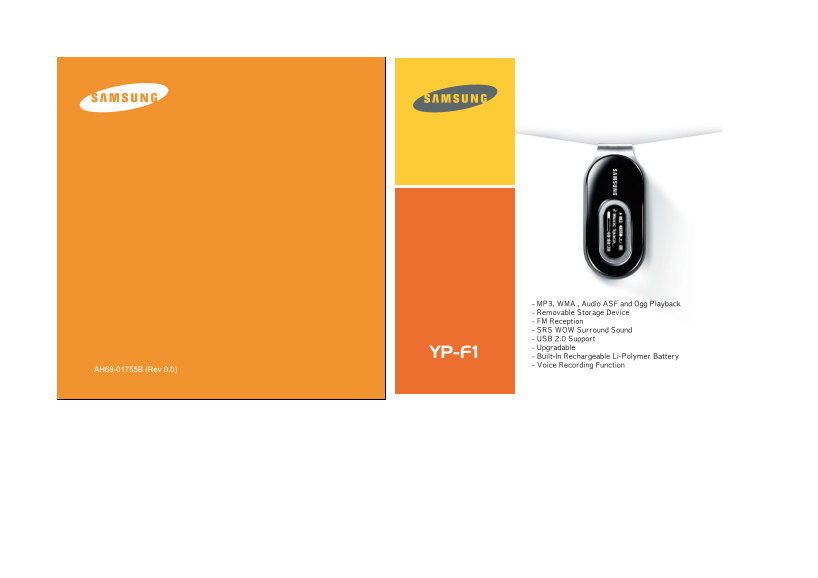
Page 1
AH68-01755B (Rev 0.0)
Page 2
Contents Contents Before You Begin Additional Usage Safety Instructions ...................................................................................................................................
Page 3
Safety Instructions Safety Instructions Read and understand all the instructions to avoid injury to yourself and damage to the equipment. Earphones Do not expose to extreme temper- Be careful not to s...
Page 4
Features Features MP3, WMA, Audio ASF and Ogg USB 2.0 Support ●Maximum data speed transfer of 18Mbps Playback ●The player supports playback of MP3, WMA, Audio ASF, and Ogg(Ogg Vorbis) ✻ OGG is a new a...
Page 5
Location of Controls Components Replacing the Player Cover ● Open the groove on the cover with your fingertips, take off the cover and put on another Connecting the cover of your desired color. Neckla...
Page 6
Charging the battery Components 1 Connect the USB cable to the USB port on your computer. Volume Control Menu/Navigation Button 2 Connect the other end of the USB cable to the USB Cable Connection Por...
Page 7
Connecting the Player to Your PC Connecting the Player to Your PC Make sure to install the USB driver before connecting the player to your PC. If 'Add Hardware wizard' appears, click the [Cancel] butt...
Page 8
Connecting the Player to Your PC Connecting the Player to Your PC How to check if USB driver is properly installed Connecting the player to PC with the USB cable Windows 98: Control Panel ➝ System ➝ D...
Page 9
Manual Installation of the USB Driver Manual Installation of the USB Driver If the USB driver has successfully installed, go to "Downloading/Uploading Files"(P19). If the USB driver is not a...
Page 10
Using the Player as a Removable Disk Manual Installation of the USB Driver In Windows 98 Downloading/Uploading Files Follow the instructions in the window to complete the installation. Connect the pla...
Page 11
Using the Player as a Removable Disk Using the Player as a Removable Disk Disconnecting the USB Cable Formatting the Player on your PC After completing the file transfer, you must disconnect the cable...
Page 12
Installing Music Studio Installing Music Studio Music Studio is a program that enables you to play back music files on your PC. To View Help on Music Studio Insert the Installation CD into CD-ROM driv...
Page 13
Recording Voice Playing Music Turning Power On and Off ✽To move to other modes from the Voice mode, Power On : Press and hold the button to turn on the power. refer to “Changing Mode”. Power Off : Pre...
Page 14
Listening to FM Radio Searching for Music/Voice Files Press and hold the “M” key. If the menu appears, select FM Radio. To Search for Specific Parts During Play ● Press and hold the , button during pl...
Page 15
Recording FM Listening to FM Radio Press and hold the REC button while receiving FM. Searching Stored Frequencies ● Recording of the current FM channel begins. Press the “M” key in the FM mode. Press ...
Page 16
Using Navigation MENU Options You can easily search for files or switch modes using the Navigation function. Press and hold the “M” key to switch to the Menu mode. Use , to move and press the “M” key ...
Page 17
Using Navigation Using Navigation Changing Mode Playing/Exiting Folder ● You can change the mode in the following method. Playing Folder ] Ex) To change from the Voice mode to the Music mode Press the...
Page 18
Setting the Advanced Functions Setting Playlist Setting Playlist Select Settings from the menu. (Refer to "Menu Options") - Move to the file you want in Navigation mode and press the “M” key...
Page 19
Sound Settings Selecting the Play mode Select Sound Effect in Settings. Preset EQ Select Play Mode in Settings. ●Use , to move to the sound mode you want and then press the “M” key. ●SRS → Tru Bass → ...
Page 20
Display Settings Sound Settings WOW Set Select Display in Settings. ●Use , to select the SRS function you want, and then press the “M” key. Scroll ●The SRS function is applied only when you select the...
Page 21
Language Settings Display Settings Select Language in Settings.I Screen Saver ● Use , to set Screen Saver. Menu ● You can set Screen Saver to Clock, Screen Saver1 or Clock ● Use , to select a desired ...
Page 22
Time Settings FM Radio Settings Select FM Radio in Settings. Select Time in Settings. Auto Preset Auto Off Time ● If you select Auto Preset, frequencies within the range of ● Use , to set the Auto Off...
Page 23
Managing Files Time Settings Select File in Settings. Time Set Deleting a File ● Select the Time Set to set the current time. Select Delete in File. If you have selected Clock for Screen Saver, you ca...
Page 24
Setting the System Setting the System Select System in Settings. Skip Interval Resume ● Use , to set Skip Interval. ● You can select 1Track 5sec 10sec 15sec 30sec Skip Interval ● Use , to select Resum...
Page 25
Troubleshooting MENU Table The software doesn’t work Refer to the System Requirements Music FM Radio Navigation Playlist Settings Exit The player does not work and the LCD displays nothing. Check the ...
Page 26
Specifications Troubleshooting The player is automatically turned off. Model YP-F1 In Stop mode, the power may automatically be turned off depending on settings. Built-in Memory capacity 256MB(YP-F1 V...
Page 27
Specifications Specifications The product unit accompanying this user manual is licensed under certain This marking shown on the product or its literature, indicates that it should not intellectual pr...