Page 1
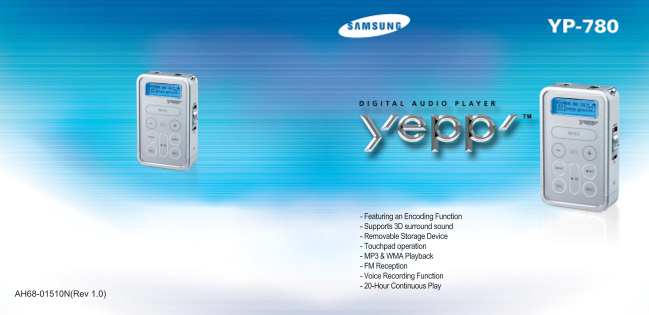
- Featuring an Encoding Function - Supports 3D surround sound - Removable Storage Device - Touchpad operation - MP3 & WMA Playback - FM Reception - Voice Recording Function - 20-Hour Continuous Pl...
Page 2
Contents Preparations Additional Usage Safety Instructions Loop Repeating Features Setting SRS MENU Mode Components Selecting the Play Mode Location of Controls (yepp) Selecting the EQ Mode Selecting ...
Page 3
Safety Instructions Read and understand all the instructions to avoid injury to yourself and damage to the equipment. Earphones Do not expose to extreme temper- Do not apply excessive pressure Do not ...
Page 4
Featuring an Encoding Function Touchpad operation You can make a MP3 file out of an source using the ENC jack on the main unit. You can easily operate the functions you want by using the touchpad. You...
Page 5
Components Voice Recording Function You can do a Voice Recording with high quality and use it for a conference. Player Earphones USB Cable User manual Sound You can adjust equalizer manually. Battery ...
Page 6
Location of Controls (yepp) Earphone Jack ENC Jack Display Playtime indicator Play/Stop/Pause indicator Microphone Equalizer, SRS indicator Remaining Battery Power indicator Neck strap Hook NOR Play m...
Page 7
Connecting yepp to PC System Before connecting yepp to PC, make sure to install USB driver. If “Add New Hardware Wizard” appears, Requirements. press the [Cancel] button and install USB driver. The PC...
Page 8
Connecting yepp to PC with USB cable Plug one end of the USB cable into the How to check USB driver USB port on the back of the PC. Windows 98/ME: Control Panel →System →Device Manager→ Connect the op...
Page 9
Manual Installation of USB Driver Go to “Downloading/Uploading files” if the USB driver is in place. Follow these steps if the USB driver is not in place : Check the device manager. After selecting th...
Page 10
Manual Installation of USB Driver In Windows 98 Click [Next] button in the series of windows that appear. Select [Specify a location] and then select [CD-ROM]/driver for win98. ●You must reboot your c...
Page 11
Using the removable storage Downloading/Uploading files Disconnecting the USB cable After completing the file transmission, you must disconnect the cable in the following way: Connect the yepp to your...
Page 12
Installing yepp Studio Insert the Installation CD into CD-ROM drive. Click [Next] in the series of windows that appear. Select [yepp Studio]. ●Please refer to Help for more information on how to use y...
Page 13
To View Help on yepp Studio Run yepp Studio and press F1. Note : ●Help will appear. ●Music recognition technology and related data are provided by Gracenote and Gracenote CDDB® Move the arrow to the t...
Page 14
Installing yepp WAV Converter Insert the Installation CD into CD-ROM drive. Click [Next] in the series of windows that appear. Select [yepp WAV Converter]. Select language
Page 15
Convert WAV File ●Press [yepp WAV Converter] in the Desktop to display WAV Converter window. To open the Voice file you want to convert To Play File To convert the Voice file to the WAV file. To delet...
Page 16
Playing Music and Turning Off the Device Adjusting the Volume/Hold Function First insert batteries and connect the earphone correctly. Adjusting the Volume Playing Music Pausing Music Move the , butto...
Page 17
Changing Modes Recording Voice Press the button briefly while the player is stopped. Press the button to start vioce recoding while the player is stopped.1 Move to the mode you want by using the , but...
Page 18
Encoding MP3s Connect the Audio Output port on the external audio source (or the Line Out port) If the button is pressed during encoding, the encoding stops and an encod- to the ENC port on the device...
Page 19
Searching for Music/Voice Files Note : To search for specific parts during play : To change tracks during play: To change tracks when stopped: ● VBR(Variable Bit Rate) file: MP3 file whose compression...
Page 20
Listening to FM Radio While the player is stopped, select FM Mode by using the button. Manual Search for a Frequency Automatic Search for a Frequency Searching Stored Frequencies ● Press the , buttons...
Page 21
Encoding From FM Radio Loop Repeating Press the button during FM reception. Starting Point Ending Point ● Encoding of the currently transmitted FM broadcast begins. 00 : 00 : 50 FMENC 64K While playin...
Page 22
Setting SRS MENU Mode Press the button in Music mode to select the desired SRS mode. To switch to Menu Mode, press and hold the button while in Music/Voice Mode. After moving with the , buttons, press...
Page 23
Selecting the Play mode Selecting the EQ mode Select PLAY MODE in the MENU. (refer to “MENU Mode”) Select EQUALIZER in the MENU. (refer to “MENU Mode”) Use the , buttons to move to the mode you Use th...
Page 24
Selecting the Play Folder Managing Files Select Folder Play in the MENU. (refer to “MENU Mode”) Deleting ● : This signifies the root folder; the files in the folder are played if the Menu button is pr...
Page 25
Setting Advanced Functions Select SETTING in the MENU. (refer to “MENU Mode”) Formatting Use the , buttons to move to the function you want to change and select Select FILE in the MENU. (refer to “MEN...
Page 26
DISPLAY Select DISPLAY in the MENU. CONTRAST INFORMATION ● Use the , buttons to set the Contrast. ● Use the , buttons to select the music mode and select the content to be displayed ● The setting rang...
Page 27
SOUND CONTROL Select SOUND CONTROL in the MENU. ENCODE BIT RATE ● Use the , buttons to sel the desired MP3 WOW LEVEL encoding bit rate. ENCODE BPS ● The levels of SRS and TRUBASS can be adjusted. ● Yo...
Page 28
TIME CONTROL Setting the FM Frequency Unit Select TIME CONTROL in the Menu. You can set the unit of frequency movement in FM mode. INTRO TIME Select FM STEP in the MENU. ● Use the , buttons to set the...
Page 29
MENU Table PLAY MODE FOLDER PLAYEQUALIZER FILE SETTING EXIT NORMAL FOLDERS DISPLAY INFORMATION NORMAL DELETE YES BACK LIGHT CLASSIC NO. . . CONTRAST REPEAT ONE JAZZ SCROLL SPEED ROCK LANGUAGE REPEAT A...
Page 30
Troubleshooting The software doesn’t work The buttons do not work. ● Refer to the recommended PC specifications. ● Check setting of Hold switch. yepp does not work and the LCD displays nothing. yepp k...
Page 31
Specifications MEMO Model YP-780 Built-in Memory capacity 1GB(YP-780 Z)/512MB(YP-780 X)/256MB(YP-780 V)/128MB(YP-780 H) Voltage 1.5V x 2 (AAA/LR03 size alkaline battery) Playing time lasts up to 20hou...
Page 32
MEMOMEMO