Page 1
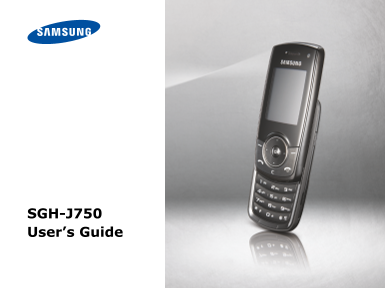
SGH-J750 User’s Guide
Page 2
Drive safely at all times Do not use a hand-held phone while driving. Park your vehicle first. Switch off the phone when refuelling Important safety Do not use the phone at a refuelling point (service...
Page 3
Be aware of special regulations Accessories and b atteries Meet any special regulations in force in any Use only Samsung-a pproved batteries and area and always switch off your phone accessories, such...
Page 4
About this Guide 3G You r phone is capable of This User’s Guide provides you with op erating in a 3G condensed information about how to use en vironment, allowing your phone. mu ch greater data tra ns...
Page 5
Java We b browser Enjoy Java-based games Ac cess the wireless web and download new to get up-to-the-minute games. inf ormation and a wide va riety of media content. Image editor SO S message Edit or d...
Page 6
Send messages....................................... Contents View messages Use Bluetooth Unpack Switch applications.................................. Make sure you have each item Menu functions Get s...
Page 7
Over view of menu functions To access M enu mode, press [OK] in Idle mode. 1 Call log 5 Messages 8 Camera # Settings 1 Create message 1 Phone profiles 2 Inbox 2 Time & date 2 Phoneboo 3 Email inbo...
Page 8
Unpack Get started Make sure you have each item First steps to operatin g your phone Phone Travel adapter Assemble and charge the Battery phone User’s Guide You can obtain various accessories from you...
Page 9
Removing the battery cover Phone layout Front view Earpiece camera lens Power on or off Display Menu access/ Switch on 1. Open the phone. Confirm key Navigation keys (Up/Down/Left/ 2. Press and hold [...
Page 10
Get started Rear view Keys and icons camera lens Perform t he function indicated on the bottom line of the display. In Idle m ode, access your favourite menus directly. In Menu m ode, scroll through C...
Page 11
Press and hold to switch the In Idle mo de, press and hold to phone on or off. turn on th e camera. End a call. In Camera mode, take a photo or record a v ideo. In Menu mode, cancel input and return t...
Page 12
Get started EDGE network Browsing Internet Connecting to EDGE network or Connecte d to secured web page transferring data in EDGE Memory card inserted network New mes sage: UMTS (3G) network Text mess...
Page 13
Access menu functions Enter text Select an 1. Press a desired soft key. Change the Pr ess and hold [ ] to option text input sw itch between T9 mode 2. Press the Navigation keys mode an d ABC mode. to ...
Page 14
Get started Customise you3. r phone When the word displays correctly, press [ ] to insert a space. 1. n Idle mode, press [OK] Display nd select Settings → Otherwise, press [0] to language hone setting...
Page 15
4. Select Voice call 1. n Idle mode, press [OK] Idle mode ringtone → a category → nd select Settings → wallpaper a ringtone. isplay & light ettings → Display 5. Select Video call ettings → Wallpap...
Page 16
Step outsid e the phone 1. In Idle mode, press Phone lock [OK] and select Begin with call functio ns, camera, media player, Settings → Security → web browser, and oth er special features Phone lock. 2...
Page 17
1. When the phone rings, 4. uring a multi-party Answer press [ all: a call If it is a video call, press Press <Options> <Show me> to allow and select Split to the caller to see you via hav...
Page 18
Step outside the phone 3. Press [OK] or [Camera] 4. ress [OK] or [Camera] to take a photo. The o stop recording. The photo is saved ideo is saved automatically. utomatically. 4. Press < > to tak...
Page 19
Receive via Bluetooth. 1. elect the file you want Play music o play. Copy to a memory card files and insert the card into 2. uring playback, use the the phone. ollowing keys: OK: pause or resume 1. In...
Page 20
Step outside the phone Browse the web 3. or Phone, select a umber type. In Idle mode, press < Launch The homepage of your 4. pecify contact the web service provider opens. in formation. browser 5. ...
Page 21
Send messages 4. dd a media file, contact, alendar item, or 1. In Idle mode, press Send a text ookmark item. > and select Create message message → Message. 5. ress <Options> and elect Add sub...
Page 22
Step outside the phone 3. Press <Options> and 1. n Idle mode, press View a select Add attachment > and select Inbox. multimedia or Create item. message 2. elect a multimedia 4. Add a media fi...
Page 23
1. In Idle mode, press [OK] 3. En ter a Bluetooth PIN or Turn on and select Settings‡ → th e other device’s Bluetooth Network settings‡ → Bl uetooth PIN, if it has Bluetooth → Activation on e, and pre...
Page 24
Step outside the phone 1. When a device attempts 1. hile using a menu, Receive Switch to an to access your phone, ress [Application data application press <Yes> to permit witch]. the connection....
Page 25
Menu functions Internet Menu escription All menu options listed This section provides brief explanations of Go to onnect your phone to menu functions on your phone. homepage th e network and load the ...
Page 26
Menu functions Menu Description Menu escription Advanced Clear the cache. Delete Email inbox ccess emails that you cookies or set whether or ave received. not they are stored. Drafts ccess messages th...
Page 27
Menu Description Menu escription Messages Set up various options Games and ccess the Java games settings for using the messaging more nd download Java services. pplications. SOS messages Specify optio...
Page 28
Menu functions Google/Bluetooth Menu escription Depending on your country or service World clock et your local time zone provider, you may have one of these two nd find out the current menus here: ti ...
Page 29
Alarms Menu escription Set a wake-up call to wake you up in the Display & light nter the greeting that is morning or an alarm to alert you to an event settings → isplayed briefly on the at a speci...
Page 30
Menu functions Menu Description Menu escription Display & light Select a clock type to be Phone settings heck your phone settings → displayed on the idle → Own number umbers or assign a Display se...
Page 31
Menu Description Menu escription Security → SIM Set the phone to work Security → hange the PIN. lock only with the current Change PIN USIM or SIM card by code assigning a SIM lock Security → hange the...
Page 32
Menu functions Menu Description Menu escription Network Connect the phone Memory heck information about settings → wirelessly to other settings th e memory currently in Bluetooth‡ Bluetooth devices. s...
Page 33
The highest SAR value for this model phone was Health and safety information 0.536 W/kg. SAR tests are conducte d using standard operating SAR certification information positions with the phon e trans...
Page 34
Health and safety information Battery charging time depends on the remaining Do not short-circuit the battery. Accidental battery charge, the type of battery, and the short-circuiting can occur when a...
Page 35
When connecting the phone or any accessory to Hearing aids another device, read its user’s guide for detailed Some digital wireless p hones may interfere with safety instructions. Do not connect incom...
Page 36
Health and safety information Potentially explosive environments To make or receive call s, the phone must be switched on and in a se rvice area with adequate Switch off your phone when in any area wi...
Page 37
For vehicles equipped with an air bag, Do not use the phon e with a wet hand. Doing so remember that an air bag inflates with great may cause an electr ic shock to you or damage force. Do not place ob...
Page 38
Health and safety information When the phone or battery gets wet, the label indicating water damage inside the phone changes colour. In this case, phone repairs are no longer guaranteed by the manufac...
Page 40
* Depending on the software installed or your service provider or country, some of the descriptions in this guide may not match your phone exactly. * Depending on your country, your phone and accessor...