Roland PCR-300 MIDI Keyboard Setup Guide - English
Summary
This comprehensive guide is for owners of the PCR MIDI controller, an essential tool for musicians and music production enthusiasts. You will learn how to set up your unit with detailed instructions for both Windows and macOS systems. The manual covers fundamental concepts like MIDI signaling, full driver installation, using bundled software (Cakewalk), and utilizing the specialized PCR Editor to custom-map controllers. Perfect for audio producers or students looking to integrate a versatile keyboard interface into their Digital Audio Workstation (DAW) setup.
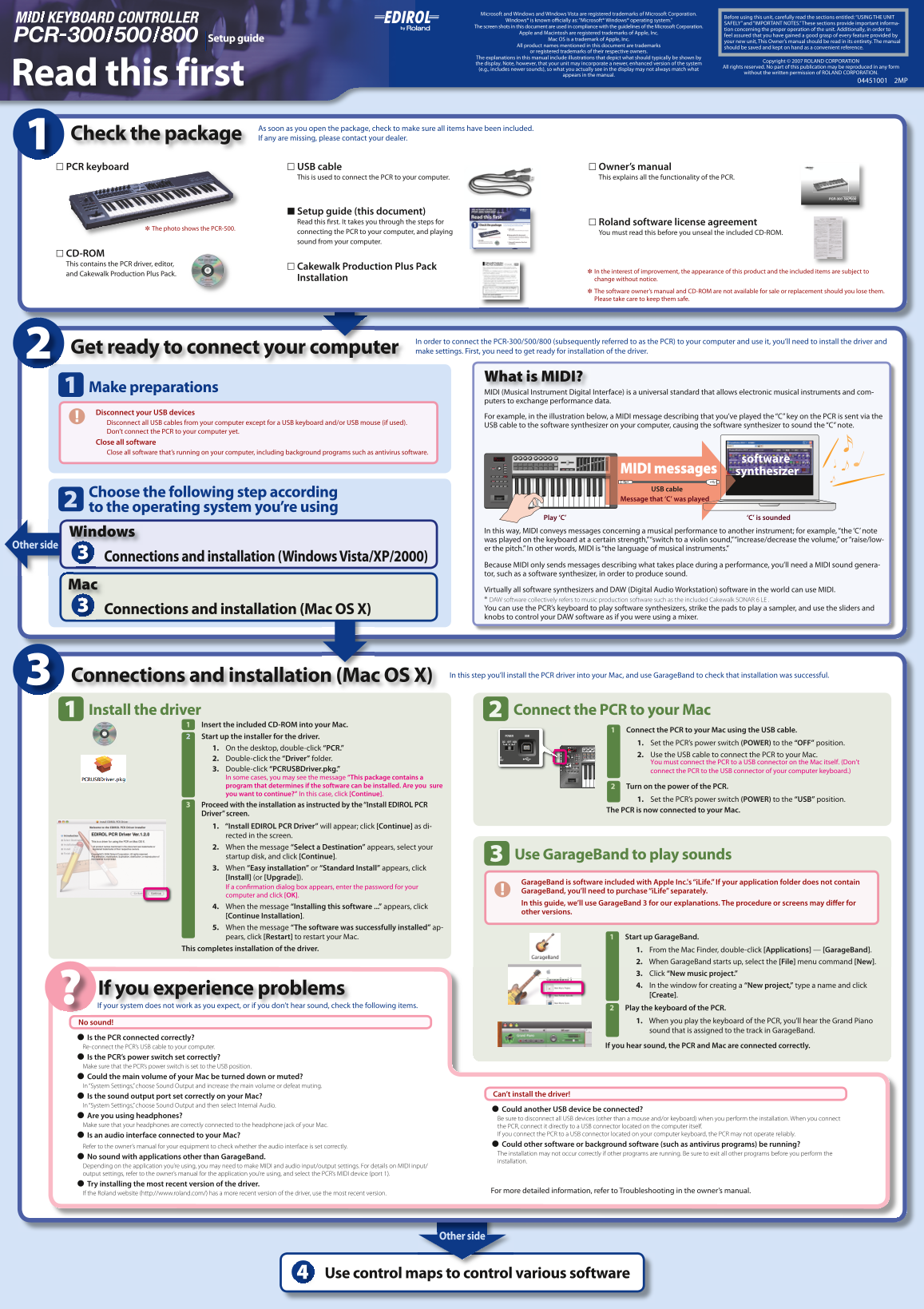
Page 1 Text Content
Microsoft and Windows and Windows Vista are registered trademarks of Microsoft Corporation.
Before using this unit, carefully read the sections entitled: “USING THE UNIT
Windows® is known o cially as: “Microsoft® Windows® operating system.”
SAFELY” and “IMPORTANT NOTES.” These sections provide important informa-
The screen shots in this document are used in compliance with the guidelines of the Microsoft Corporation.
tion concerning the proper operation of the unit. Additionally, in order to
Apple and Macintosh are registered trademarks of Apple, Inc.
feel assured that you have gained a good grasp of every feature provided by
Setup guide Mac OS is a trademark of Apple, Inc.
your new unit, This Owner’s manual should be read in its entirety. The manual
All product names mentioned in this document are trademarks
should be saved and kept on hand as a convenient reference.
or registered trademarks of their respective owners.
The explanations in this manual include illustrations that depict what should typically be shown by
Copyright © 2007 ROLAND CORPORATION
the display. Note, however, that your unit may incorporate a newer, enhanced version of the system
All rights reserved. No part of this publication may be reproduced in any form
(e.g., includes newer sounds), so what you actually see in the display may not always match what
without the written permission of ROLAND CORPORATION.
appears in the manual.
Read this first 04451001 2MP
As soon as you open the package, check to make sure all items have been included.
Check the package If any are missing, please contact your dealer.
PCR keyboard☐ USB cable☐ Owner’s manual☐
This is used to connect the PCR to your computer. This explains all the functionality of the PCR.
Setup guide (this document)■ Read this rst. It takes you through the steps for Roland software license agreement☐
The photo shows the PCR-500.✽
connecting the PCR to your computer, and playing You must read this before you unseal the included CD-ROM. sound from your computer.
CD-ROM☐ This contains the PCR driver, editor,
Cakewalk Production Plus Pack
In the interest of improvement, the appearance of this product and the included items are subject to
and Cakewalk Production Plus Pack.
Installation change without notice.
The software owner’s manual and CD-ROM are not available for sale or replacement should you lose them. Please take care to keep them safe.
In order to connect the PCR-300/500/800 (subsequently referred to as the PCR) to your computer and use it, you’ll need to install the driver and
Get ready to connect your computer make settings. First, you need to get ready for installation of the driver.
What is MIDI?
Make preparations
MIDI (Musical Instrument Digital Interface) is a universal standard that allows electronic musical instruments and com- puters to exchange performance data.
Disconnect your USB devices
For example, in the illustration below, a MIDI message describing that you’ve played the “C” key on the PCR is sent via the
Disconnect all USB cables from your computer except for a USB keyboard and/or USB mouse (if used).
USB cable to the software synthesizer on your computer, causing the software synthesizer to sound the “C” note.
Don’t connect the PCR to your computer yet. Close all software Close all software that’s running on your computer, including background programs such as antivirus software.
software synthesizer MIDI messages
USB cable
Choose the following step according
Message that ‘C’ was played
to the operating system you’re using
Play ‘C’ ‘C’ is sounded
Windows In this way, MIDI conveys messages concerning a musical performance to another instrument; for example, “the ‘C’ note was played on the keyboard at a certain strength,” “switch to a violin sound,” “increase/decrease the volume,” or “raise/low-
Other side
er the pitch.” In other words, MIDI is “the language of musical instruments.”
Connections and installation (Windows Vista/XP/2000)
Because MIDI only sends messages describing what takes place during a performance, you’ll need a MIDI sound genera- tor, such as a software synthesizer, in order to produce sound.
Virtually all software synthesizers and DAW (Digital Audio Workstation) software in the world can use MIDI. * DAW software collectively refers to music production software such as the included Cakewalk SONAR 6 LE . Connections and installation (Mac OS X) You can use the PCR’s keyboard to play software synthesizers, strike the pads to play a sampler, and use the sliders and knobs to control your DAW software as if you were using a mixer.
Connections and installation (Mac OS X) In this step you’ll install the PCR driver into your Mac, and use Garage Band to check that installation was successful.
Install the driver Connect the PCR to your Mac
Insert the included CD-ROM into your Mac.
Connect the PCR to your Mac using the USB cable.
Start up the installer for the driver.
1. Set the PCR’s power switch (POWER) to the “OFF” position.
1. On the desktop, double-click “PCR.”
2. Use the USB cable to connect the PCR to your Mac.
2. Double-click the “Driver” folder.
You must connect the PCR to a USB connector on the Mac itself. (Don’t
3. Double-click “PCRUSBDriver.pkg.” connect the PCR to the USB connector of your computer keyboard.) In some cases, you may see the message “This package contains a program that determines if the software can be installed. Are you sure Turn on the power of the PCR. you want to continue?” In this case, click [Continue].
1. Set the PCR’s power switch (POWER) to the “USB” position.
Proceed with the installation as instructed by the “Install EDIROL PCR
The PCR is now connected to your Mac.
Driver” screen. 1. “Install EDIROL PCR Driver” will appear; click [Continue] as di- rected in the screen. 2. When the message “Select a Destination” appears, select your startup disk, and click [Continue]. Use Garage Band to play sounds 3. When “Easy installation” or “Standard Install” appears, click [Install] (or [Upgrade]).
Garage Band is software included with Apple Inc.'s “i Life.” If your application folder does not contain
If a con rmation dialog box appears, enter the password for your
Garage Band, you’ll need to purchase “i Life” separately.
computer and click [OK].
In this guide, we’ll use Garage Band 3 for our explanations. The procedure or screens may di er for
4. When the message “Installing this software ...” appears, click
other versions.
[Continue Installation]. 5. When the message “The software was successfully installed” ap- pears, click [Restart] to restart your Mac. Start up Garage Band.
This completes installation of the driver. 1. From the Mac Finder, double-click [Applications] — [Garage Band].
2. When Garage Band starts up, select the [File] menu command [New]. 3. Click “New music project.” 4. In the window for creating a “New project,” type a name and click
If you experience problems
[Create].
If your system does not work as you expect, or if you don’t hear sound, check the following items.
Play the keyboard of the PCR. No sound! 1. When you play the keyboard of the PCR, you’ll hear the Grand Piano sound that is assigned to the track in Garage Band.
Is the PCR connected correctly?
Re-connect the PCR’s USB cable to your computer. If you hear sound, the PCR and Mac are connected correctly.
Is the PCR’s power switch set correctly? Make sure that the PCR’s power switch is set to the USB position. Could the main volume of your Mac be turned down or muted? In “System Settings,” choose Sound Output and increase the main volume or defeat muting.
Can’t install the driver!
Is the sound output port set correctly on your Mac? In “System Settings,” choose Sound Output and then select Internal Audio.
Could another USB device be connected?
Are you using headphones?
Be sure to disconnect all USB devices (other than a mouse and/or keyboard) when you perform the installation. When you connect
Make sure that your headphones are correctly connected to the headphone jack of your Mac. the PCR, connect it directly to a USB connector located on the computer itself.
Is an audio interface connected to your Mac? If you connect the PCR to a USB connector located on your computer keyboard, the PCR may not operate reliably. Could other software or background software (such as antivirus programs) be running?
Refer to the owner’s manual for your equipment to check whether the audio interface is set correctly.
The installation may not occur correctly if other programs are running. Be sure to exit all other programs before you perform the
No sound with applications other than Garage Band.
installation.
Depending on the application you’re using, you may need to make MIDI and audio input/output settings. For details on MIDI input/ output settings, refer to the owner’s manual for the application you’re using, and select the PCR’s MIDI device (port 1). Try installing the most recent version of the driver.
For more detailed information, refer to Troubleshooting in the owner’s manual.
If the Roland website (http://www.roland.com/) has a more recent version of the driver, use the most recent version.
Other side
Use control maps to control various software
Page Summary Contents For Roland PCR-300 MIDI Keyboard Setup Guide - English
Manual Details
| Brand | Roland |
|---|---|
| Pages | 2 |
| File Size | 5.78 MB |
| Published | May 27, 2026 |
Enter the captcha to get the download link:

Frequently Asked Questions
What should I do immediately after opening the package?
Check to make sure all included items (PCR keyboard, USB cable, Owner’s manual) are present and contact your dealer if anything is missing.
How does MIDI function in musical performance?
MIDI sends messages describing musical events—like pressing a key or changing volume—allowing electronics and computers to exchange data without generating sound themselves.
How do I install the PCR driver for Windows XP/2000?
Navigate to CD-ROM’s [EDITOR] – [Xp2k] folder, double-click “SETUP,” select [MIDI Devices...] in [Options], and follow the installer wizard steps.
What is required to produce sound using the PCR via MIDI?
Because MIDI only sends performance messages, you need a separate source of sound, such as a software synthesizer or DAW software.