Roland A-88 MIDI Keyboard Controller Addendum User's Manual
Summary
This guide provides essential instructions for connecting the A-88 keyboard to diverse digital setups, including iPad or desktop computers. It details the necessary setup procedures, such as utilizing a Camera Connector Kit and executing required USB driver adjustments, ensuring reliable MIDI connectivity. Perfect for musicians and creators who require versatile portability, allowing seamless transition between mobile devices and professional computer environments while maintaining optimal performance.
Page 1 Text Content
Connecting the A-88 to an i Pad Before you continue, please make sure to access the following URL and check the operating requirements and other relevant information. http://www.roland.com/support/
NOTE • The first-generation i Pad cannot be used. • The i Pad app you’re using must support Core MIDI.
You’ll need to provide the following items • i Pad (made by the Apple Inc.) • Apple i Pad Camera Connection Kit (Camera Connector; made by the Apple Inc.) • USB cable (included with the A-88)
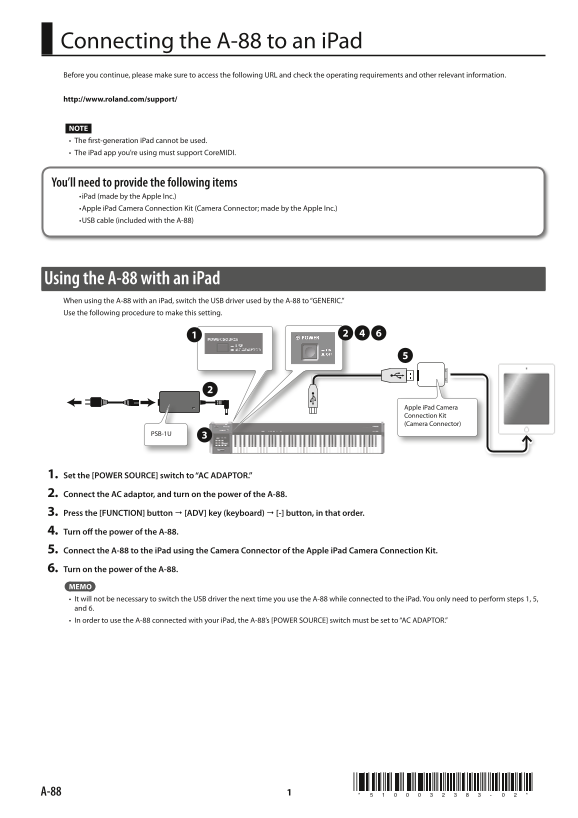
Using the A-88 with an i Pad When using the A-88 with an i Pad, switch the USB driver used by the A-88 to “GENERIC.” Use the following procedure to make this setting.
Apple i Pad Camera Connection Kit (Camera Connector)
PSB-1U
1. Set the [POWER SOURCE] switch to “AC ADAPTOR.” 2. Connect the AC adaptor, and turn on the power of the A-88. 3. Press the [FUNCTION] button " [ADV] key (keyboard) " [-] button, in that order. 4. Turn off the power of the A-88. 5. Connect the A-88 to the i Pad using the Camera Connector of the Apple i Pad Camera Connection Kit. 6. Turn on the power of the A-88. MEMO • It will not be necessary to switch the USB driver the next time you use the A-88 while connected to the i Pad. You only need to perform steps 1, 5, and 6. • In order to use the A-88 connected with your i Pad, the A-88’s [POWER SOURCE] switch must be set to “AC ADAPTOR.”
Page Summary Contents For Roland A-88 MIDI Keyboard Controller Addendum User's Manual
Manual Details
| Brand | Roland |
|---|---|
| Pages | 2 |
| File Size | 1.09 MB |
| Published | May 31, 2026 |
Enter the captcha to get the download link:

Frequently Asked Questions
What specific iPad requirements must I meet to use the A-88?
The iPad app must support CoreMIDI, and you cannot use a first-generation iPad.
How do I connect the A-88 to an iPad power source?
Set the [POWER SOURCE] switch to “AC ADAPTOR,” connect the AC adaptor, and turn on the A-88's power.
What should I remember when switching between connecting the A-88 to an iPad and a computer?
When moving from iPad to Computer, set the USB driver to 'ADVANCED'; otherwise, setting it to 'GENERIC' is sufficient for iPad use.