Roland FP-7F Digital Piano Applications Guide
Summary
Transform your live musical performances with the Audio Key Utility 3. This essential software empowers keyboardists to manage, set up, and instantly load complex audio file sets—such as jazzy chord progressions, blues backings, drum loops, and vocal accompaniments—directly onto their digital keyboards via connected USB memory. The manual guides you through installation, assigning tailored patterns for various musical genres (jazz, rock, funk, etc.) to specific keys, and ensuring seamless transfer and operation for advanced live performance needs.
Page 1 Text Content
AKU3_QG_e02.fm ページ 2010年9月29日 水曜日 午前9時40分
Copyright © 2009 ROLAND CORPORATION Audio Key Utility 3 All rights reserved. No part of this publication may be reproduced in any form without the written permission of ROLAND CORPORATION.
Quick Guide
Audio Key Utility 3
You can use “Audio Key Utility 3” even if the owner’s manual of the product you’re using refers to “Audio Key Utility” or “Audio Key Utility 2.”
What is the Audio Key Utility?
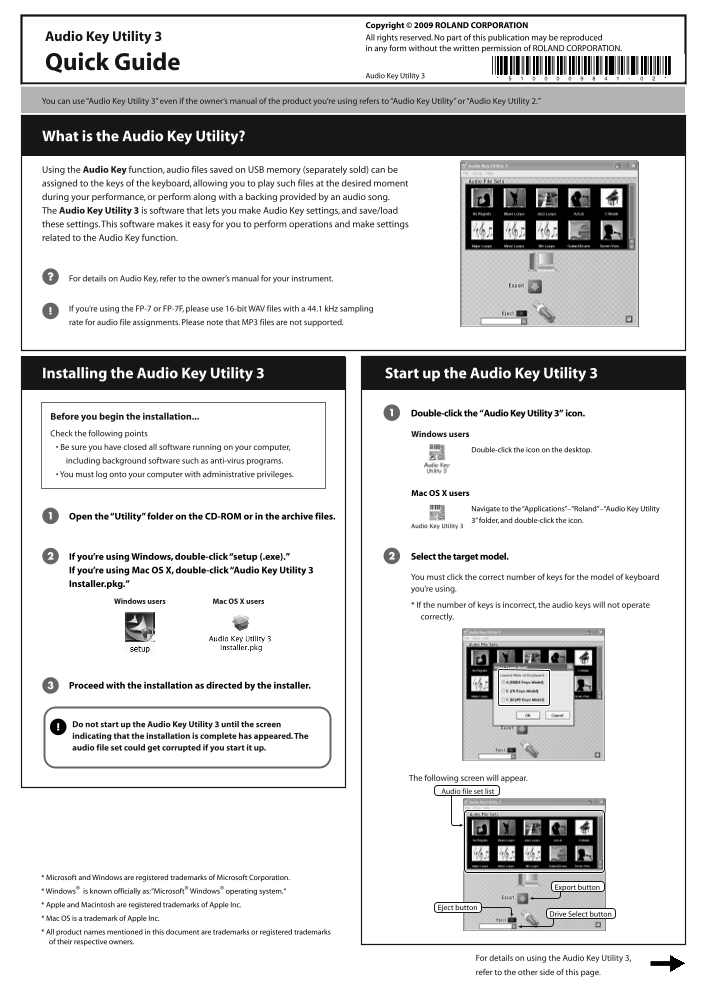
Using the Audio Key function, audio files saved on USB memory (separately sold) can be assigned to the keys of the keyboard, allowing you to play such files at the desired moment during your performance, or perform along with a backing provided by an audio song. The Audio Key Utility 3 is software that lets you make Audio Key settings, and save/load these settings. This software makes it easy for you to perform operations and make settings related to the Audio Key function.
For details on Audio Key, refer to the owner’s manual for your instrument.
If you’re using the FP-7 or FP-7F, please use 16-bit WAV files with a 44.1 k Hz sampling rate for audio file assignments. Please note that MP3 files are not supported.
Installing the Audio Key Utility 3 Start up the Audio Key Utility 3
Double-click the “Audio Key Utility 3” icon.
Before you begin the installation... Check the following points Windows users • Be sure you have closed all software running on your computer,
Double-click the icon on the desktop.
including background software such as anti-virus programs. • You must log onto your computer with administrative privileges.
Mac OS X users
Navigate to the “Applications”–“Roland”–“Audio Key Utility
Open the “Utility” folder on the CD-ROM or in the archive files.
3” folder, and double-click the icon.
If you’re using Windows, double-click “setup (.exe).” Select the target model.2
If you’re using Mac OS X, double-click “Audio Key Utility 3
You must click the correct number of keys for the model of keyboard
Installer.pkg.”
you’re using.
Mac OS X users Windows users
* If the number of keys is incorrect, the audio keys will not operate correctly.
Proceed with the installation as directed by the installer.
Do not start up the Audio Key Utility 3 until the screen indicating that the installation is complete has appeared. The audio file set could get corrupted if you start it up.
The following screen will appear. Audio file set list
* Microsoft and Windows are registered trademarks of Microsoft Corporation.
Export button
* Windows® is known officially as: “Microsoft® Windows® operating system.“ * Apple and Macintosh are registered trademarks of Apple Inc.
Eject button
Drive Select button
* Mac OS is a trademark of Apple Inc. * All product names mentioned in this document are trademarks or registered trademarks of their respective owners.
For details on using the Audio Key Utility 3, refer to the other side of this page.
Page Summary Contents For Roland FP-7F Digital Piano Applications Guide
Manual Details
| Brand | Roland |
|---|---|
| Pages | 2 |
| File Size | 267.66 KB |
| Published | June 01, 2026 |
Enter the captcha to get the download link:

Frequently Asked Questions
What is the primary function of Audio Key Utility 3?
It is software that allows users to make, save, and load settings for the Audio Key function, which assigns audio files from USB memory to keyboard keys.
Are MP3 files supported for audio assignments?
No. The manual specifies a maximum sampling rate of 44.1 kHz and requires 16-bit WAV files; MP3 files are not supported.
How do I install the software on a Mac OS X system?
Navigate to the 'Applications'–'Roland'–'Audio Key Utility 3' folder, and double-click the icon. You must also select the correct key count for your model.
What mandatory precautions should I take when disconnecting the USB memory?
Ensure you use the "Eject" button before physically disconnecting the USB memory to prevent data corruption.