Netgear EX6400v2 - AC1900 WiFi Mesh Extender Essentials Edition Installation Guide
Summary
Enhance your home network reliability with this Mesh Wi-Fi Extender. This comprehensive guide provides step-by-step instructions for effortless setup using the Nighthawk app or WPS connection. Learn how to extend seamless WiFi coverage, troubleshoot connectivity issues based on detailed LED status descriptions, and manage advanced router settings like MAC filtering (ACL). Ideal for homeowners and tech users needing strong, consistent internet performance throughout their entire space.
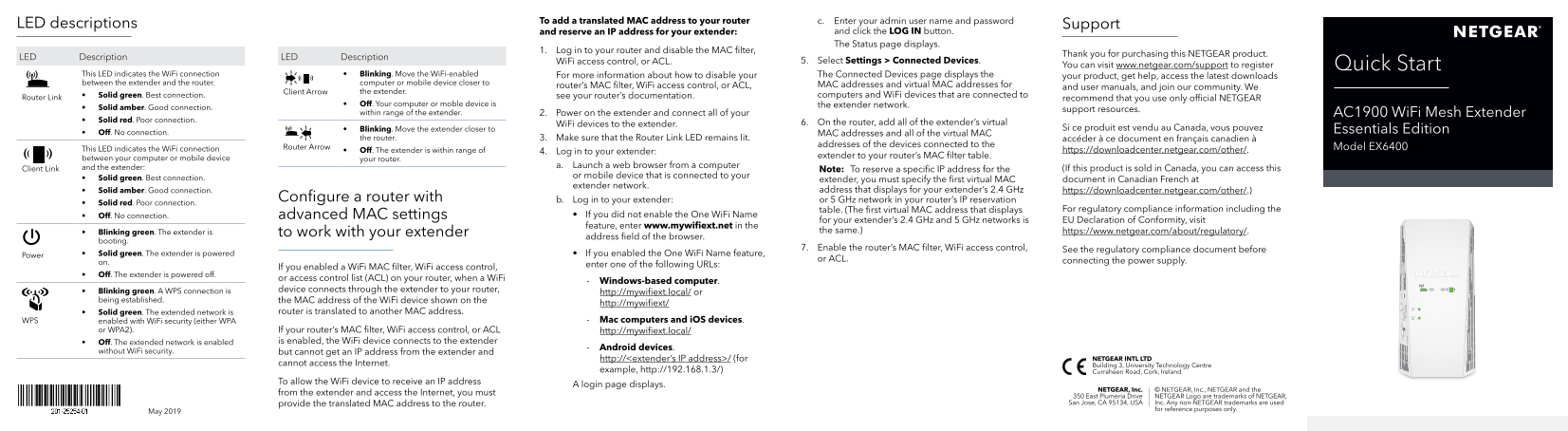
Page 1 Text Content
To add a translated MAC address to your router c. Enter your admin user name and password
LED descriptions Support
and reserve an IP address for your extender: and click the LOG IN button. The Status page displays.
1. Log in to your router and disable the MAC filter,
Thank you for purchasing this NETGEAR product.
LED Description LED Description
Wi Fi access control, or ACL. 5. Select Settings > Connected Devices.
You can visit www.netgear.com/support to register Quick Start
This LED indicates the Wi Fi connection • Blinking. Move the Wi Fi‑enabled For more information about how to disable your The Connected Devices page displays the
your product, get help, access the latest downloads
between the extender and the router. computer or mobile device closer to MAC addresses and virtual MAC addresses for
router’s MAC filter, Wi Fi access control, or ACL, and user manuals, and join our community. We
Client Arrow the extender.
• Solid green. Best connection. see your router’s documentation. computers and Wi Fi devices that are connected to
Router Link recommend that you use only official NETGEAR
• Off. Your computer or moble device is the extender network.
• Solid amber. Good connection. support resources.
within range of the extender. 2. Power on the extender and connect all of your AC1900 Wi Fi Mesh Extender
• Solid red. Poor connection.
Wi Fi devices to the extender. 6. On the router, add all of the extender’s virtual
• Blinking. Move the extender closer to Si ce produit est vendu au Canada, vous pouvez Essentials Edition
• Off. No connection. MAC addresses and all of the virtual MAC
the router. 3. Make sure that the Router Link LED remains lit. accéder à ce document en français canadien à
addresses of the devices connected to the
Router Arrow Model EX6400
This LED indicates the Wi Fi connection • Off. The extender is within range of https://downloadcenter.netgear.com/other/.
4. Log in to your extender:
extender to your router’s MAC filter table.
between your computer or mobile device your router.
and the extender: a. Launch a web browser from a computer
Client Link Note: To reserve a specific IP address for the (If this product is sold in Canada, you can access this
or mobile device that is connected to your
• Solid green. Best connection. extender, you must specify the first virtual MAC document in Canadian French at
extender network.
• Solid amber. Good connection. address that displays for your extender’s 2.4 GHz https://downloadcenter.netgear.com/other/.)
Configure a router with b. Log in to your extender: or 5 GHz network in your router’s IP reservation
• Solid red. Poor connection.
table. (The first virtual MAC address that displays For regulatory compliance information including the
• Off. No connection. advanced MAC settings • If you did not enable the One Wi Fi Name
for your extender’s 2.4 GHz and 5 GHz networks is EU Declaration of Conformity, visit
feature, enter www.mywifiext.net in the
• Blinking green. The extender is to work with your extender the same.) https://www.netgear.com/about/regulatory/.
address field of the browser.
booting.
7. Enable the router’s MAC filter, Wi Fi access control, See the regulatory compliance document before
• Solid green. The extender is powered • If you enabled the One Wi Fi Name feature,
Power
or ACL. connecting the power supply.
enter one of the following URLs:
If you enabled a Wi Fi MAC filter, Wi Fi access control,
• Off. The extender is powered off.
or access control list (ACL) on your router, when a Wi Fi
Windows-based computer.
• Blinking green. A WPS connection is device connects through the extender to your router,
http://mywifiext.local/ or
being established. the MAC address of the Wi Fi device shown on the
http://mywifiext/
• Solid green. The extended network is router is translated to another MAC address.
WPS enabled with Wi Fi security (either WPA Mac computers and i OS devices.
or WPA2). If your router’s MAC filter, Wi Fi access control, or ACL http://mywifiext.local/
• Off. The extended network is enabled is enabled, the Wi Fi device connects to the extender
Android devices.
without Wi Fi security. but cannot get an IP address from the extender and
http://<extender’s IP address>/ (for NETGEAR INTL LTD
cannot access the Internet. Building 3, University Technology Centre
example, http://192.168.1.3/) Curraheen Road, Cork, Ireland
To allow the Wi Fi device to receive an IP address
A login page displays.
NETGEAR, Inc. © NETGEAR, Inc., NETGEAR and the
from the extender and access the Internet, you must
350 East Plumeria Drive NETGEAR Logo are trademarks of NETGEAR, provide the translated MAC address to the router. San Jose, CA 95134, USA Inc. Any non‑NETGEAR trademarks are used
for reference purposes only.
May 2019
Page Summary Contents For Netgear EX6400v2 - AC1900 WiFi Mesh Extender Essentials Edition Installation Guide
Manual Details
| Brand | NETGEAR |
|---|---|
| Pages | 2 |
| File Size | 934.50 KB |
| Published | June 05, 2026 |
Enter the captcha to get the download link:

Frequently Asked Questions
How do I log into my extender's interface?
You can log in by launching a web browser and entering the user-friendly URLs: http://mywifiext.local/ or http://mywifiext.local/.
What does the blinking green Router Link LED indicate?
It indicates that the extender is currently booting up.
How do I check if my router filters prevent devices from connecting to the extended network?
If your router's MAC filter, WiFi access control, or ACL is enabled, you must provide the translated MAC address for the device so it can connect and receive an IP address.
What should I do if the Router Link LED shows solid red?
Solid red means the connection quality to the router is poor. You should move the extender closer to your router and try again.