Netgear WAX630E - Insight Managed WiFi 6E AXE7800 Tri-band Multi-Gig Access Point Installation Guide
Summary
Elevate your connectivity with this professional Tri-band WiFi 6E Access Point, delivering high-speed, managed network performance (AXE7800). This comprehensive guide walks IT professionals and businesses through seamless setup using either the Insight Cloud Portal or mobile app. Learn how to connect, mount, register, and troubleshoot every aspect of your device, including detailed LED status codes for optimal deployment across complex networks.
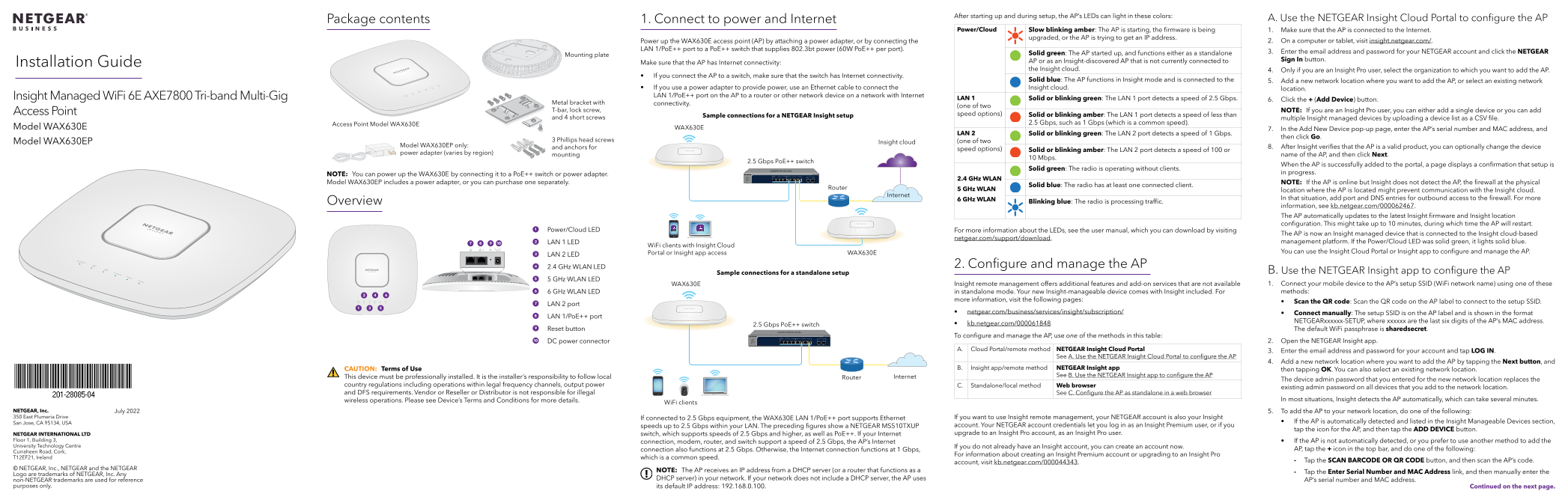
Page 1 Text Content
After starting up and during setup, the AP’s LEDs can light in these colors:
Package contents 1. Connect to power and Internet A. Use the NETGEAR Insight Cloud Portal to configure the AP
Power/Cloud Slow blinking amber: The AP is starting, the firmware is being 1. Make sure that the AP is connected to the Internet.
upgraded, or the AP is trying to get an IP address.
Power up the WAX630E access point (AP) by attaching a power adapter, or by connecting the 2. On a computer or tablet, visit insight.netgear.com/.
LAN 1/Po E++ port to a Po E++ switch that supplies 802.3bt power (60W Po E++ per port).
Solid green: The AP started up, and functions either as a standalone 3. Enter the email address and password for your NETGEAR account and click the NETGEAR
Mounting plate
AP or as an Insight‑discovered AP that is not currently connected to Sign In button.
Installation Guide Make sure that the AP has Internet connectivity:
the Insight cloud. 4. Only if you are an Insight Pro user, select the organization to which you want to add the AP.
If you connect the AP to a switch, make sure that the switch has Internet connectivity.
Solid blue: The AP functions in Insight mode and is connected to the 5. Add a new network location where you want to add the AP, or select an existing network
If you use a power adapter to provide power, use an Ethernet cable to connect the Insight cloud. location. Insight Managed Wi Fi 6E AXE7800 Tri-band Multi-Gig LAN 1/Po E++ port on the AP to a router or other network device on a network with Internet
LAN 1 Solid or blinking green: The LAN 1 port detects a speed of 2.5 Gbps. 6. Click the + (Add Device) button.
Metal bracket with connectivity.
(one of two
Access Point T‑bar, lock screw, NOTE: If you are an Insight Pro user, you can either add a single device or you can add
speed options) Solid or blinking amber: The LAN 1 port detects a speed of less than
Sample connections for a NETGEAR Insight setup
and 4 short screws multiple Insight managed devices by uploading a device list as a CSV file.
2.5 Gbps, such as 1 Gbps (which is a common speed).
Access Point Model WAX630E
Model WAX630E WAX630E 7. In the Add New Device pop‑up page, enter the AP’s serial number and MAC address, and
LAN 2 Solid or blinking green: The LAN 2 port detects a speed of 1 Gbps.
then click Go.
Model WAX630EP 3 Phillips head screws (one of two
Insight cloud
Model WAX630EP only: 8. After Insight verifies that the AP is a valid product, you can optionally change the device
and anchors for
speed options) Solid or blinking amber: The LAN 2 port detects a speed of 100 or
power adapter (varies by region)
mounting name of the AP, and then click Next.
10 Mbps.
2.5 Gbps Po E++ switch
When the AP is successfully added to the portal, a page displays a confirmation that setup is
Solid green: The radio is operating without clients.
in progress.
NOTE: You can power up the WAX630E by connecting it to a Po E++ switch or power adapter.
2.4 GHz WLAN
Model WAX630EP includes a power adapter, or you can purchase one separately. NOTE: If the AP is online but Insight does not detect the AP, the firewall at the physical
Solid blue: The radio has at least one connected client.
Router 5 GHz WLAN
location where the AP is located might prevent communication with the Insight cloud.
Internet
6 GHz WLAN In that situation, add port and DNS entries for outbound access to the firewall. For more
Overview Blinking blue: The radio is processing traffic.
information, see kb.netgear.com/000062467. The AP automatically updates to the latest Insight firmware and Insight location configuration. This might take up to 10 minutes, during which time the AP will restart.
Power/Cloud LED For more information about the LEDs, see the user manual, which you can download by visiting
The AP is now an Insight managed device that is connected to the Insight cloud‑based
netgear.com/support/download.
LAN 1 LED management platform. If the Power/Cloud LED was solid green, it lights solid blue.
Wi Fi clients with Insight Cloud
Portal or Insight app access WAX630E You can use the Insight Cloud Portal or Insight app to configure and manage the AP.
LAN 2 LED
2.4 GHz WLAN LED 2. Configure and manage the AP
Sample connections for a standalone setup B. Use the NETGEAR Insight app to configure the AP
5 GHz WLAN LED
WAX630E Insight remote management offers additional features and add‑on services that are not available 1. Connect your mobile device to the AP’s setup SSID (Wi Fi network name) using one of these 6 GHz WLAN LED in standalone mode. Your new Insight‑manageable device comes with Insight included. For methods:
more information, visit the following pages:
Scan the QR code: Scan the QR code on the AP label to connect to the setup SSID.
LAN 2 port
netgear.com/business/services/insight/subscription/ Connect manually: The setup SSID is on the AP label and is shown in the format
LAN 1/Po E++ port
NETGEARxxxxxx‑SETUP, where xxxxxx are the last six digits of the AP’s MAC address.
2.5 Gbps Po E++ switch kb.netgear.com/000061848
Reset button The default Wi Fi passphrase is sharedsecret.
To configure and manage the AP, use one of the methods in this table:
DC power connector 2. Open the NETGEAR Insight app.
A. Cloud Portal/remote method NETGEAR Insight Cloud Portal
3. Enter the email address and password for your account and tap LOG IN.
See A. Use the NETGEAR Insight Cloud Portal to configure the AP
4. Add a new network location where you want to add the AP by tapping the Next button, and
CAUTION: Terms of Use B. Insight app/remote method NETGEAR Insight app
then tapping OK. You can also select an existing network location.
See B. Use the NETGEAR Insight app to configure the AP
This device must be professionally installed. It is the installer’s responsibility to follow local Router Internet
The device admin password that you entered for the new network location replaces the
country regulations including operations within legal frequency channels, output power C. Standalone/local method Web browser
existing admin password on all devices that you add to the network location.
and DFS requirements. Vendor or Reseller or Distributor is not responsible for illegal See C. Configure the AP as standalone in a web browser
wireless operations. Please see Device’s Terms and Conditions for more details. In most situations, Insight detects the AP automatically, which can take several minutes.
Wi Fi clients
NETGEAR, Inc. July 2022 5. To add the AP to your network location, do one of the following: 350 East Plumeria Drive If you want to use Insight remote management, your NETGEAR account is also your Insight
If connected to 2.5 Gbps equipment, the WAX630E LAN 1/Po E++ port supports Ethernet
San Jose, CA 95134, USA If the AP is automatically detected and listed in the Insight Manageable Devices section,
speeds up to 2.5 Gbps within your LAN. The preceding figures show a NETGEAR MS510TXUP account. Your NETGEAR account credentials let you log in as an Insight Premium user, or if you
tap the icon for the AP, and then tap the ADD DEVICE button.
NETGEAR INTERNATIONAL LTD switch, which supports speeds of 2.5 Gbps and higher, as well as Po E++. If your Internet upgrade to an Insight Pro account, as an Insight Pro user.
Floor 1, Building 3, If the AP is not automatically detected, or you prefer to use another method to add the
connection, modem, router, and switch support a speed of 2.5 Gbps, the AP’s Internet
University Technology Centre If you do not already have an Insight account, you can create an account now.
connection also functions at 2.5 Gbps. Otherwise, the Internet connection functions at 1 Gbps, AP, tap the + icon in the top bar, and do one of the following:
Curraheen Road, Cork,
For information about creating an Insight Premium account or upgrading to an Insight Pro
T12EF21, Ireland which is a common speed.
Tap the SCAN BARCODE OR QR CODE button, and then scan the AP’s code.
account, visit kb.netgear.com/000044343.
© NETGEAR, Inc., NETGEAR and the NETGEAR
NOTE: The AP receives an IP address from a DHCP server (or a router that functions as a
Tap the Enter Serial Number and MAC Address link, and then manually enter the
Logo are trademarks of NETGEAR, Inc. Any
DHCP server) in your network. If your network does not include a DHCP server, the AP uses
non‑NETGEAR trademarks are used for reference AP’s serial number and MAC address. purposes only. its default IP address: 192.168.0.100. Continued on the next page.
Page Summary Contents For Netgear WAX630E - Insight Managed WiFi 6E AXE7800 Tri-band Multi-Gig Access Point Installation Guide
Manual Details
| Brand | NETGEAR |
|---|---|
| Pages | 2 |
| File Size | 4.37 MB |
| Published | June 06, 2026 |
Enter the captcha to get the download link:

Frequently Asked Questions
What does a solid blue Power/Cloud LED indicate?
The AP functions in Insight mode and is connected to the Insight cloud.
How do I connect my device for initial setup using Insight Cloud?
Visit insight.netgear.com on a computer or tablet, enter your account credentials, and click 'Add Device'.
What speed does the LAN 1/PoE++ port indicate when it detects 2.5 Gbps?
Solid or blinking green.
What do the different LED colors signify regarding the AP's status and operation?
Amber means starting up or trying to get an IP address; light blue indicates processing traffic; solid blue is Insight mode connected.