Page 1
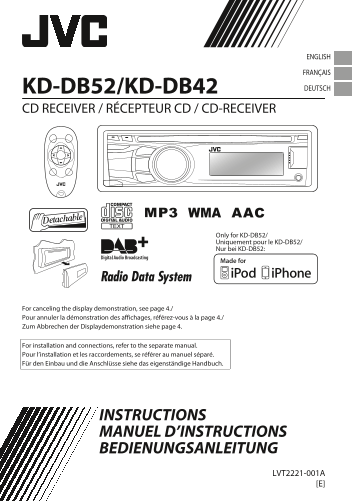
ENGLISH FRANÇAIS KD-DB52/KD-DB42 DEUTSCH CD RECEIVER / RÉCEPTEUR CD / CD-RECEIVER Only for KD-DB52/ Uniquement pour le KD-DB52/ Nur bei KD-DB52: For canceling the display demonstration, see page 4./ P...
Page 2
Thank you for purchasing a JVC product. Please read all instructions carefully before operation, to ensure your complete understanding and to obtain the best possible performance from the unit. IMPORT...
Page 3
How to attach/detach the Contents control panel Preparation ........................................................... 4 Canceling the display demonstration ....... 4 Setting the clock .................
Page 4
Preparation Prep ration Canceling the display demonstration The main features of the unit are scrolled on the display automatically if no operation is done for about 20 seconds. You can cancel this fu...
Page 5
Basic operations Basic operations Control panel Remote controller (KD-DB52 only) Control dial Display window Loading slot Ejects the disc Detaches the panel Front auxiliary Remote sensor input jack Do...
Page 6
Listening to the radio Liste ing to the radio Searching for stations Select <FM> or <AM>. Auto search. (Press) Manual search. (Hold) “M” flashes, then press the button repeatedly. “ST” lig...
Page 7
Listening to the radio TP indicator TA Standby Reception The following features are available only for FM Radio Data System stations. The unit will temporarily switch Lights up to Traffic Announcement...
Page 8
Listening to the Digital Audio Broadcasting (DAB)Liste ing to the Digital Audio Broadcasting (DAB) Searching for a service or Select <DAB>. Usable only when switching from other sources. Start s...
Page 9
Listening to the Digital Audio Broadcasting (DAB) Tracking the same programme Changing display information —Alternative Frequency (AF) Reception Service name* B Ensemble name B Channel (Hold) number B...
Page 10
Listening to a disc Liste ing to a disc Playing a disc The source changes to “CD” and playback starts. All tracks will be played repeatedly until you change the source or eject the disc. Label side To...
Page 11
Listening to a USB device Listening to an i Pod/i Phone (KD-DB52 only) Playing a USB device Playing an i Pod/i Phone USB input terminal USB input terminal USB 2.0 cable Apple i Pod/i Phone (not suppli...
Page 12
Listening to an i Pod/i Phone (KD-DB52 only) Selecting the control terminal Selecting the playback modes —IPOD SWITCH You can select one of the following playback modes at a time. Applicable under <...
Page 13
Listening to other external components Listening to other external components For details, refer also to the instructions supplied with the external components. Playing an external component Playing a...
Page 14
Changing the buttons illumination and display color (KD-DB52 only)Changing the buttons illumination and display color (KD-DB52 only) Button zone Display zone All zone All zone: Includes both Button zo...
Page 15
Adjusting the sound Adjusting the sound Pro Equalizer Selecting a preset sound mode You can select a preset sound mode suitable for the music genre. (Hold) B<PRO EQ> B<BASS/MIDDLE/ FLATBNATUR...
Page 16
Using Bluetooth T devices Using Bluetooth T devices For Bluetooth operations, it is required to connect the Bluetooth adapter, KS-BTA100 (separately purchased) to the auxiliary input jack (R-AUX/BT AD...
Page 17
Menu operations Menu operations IS PL IM ER CL CK (Hold) If no operation is done for about 60 seconds, the operation will be canceled. Repeat step 2 if necessary. To return to the previous menu, press...
Page 18
Menu operations Menu item Selectable setting (Initial: [XX]) FADER *4*5 R06-F06 [00]: Adjusts the front and rear speaker output balance. BALANCE *5 L06-R06 [00]: Adjusts the left and right speaker out...
Page 19
Menu operations SR SE LE CT TU ER Menu item Selectable setting (Initial: [XX]) SSM For settings, A page 6. (Displayed only when the source is “FM”.) AF-REG *9 [AF ON]: Activates Alternative Frequency ...
Page 20
Using the remote controller (KD-DB52 only)Using the remo e controller (KD-DB52 only) Warning: Preparing Do not install any battery other than CR2025 or When you use the remote controller for the first...
Page 21
Additional information Audio files About USB device The following devices cannot be used or connected to Playable files the USB input terminal of this unit: File extensions: AAC-LC(.m4a), MP3(.mp3), W...
Page 22
Troubleshooting Troubleshooting General Symptom Remedy/Cause Sound cannot be heard from the Adjust the volume to the optimum level. speakers. Check the cords and connections. “MISWIRING CHK WIRING THE...
Page 23
Troubleshooting MP3/WMA/AAC playback Symptom Remedy/Cause Disc cannot be played back. Record the tracks using a compliant application on the appropriate discs. (A page 20) Add appropriate file extensi...
Page 24
Specifications Specifications AUDIO AMPLIFIER SECTION Maximum Power Output 50 W per channel Continuous Power Output (RMS) 20 W per channel into 4Ω, 40 Hz to 20,000 Hz at no more than 1% total harmonic...
Page 25
Specifications USB SECTION USB Standard USB 1.1, USB 2.0 Data Transfer Rate (Full Speed) Max. 12 Mbps Compatible Device Mass storage class Compatible File System FAT 32/16/12 Playable Audio Format MP3...
Page 26
Having TROUBLE with operation? Please reset your unit Refer to page of How to reset your unit Vous avez des PROBLÈMES de fonctionnement? Réinitialisez votre appareil Référez-vous à la page intitulée C...