Intel Smart Response Technology Installation Guide
Summary
Optimize your data storage performance with Intel Smart Response Technology. This guide is essential for advanced users and system administrators looking to maximize read/write speeds by utilizing an SSD as a cache device for an HDD array. The manual provides comprehensive, step-by-step instructions detailing how to enable acceleration via the RST Graphical User Interface (GUI). Learn industry best practices for selecting Cache capacity (Enhanced or Maximized Mode), fine-tuning performance settings, and safely managing your system—including protocols for efficiently disabling or resetting the technology when required.
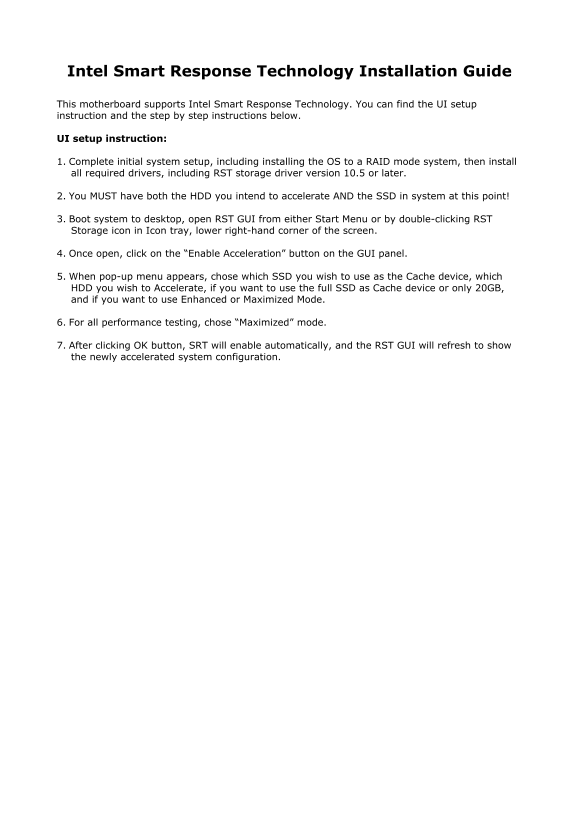
Page 1 Text Content
Intel Smart Response Technology Installation Guide
This motherboard supports Intel Smart Response Technology. You can find the UI setup instruction and the step by step instructions below.
UI setup instruction:
1. Complete initial system setup, including installing the OS to a RAID mode system, then install all required drivers, including RST storage driver version 10.5 or later.
2. You MUST have both the HDD you intend to accelerate AND the SSD in system at this point!
3. Boot system to desktop, open RST GUI from either Start Menu or by double-clicking RST Storage icon in Icon tray, lower right-hand corner of the screen.
4. Once open, click on the “Enable Acceleration” button on the GUI panel.
5. When pop-up menu appears, chose which SSD you wish to use as the Cache device, which HDD you wish to Accelerate, if you want to use the full SSD as Cache device or only 20GB, and if you want to use Enhanced or Maximized Mode.
6. For all performance testing, chose “Maximized” mode.
7. After clicking OK button, SRT will enable automatically, and the RST GUI will refresh to show the newly accelerated system configuration.
Page Summary Contents For Intel Smart Response Technology Installation Guide
Manual Details
| Brand | Intel |
|---|---|
| Pages | 4 |
| File Size | 389.73 KB |
| Published | May 29, 2026 |
Enter the captcha to get the download link:
