Installing Microsoft Updates and Service Packs on Dell Computers - User Guide and Manual
Summary
Secure your Dell PowerVault NAS system with this essential guide designed for System Administrators. It provides comprehensive, step-by-step instructions on how to safely download and install critical Microsoft security updates and service packs, resolving known Windows operating system vulnerabilities. The manual covers vital preparation steps, including mandatory system backups, enabling the Windows Update feature, and managing multilingual interface requirements, ensuring reliable patch deployment for maximum system protection.
Page 1 Text Content
.d ll.c | s rt.d ll.c
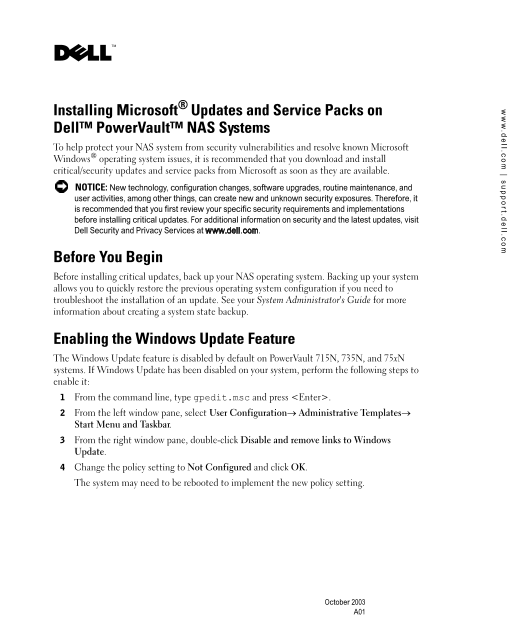
Installing Microsoft® Updates and Service Packs on Dell™ Power Vault™ NAS Systems To help protect your NAS system from security vulnerabilities and resolve known Microsoft Windows® operating system issues, it is recommended that you download and install critical/security updates and service packs from Microsoft as soon as they are available. NOTICE: New technology, configuration changes, software upgrades, routine maintenance, and user activities, among other things, can create new and unknown security exposures. Therefore, it is recommended that you first review your specific security requirements and implementations before installing critical updates. For additional information on security and the latest updates, visit Dell Security and Privacy Services at www.dell.com.
Before You Begin Before installing critical updates, back up your NAS operating system. Backing up your system allows you to quickly restore the previous operating system configuration if you need to troubleshoot the installation of an update. See your System Administrator's Guide for more information about creating a system state backup.
Enabling the Windows Update Feature The Windows Update feature is disabled by default on Power Vault 715N, 735N, and 75x N systems. If Windows Update has been disabled on your system, perform the following steps to enable it: From the command line, type gpedit.msc and press <Enter>. From the left window pane, select User Configuration→ Administrative Templates→ Start Menu and Taskbar. From the right window pane, double-click Disable and remove links to Windows Update. Change the policy setting to Not Configured and click OK. The system may need to be rebooted to implement the new policy setting.
October 2003
Page Summary Contents For Installing Microsoft Updates and Service Packs on Dell Computers - User Guide and Manual
Manual Details
| Brand | Microsoft |
|---|---|
| Pages | 10 |
| File Size | 254.75 KB |
| Published | May 31, 2026 |
Enter the captcha to get the download link:
