HTC HD7S Quickstart Guide User Manual
Summary
Master your device with this comprehensive guide designed for new smartphone owners. This technical manual provides step-by-step instructions for maximizing key features, including seamless Wi-Fi/Bluetooth connectivity, professional camera usage, voice search commands, and managing multiple accounts (Facebook, Gmail). Learn how to send emails, connect contacts via the People Hub, browse the web, and operate all advanced functionalities in your hand.
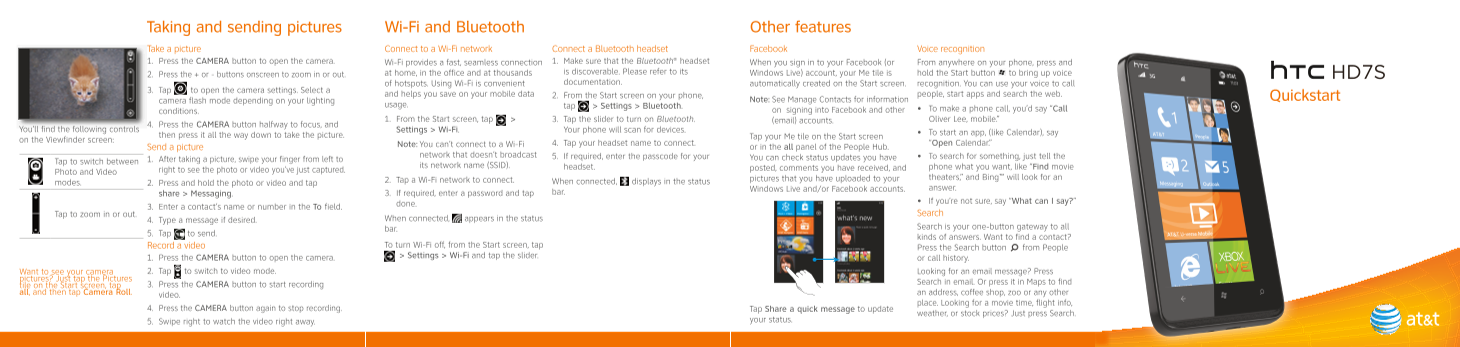
Page 1 Text Content
Taking and sending pictures Wi-Fi and Bluetooth Other features Take a picture Connect to a Wi-Fi network Connect a Bluetooth headset Facebook Voice recognition 1. Press the CAMERA button to open the camera. Wi-Fi provides a fast, seamless connection 1. Make sure that the Bluetooth® headset When you sign in to your Facebook (or From anywhere on your phone, press and
at home, in the office and at thousands is discoverable. Please refer to its Windows Live) account, your Me tile is hold the Start button to bring up voice HD7S
2. Press the + or - buttons onscreen to zoom in or out.
of hotspots. Using Wi-Fi is convenient documentation. automatically created on the Start screen. recognition. You can use your voice to call
3. Tap to open the camera settings. Select a
and helps you save on your mobile data 2. From the Start screen on your phone, people, start apps and search the web. Quickstart
camera flash mode depending on your lighting Note: See Manage Contacts for information
usage. tap > Settings > Bluetooth.
on signing into Facebook and other To make a phone call, you’d say “Call
conditions.
1. From the Start screen, tap > 3. Tap the slider to turn on Bluetooth. (email) accounts. Oliver Lee, mobile.”
4. Press the CAMERA button halfway to focus, and
You’ll find the following controls Settings > Wi-Fi. Your phone will scan for devices.
To start an app, (like Calendar), say
then press it all the way down to take the picture. Tap your Me tile on the Start screen
on the Viewfinder screen:
Note: You can’t connect to a Wi-Fi 4. Tap your headset name to connect. “Open Calendar.”
Send a picture or in the all panel of the People Hub.
network that doesn’t broadcast 5. If required, enter the passcode for your To search for something, just tell the
1. After taking a picture, swipe your finger from left to You can check status updates you have
Tap to switch between
its network name (SSID). headset. phone what you want, like “Find movie
right to see the photo or video you’ve just captured. posted, comments you have received, and
Photo and Video
pictures that you have uploaded to your theaters,” and Bing™ will look for an
2. Tap a Wi-Fi network to connect. When connected, displays in the status
modes. 2. Press and hold the photo or video and tap
Windows Live and/or Facebook accounts. answer.
share > Messaging. 3. If required, enter a password and tap bar.
If you’re not sure, say “What can I say?”
done.
3. Enter a contact’s name or number in the To field.
Tap to zoom in or out. Search
4. Type a message if desired. When connected, appears in the status
Search is your one-button gateway to all
5. Tap to send.
kinds of answers. Want to find a contact?
Record a video To turn Wi-Fi off, from the Start screen, tap
Press the Search button from People
> Settings > Wi-Fi and tap the slider.
1. Press the CAMERA button to open the camera. or call history. Want to see your camera 2. Tap to switch to video mode. Looking for an email message? Press
pictures? Just tap the Pictures
Search in email. Or press it in Maps to find
tile on the Start screen, tap 3. Press the CAMERA button to start recording
all, and then tap Camera Roll. an address, coffee shop, zoo or any other
video.
place. Looking for a movie time, flight info,
4. Press the CAMERA button again to stop recording. Tap Share a quick message to update
weather, or stock prices? Just press Search.
5. Swipe right to watch the video right away. your status.
Page Summary Contents For HTC HD7S Quickstart Guide User Manual
Manual Details
| Brand | HTC |
|---|---|
| Pages | 4 |
| File Size | 2.57 MB |
| Published | May 22, 2026 |
Enter the captcha to get the download link:

Frequently Asked Questions
How do I set up my Facebook account?
Tap your Me tile on the Start screen, then select Facebook and follow the instructions to get your friends’ feeds and photos.
How can I use Wi-Fi calling or hotspot features?
Simply tap a Wi-Fi network to connect. The device will display if it is connected, providing internet access anywhere with WLAN availability.
What are the steps for connecting a Bluetooth headset?
Go to Settings > Bluetooth on your phone, ensure the headset is discoverable, and then tap your headset name to complete the connection.
How do I search for information or contacts using voice commands?
Speak the command directly from the Start screen. For example, ask “Call [Name]” or "Open Calendar" when prompted by a doton smartphone.