Guide to Intel Matrix Storage Manager (1)
Summary
Manage and configure your storage arrays using Intel Matrix Storage Manager. This guide details how to create, delete, or rebuild RAID volumes, providing step-by-step instructions for optimal setup settings, including selecting advanced parameters like strip sizes (e.g., 16KB for sequential transfers). Furthermore, learn about the dedicated data redundancy features using Intel Rapid Recover Technology for continuous mirroring and on-request recovery. Essential reading for users managing robust storage solutions in workstations and desktops.
Page 1 Text Content
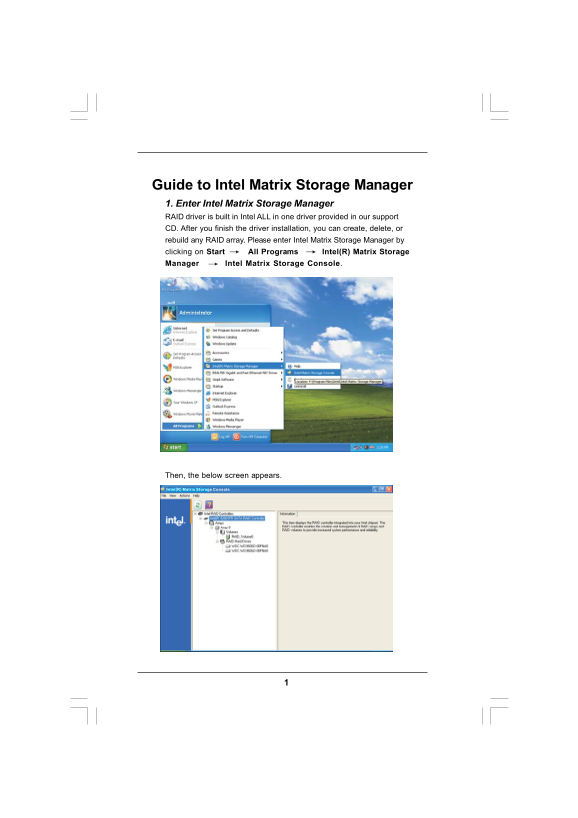
Guide to Intel Matrix Storage Manager 1. Enter Intel Matrix Storage Manager RAID driver is built in Intel ALL in one driver provided in our support CD. After you finish the driver installation, you can create, delete, or rebuild any RAID array. Please enter Intel Matrix Storage Manager by clicking on Start All Programs Intel(R) Matrix Storage Manager Intel Matrix Storage Console.
Then, the below screen appears. Intel(R) Matrix Storage Console
Page Summary Contents For Guide to Intel Matrix Storage Manager (1)
Manual Details
| Brand | Intel |
|---|---|
| Pages | 8 |
| File Size | 949.43 KB |
| Published | May 29, 2026 |
Enter the captcha to get the download link:

Frequently Asked Questions
How do I create a new RAID Volume?
Start Intel Matrix Storage Manager, select 'Create RAID Volume,' and follow the wizard by naming the volume, selecting the RAID Level, setting strip size (e.g., 16KB for sequential transfers), and specifying source/member disks.
Is data loss possible when creating a new RAID Volume?
Yes, all existing data on the selected hard disk drives will be deleted during creation; ensure you back up your data before starting any RAID setup process.
What is IRRT (Intel Rapid Recover Technology)?
IRRT uses RAID 1 (mirroring) to copy data from a master drive to a recovery drive, allowing for continuous or on-request data backup and restoration.
What is the recommended strip size for optimal performance?
For most desktops and workstations, 128KB is suggested as the best general purpose strip size. 16KB is best for sequential transfers.