Page 1
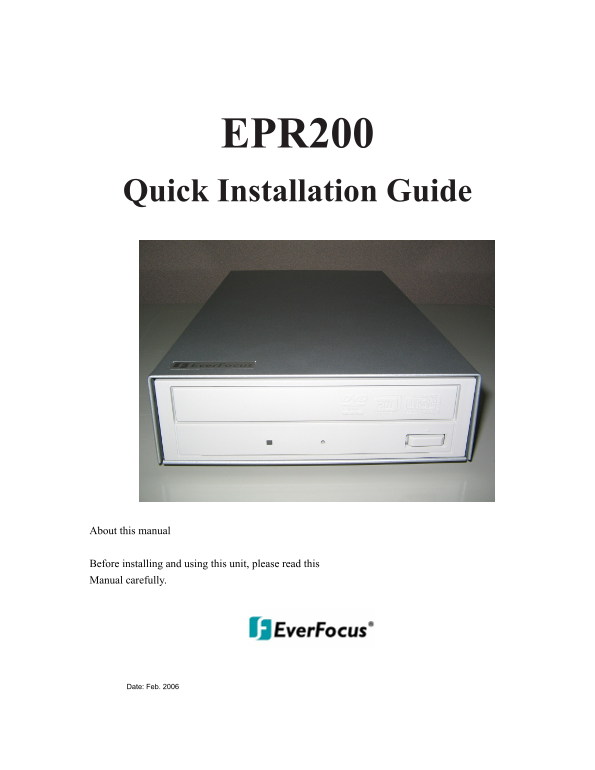
EPR200 Quick Installation Guide About this manual Before installing and using this unit, please read this Manual carefully. Date: Feb. 2006
Page 2
Table of Contents Hardware System Requirements....................................................................................3 Using Your Drive ......................................................
Page 3
Hardware System Requirements Minimum Intel Pentium III 800 MHz. 256 MB memory. Used for such things as data backup. Recommended Intel Pentium 4 1.0 GHz. 512 MB memory. Highly recommended for DVD+RW UD...
Page 4
Using Your Drive Busy Indicator Forced Eject Disc Tray Eject Button LED Hole Busy Indicator LED: Lights up when reading or writing data. Eject Button: Press to load or unload a disc. Disc Tray: Open o...
Page 5
Product Specifications Read Speed: 16x max. DVD-ROM and 48x max. CD-ROM Write Speed: DVD+R: 16x max., DVD+RW: 8x max., DVD+R DL: 4x max., DVD-R: 16x max., DVD-RW: 6x max., CD-R: 48x max., CD-RW: 24x m...
Page 6
Copying Video from DVR to EPR200 EPR200 allows you to copy an image or video from the DVR. (Only EDR series’ DVR is supported) Connect the USB connector into the USB slot on the front panel or back pa...
Page 7
Now, you need to copy image (video) and EDR Viewer which is the image (video) player from DVR. Press COPY key from the front panel of DVR and then the copy menu appears. COPY In the COPY MENU, we defi...
Page 8
Viewing a Copied File First Step is to open the viewer that you copied from DVR. Insert the DVD-RW to your PC, and choose the appropriate drive, double-click on “EDRViewer.exe” to open the viewer.
Page 9
Once the viewer is opened, click on “Load file” to load the archived EDR MPEG Files (.arv) that you just copied from DVR. Then, click on “Open”, and it will start to play the video automatically.
Page 10
Press STOP button whenever you would like to stop playing the video. Press PLAY button whenever you would like to play the video again. Press PAUSE button whenever you would like to pause the playing ...
Page 11
The option “CAPTURE” allows you to capture a specific still image that you copied. Press CAPTURE button, and the instant image will be captured, save the image as .jpg file to your desired file locati...
Page 12
The option “Save to AVI” allows you to convert automatically the .arv file to AVI file, which is a convenient way for most PC users. Press Save to AVI button, and the copied .arv file will be converte...
Page 13
Disc Care To clean the disc, use a soft cloth and wipe from the inside to the outside edge rather than in a circular motion. Do not use record-cleaning or anti-static agents as the solutions may damag...
Page 14
Troubleshooting & Technical Support Nothing happens when eject button is pressed: Make sure the power cable is securely connected to the drive. Verify the computer is powered-up and running. Drive...
Page 15
Ever Focus Electronics Corp. Head Office: China Office: 12F, No.79 Sec. 1 Shin-Tai Wu Road, Room 609, Technology Trade Building, Hsi-Chih, Taipei, Taiwan Shandgdi Information Industry Base, TEL: +886-...