Dell XPS 420 Installation Guide Diagrams
Summary
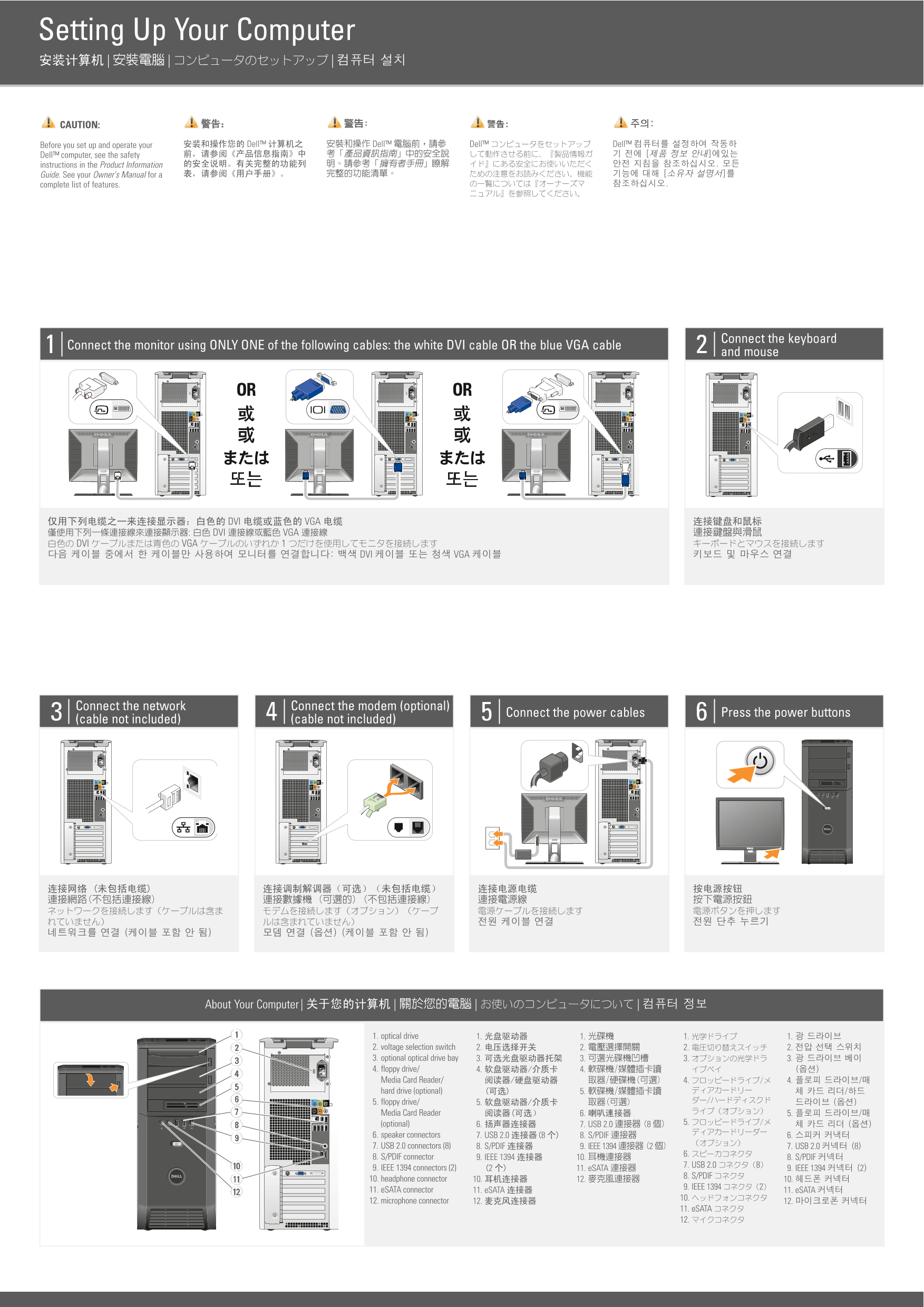
Multi-language Dell desktop computer setup guide with extensive localization support. Covers monitor connection using DVI or VGA cable, keyboard and mouse setup, network and modem connections, and power-on procedures. Includes system features diagram showing optical drive, voltage selector, floppy drive or media card reader, speaker, headphone, microphone, and USB connectors with device status indicators.
Page 1 Text Content
Setting Up Your Computer | | |
CAUTION:
Before you set up and operate your Dell™ Dell™ Dell™ Dell™
Dell™ computer, see the safety instructions in the Product Information Guide. See your Owner's Manual for a complete list of features.
Connect the keyboard
Connect the monitor using ONLY ONE of the following cables: the white DVI cable OR the blue VGA cable
and mouse
OR OR
DVI VGA : DVI VGA
DVI VGA 1
DVI VGA
Connect the network Connect the modem (optional)
Connect the power cables Press the power buttons
(cable not included) (cable not included)
About Your Computer | | | |
1. optical drive 1. 1. 1. 1. 2. voltage selection switch 2. 2. 2. 2. 3. optional optical drive bay 3. 3. 3. 3. 4. floppy drive/ 4. 4. Media Card Reader/ 4. 4. hard drive (optional) 5. 5. floppy drive/ 5. Media Card Reader 6. 5.
(optional) 6. 5.
7. USB 2.0 8
6. speaker connectors 7. USB 2.0 8 8. S/PDIF 6. 7. USB 2.0 connectors (8) 8. S/PDIF 9. IEEE 1394 2 7. USB 2.0 8
8. S/PDIF connector 9. IEEE 1394 10. 8. S/PDIF
7. USB 2.0 8
9. IEEE 1394 connectors (2) 11. e SATA 9. IEEE 1394 2
8. S/PDIF
10. headphone connector 10. 12. 10.
9. IEEE 1394 2
11. e SATA connector 11. e SATA 11. e SATA
12. microphone connector 12. 12.
11. e SATA 12.
Page Summary Contents For Dell XPS 420 Installation Guide Diagrams
Manual Details
| Brand | Dell |
|---|---|
| Pages | 2 |
| File Size | 1.06 MB |
| Published | July 03, 2026 |
Enter the captcha to get the download link:

Frequently Asked Questions
What safety guidelines must I review before setting up the computer?
Before operating your Dell™ computer, you must first read the product safety instructions in the Product Information Guide.
How should I connect my monitor to this desktop model?
When connecting a monitor, use ONLY ONE of the following cables: the white DVI cable OR the blue VGA cable.
What essential types of ports are available for external connections?
Connectivity includes USB 2.0 ports (8), S/PDIF, IEEE 1394 connectors, and eSATA ports.