Dell OptiPlex 7450 Quick User Guide - Windows 7
Summary
Dell OptiPlex 7450 All-in-One Quick Start Guide with multilingual setup (Chinese, Japanese, Korean, English) covering Torx screw cable cover removal, stand installation, keyboard/mouse connection, power button, Windows/Ubuntu setup, and features overview.
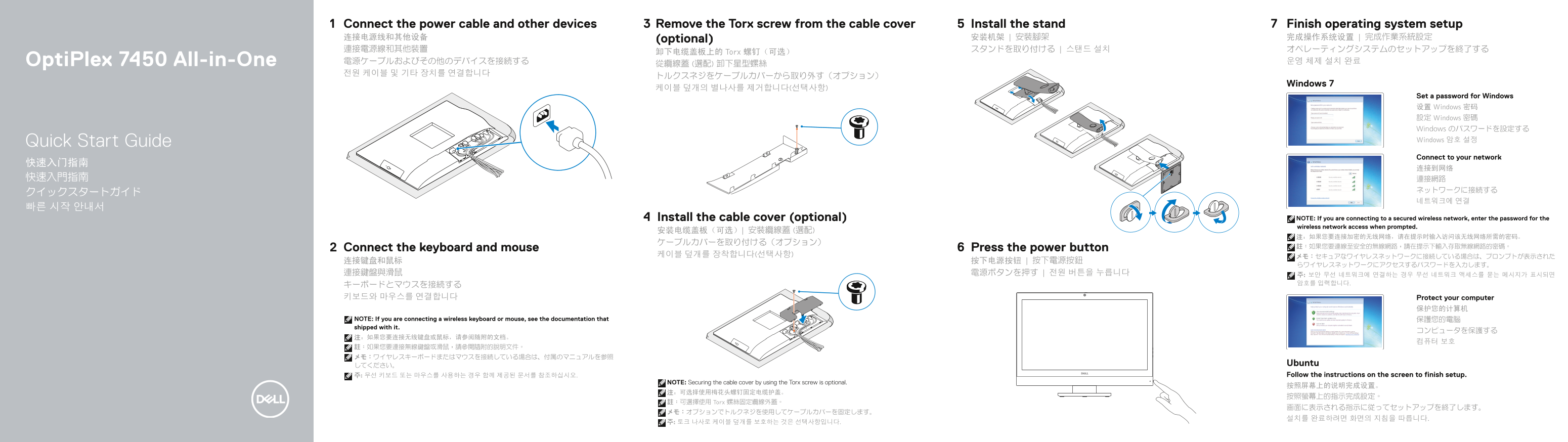
Page 1 Text Content
Connect the power cable and other devices Remove the Torx screw from the cable cover Install the stand Finish operating system setup 连接电源线和其他设备 (optional) 安装机架 | 安裝腳架 完成操作系统设置 | 完成作業系統設定 連接電源線和其他裝置 スタンドを取り付ける | 스탠드 설치 オペレーティングシステムのセットアップを終了する
卸下电缆盖板上的 Torx 螺钉(可选)
Opti Plex 7450 All-in-One 電源ケーブルおよびその他のデバイスを接続する 운영 체제 설치 완료
Windows 7
Set a password for Windows 设置 Windows 密码 設定 Windows 密碼 Windows のパスワードを設定する Quick Start Guide Windows 암호 설정 Connect to your network
Install the cable cover (optional) NOTE: If you are connecting to a secured wireless network, enter the password for the wireless network access when prompted.
Connect the keyboard and mouse Press the power button 註:如果您要連線至安全的無線網路,請在提示下輸入存取無線網路的密碼。
키보드와 마우스를 연결합니다 Protect your computer
NOTE: If you are connecting a wireless keyboard or mouse, see the documentation that 保護您的電腦 shipped with it.
してください。 Ubuntu 주: 무선 키보드 또는 마우스를 사용하는 경우 함께 제공된 문서를 참조하십시오. Follow the instructions on the screen to finish setup.
NOTE: Securing the cable cover by using the Torx screw is optional.
註:可選擇使用 Torx 螺絲固定纜線外蓋。
Page Summary Contents For Dell OptiPlex 7450 Quick User Guide - Windows 7
Manual Details
| Brand | Dell |
|---|---|
| Pages | 2 |
| File Size | 1015.09 KB |
| Published | July 03, 2026 |
Enter the captcha to get the download link:

Frequently Asked Questions
What are the initial steps required to set up the computer?
First, connect the keyboard, mouse, power cables, and any other devices. Then, press the power button and follow the on-screen instructions to finish setup.
Does this model offer advanced port connectivity options?
Yes, it includes standard USB 2.0 ports, dedicated USB 3.0 ports, and a specific USB 3.0 port designed with PowerShare functionality.
Are there features available to enhance security or privacy?
To enhance security, the unit offers a physical camera privacy latch and a dedicated security cable slot for added protection.
How do I check the current operating status of the device?
The system includes various indicator lights like the Power Status light and the Power Diagnostic light to help assess the operational state.