Dell OptiPlex 5050 Micro Quick User Guide ‒ Windows 7
Summary
The Dell OptiPlex 5050 Micro Quick Start Guide provides setup instructions for Dell's compact desktop computer. It covers connecting keyboard, mouse, display, network cable, and power adapter, finishing Windows or Ubuntu operating system setup, and setting passwords. The guide features multi-language support including English, Chinese, Japanese, and Korean. It also describes front and rear panel ports including USB, HDMI, power connector, and network port. Target users are end-users and IT professionals deploying the OptiPlex 5050 Micro in office environments requiring space-efficient computing solutions.
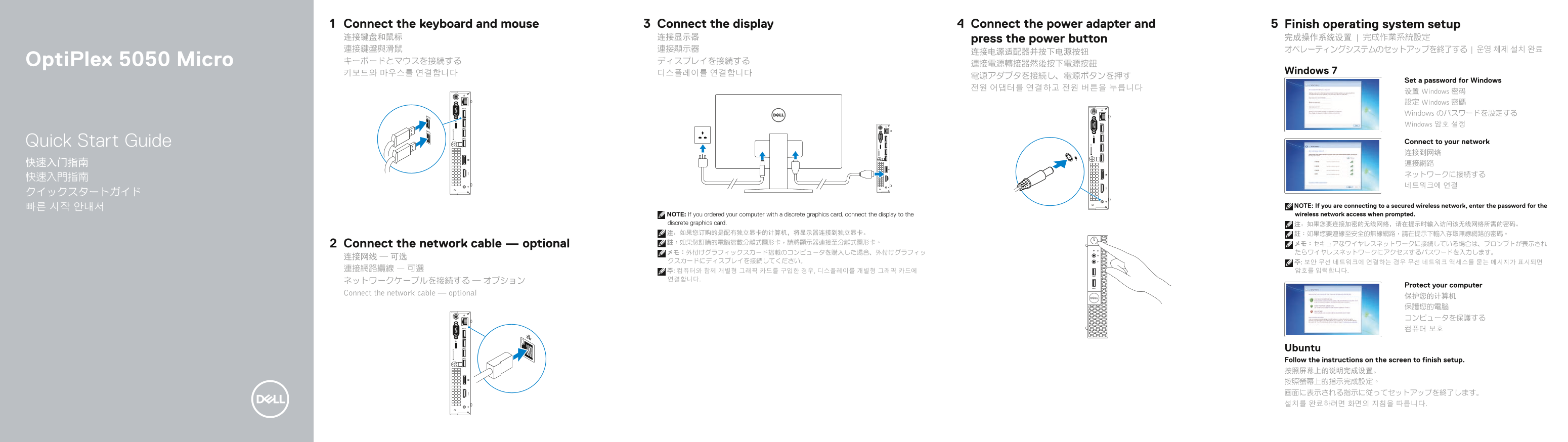
Page 1 Text Content
Connect the keyboard and mouse Connect the display Connect the power adapter and Finish operating system setup 连接键盘和鼠标 连接显示器 press the power button 完成操作系统设置 | 完成作業系統設定 連接鍵盤與滑鼠 連接顯示器 オペレーティングシステムのセットアップを終了する | 운영 체제 설치 완료
Opti Plex 5050 Micro キーボードとマウスを接続する ディスプレイを接続する
키보드와 마우스를 연결합니다 디스플레이를 연결합니다 Windows 7
Set a password for Windows
设置 Windows 密码 設定 Windows 密碼 Windows のパスワードを設定する Windows 암호 설정
Quick Start Guide Connect to your network 连接到网络 快速入门指南 連接網路 ネットワークに接続する
빠른 시작 안내서 NOTE: If you are connecting to a secured wireless network, enter the password for the NOTE: If you ordered your computer with a discrete graphics card, connect the display to the wireless network access when prompted.
discrete graphics card. 注:如果您要连接加密的无线网络,请在提示时输入访问该无线网络所需的密码。 注:如果您订购的是配有独立显卡的计算机,将显示器连接到独立显卡。 註:如果您要連線至安全的無線網路,請在提示下輸入存取無線網路的密碼。 Connect the network cable — optional 註:如果您訂購的電腦搭載分離式圖形卡,請將顯示器連接至分離式圖形卡。 メモ:セキュアなワイヤレスネットワークに接続している場合は、プロンプトが表示され
Protect your computer
Connect the network cable — optional
Ubuntu Follow the instructions on the screen to finish setup. 按照屏幕上的说明完成设置。 按照螢幕上的指示完成設定。 画面に表示される指示に従ってセットアップを終了します。 설치를 완료하려면 화면의 지침을 따릅니다.
Page Summary Contents For Dell OptiPlex 5050 Micro Quick User Guide ‒ Windows 7
Manual Details
| Brand | Dell |
|---|---|
| Pages | 2 |
| File Size | 529.97 KB |
| Published | June 27, 2026 |
Enter the captcha to get the download link:

Frequently Asked Questions
How do I connect external peripherals?
Connect the keyboard and mouse to the appropriate ports, and use the available network, HDMI, or DisplayPort ports for monitors/displays.
What is required when connecting to a secure network?
If you are connecting to a secured wireless network, ensure you enter the required password when prompted.
Is there an option for dedicated graphics output?
Yes, if ordered with discrete graphics card, connect the display directly to that specific component.
Where should I reference manuals and support?
Product support, manuals, and features can be accessed on Dell.com/support.