Dell OptiPlex 5250-Quick User Guide for a Single Unit-Windows 7
Summary
Dell OptiPlex 5250 All-in-One quick start guide providing multilingual setup instructions for connecting power cable, keyboard, mouse, display, and network, installing the stand, removing the cable cover, completing Windows 7/Ubuntu OS setup, setting passwords, and enabling security. Includes a feature overview diagram labeling ports and components. Designed for first-time OptiPlex 5250 AIO users.
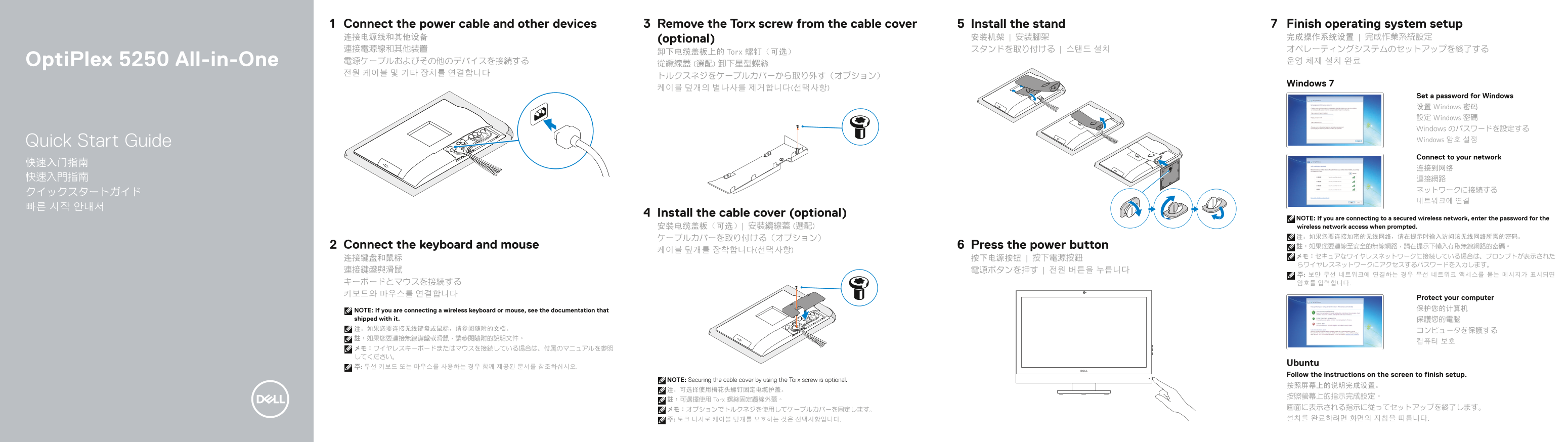
Page 1 Text Content
Connect the power cable and other devices Remove the Torx screw from the cable cover Install the stand Finish operating system setup 连接电源线和其他设备 (optional) 安装机架 | 安裝腳架 完成操作系统设置 | 完成作業系統設定 連接電源線和其他裝置 スタンドを取り付ける | 스탠드 설치 オペレーティングシステムのセットアップを終了する
卸下电缆盖板上的 Torx 螺钉(可选)
Opti Plex 5250 All-in-One 電源ケーブルおよびその他のデバイスを接続する 운영 체제 설치 완료
Windows 7
Set a password for Windows 设置 Windows 密码 設定 Windows 密碼 Windows のパスワードを設定する Quick Start Guide Windows 암호 설정 Connect to your network
Install the cable cover (optional)
NOTE: If you are connecting to a secured wireless network, enter the password for the 安装电缆盖板(可选)| 安裝纜線蓋 (選配) wireless network access when prompted. 注:如果您要连接加密的无线网络,请在提示时输入访问该无线网络所需的密码。
Connect the keyboard and mouse Press the power button 註:如果您要連線至安全的無線網路,請在提示下輸入存取無線網路的密碼。
Protect your computer NOTE: If you are connecting a wireless keyboard or mouse, see the documentation that 保护您的计算机
shipped with it. 保護您的電腦 注:如果您要连接无线键盘或鼠标,请参阅随附的文档。
Ubuntu
Follow the instructions on the screen to finish setup.
NOTE: Securing the cable cover by using the Torx screw is optional.
註:可選擇使用 Torx 螺絲固定纜線外蓋。
Page Summary Contents For Dell OptiPlex 5250-Quick User Guide for a Single Unit-Windows 7
Manual Details
| Brand | Dell |
|---|---|
| Pages | 2 |
| File Size | 1023.39 KB |
| Published | June 24, 2026 |
Enter the captcha to get the download link:

Frequently Asked Questions
Is the cable cover installation required?
No, it is optional.
How do I connect to a secured wireless network?
Enter the wireless network password when prompted.
Does the computer support wireless keyboards or mice?
Yes, but see the documentation that shipped with the accessory.