Dell OptiPlex 3030 AIO Quick User Guide
Summary
This Quick Start Guide for the Dell OptiPlex 3030 All-in-One desktop provides multilingual setup instructions covering stand installation, keyboard and mouse connection, optional network cable connection, power cable connection, and Windows operating system configuration. It includes detailed hardware feature identification for both touchscreen and non-touchscreen variants with numbered diagrams, on-screen display button functions, My Dell and product registration guidance, and access to help resources. Designed for business and institutional users deploying space-saving all-in-one computers.
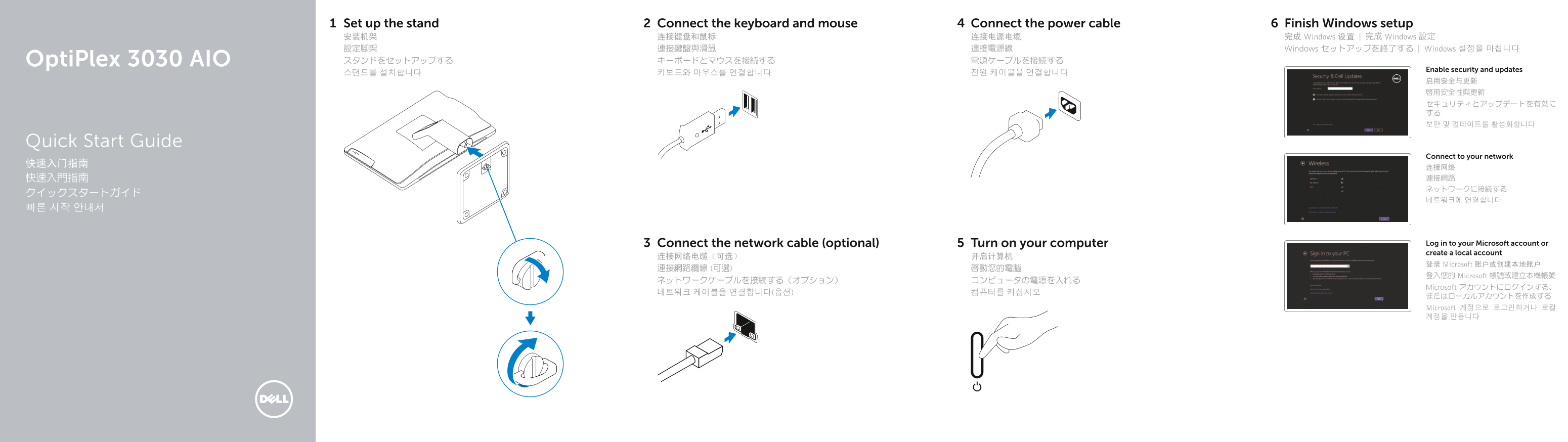
Page 1 Text Content
Set up the stand Connect the keyboard and mouse Connect the power cable Finish Windows setup 安装机架 连接键盘和鼠标 连接电源电缆 完成 Windows 设置 | 完成 Windows 設定 設定腳架 連接鍵盤與滑鼠 連接電源線 Windows セットアップを終了する | Windows 설정을 마칩니다 Opti Plex 3030 AIO スタンドをセットアップする キーボードとマウスを接続する 電源ケーブルを接続する
Enable security and updates
Quick Start Guide
Connect to your network
Connect the network cable (optional) Turn on your computer Log in to your Microsoft account or create a local account
登录 Microsoft 账户或创建本地账户
登入您的 Microsoft 帳號或建立本機帳號
Microsoft アカウントにログインする、
またはローカルアカウントを作成する Microsoft 계정으로 로그인하거나 로컬 계정을 만듭니다
Page Summary Contents For Dell OptiPlex 3030 AIO Quick User Guide
Manual Details
| Brand | Dell |
|---|---|
| Pages | 2 |
| File Size | 388.74 KB |
| Published | July 02, 2026 |
Enter the captcha to get the download link:

Frequently Asked Questions
What are the initial physical setup steps for this unit?
The first steps include setting up the stand, connecting the keyboard and mouse, and attaching the power cable.
How can I address potential power or hardware issues?
Use the Power-diagnostic button to check current status indicators (lights) on the device.
What security measures are available for my camera privacy?
The unit features a Camera privacy latch to physically cover and secure the camera when not needed.
What types of ports are available for connecting external devices?
Connectivity includes USB 2.0, USB 3.0, network connectors, and audio connectors.