Dell Latitude E5570 Quick User Guide - Windows 10
Summary
Dell Latitude 15 5000 Series (E5570) Quick Start Guide with multilingual setup covering power adapter, Windows 10 setup, Dell Product Registration, SupportAssist, support and protection enablement, network connection, and features including VGA/HDMI/USB 3.0 ports, SIM card slot, fingerprint reader, and smart card reader.
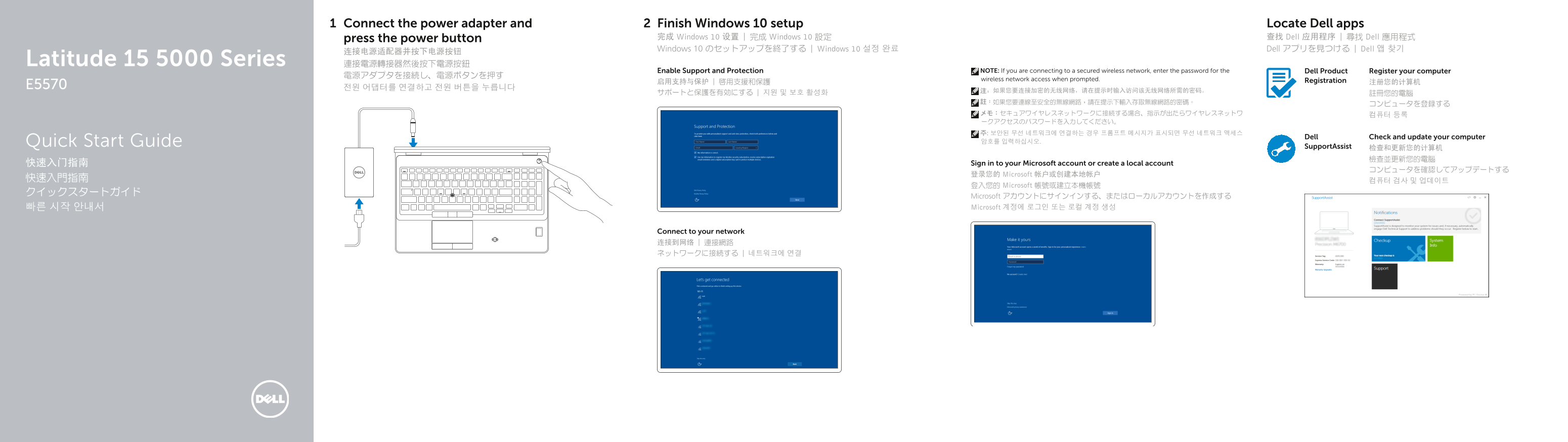
Page 1 Text Content
Connect the power adapter and Finish Windows 10 setup Locate Dell apps
press the power button 完成 Windows 10 设置 | 完成 Windows 10 設定 查找 Dell 应用程序 | 尋找 Dell 應用程式 Windows 10 のセットアップを終了する | Windows 10 설정 완료 Dell アプリを見つける | Dell 앱 찾기
Latitude 15 5000 Series 連接電源轉接器然後按下電源按鈕
Enable Support and Protection NOTE: If you are connecting to a secured wireless network, enter the password for the Dell Product Register your computer
wireless network access when prompted. Registration
Dell Check and update your computer
Quick Start Guide 암호를 입력하십시오.
Support Assist 检查和更新您的计算机
快速入门指南 Sign in to your Microsoft account or create a local account
登录您的 Microsoft 帐户或创建本地帐户
登入您的 Microsoft 帳號或建立本機帳號
Microsoft アカウントにサインインする、またはローカルアカウントを作成する 빠른 시작 안내서 Microsoft 계정에 로그인 또는 로컬 계정 생성
Connect to your network 连接到网络 | 連接網路 ネットワークに接続する | 네트워크에 연결
Page Summary Contents For Dell Latitude E5570 Quick User Guide - Windows 10
Manual Details
| Brand | Dell |
|---|---|
| Pages | 2 |
| File Size | 621.77 KB |
| Published | July 03, 2026 |
Enter the captcha to get the download link:

Frequently Asked Questions
How do I perform initial setup or registration?
To complete the setup, connect the power adapter, press the power button, and follow prompts to register your computer.
What is the difference between USB ports on this model?
The device has standard USB 3.0 connectors, and an optional one with PowerShare functionality.
Which connectivity features are available for data transfer?
The unit includes a dedicated SD memory card reader and multiple USB 3.0 ports.
Are there specific requirements for peripheral connections?
Optional accessories include a PlayStation/headset connector, VGA port, fingerprint reader, and non-contact smart card reader.