Page 1
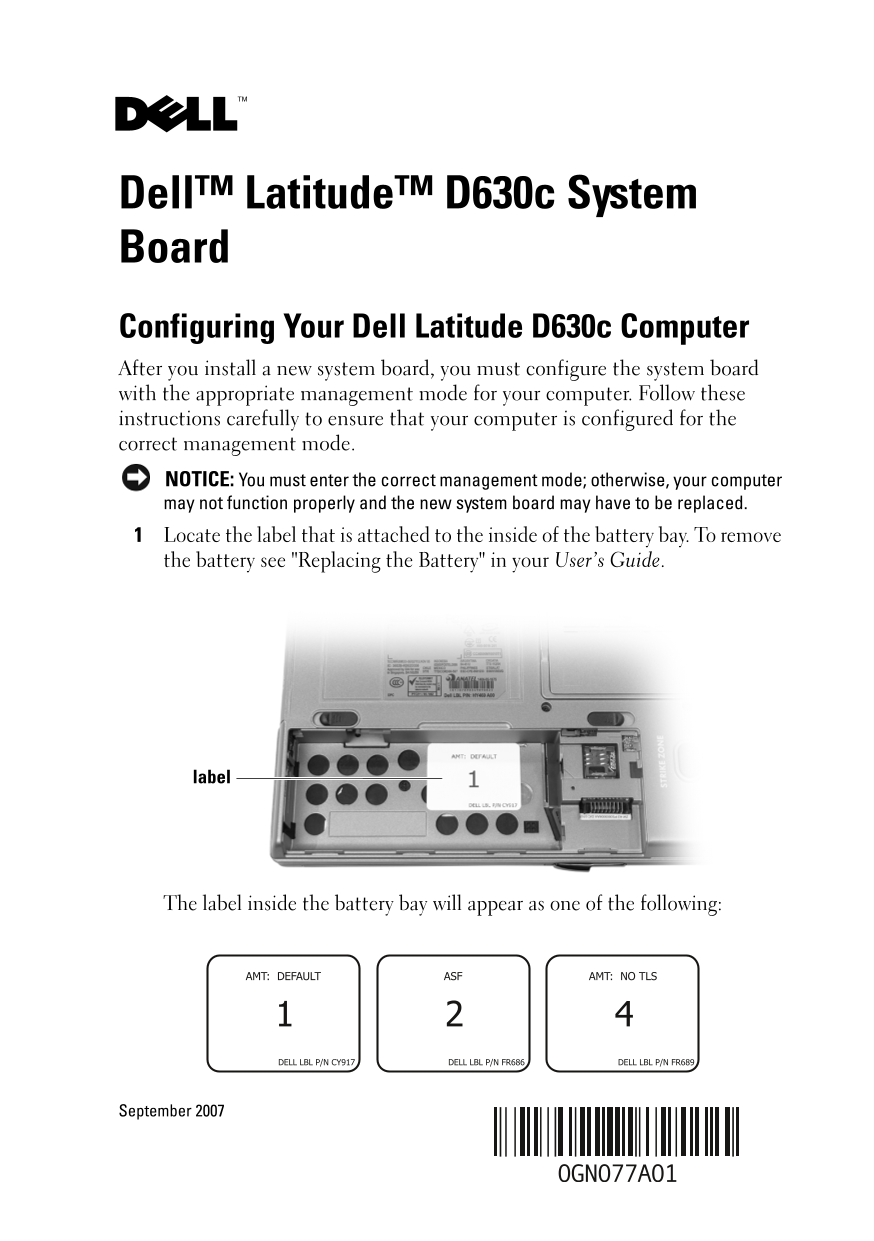
Dell™ Latitude™ D630c System Board Configuring Your Dell Latitude D630c Computer After you install a new system board, you must configure the system board with the appropriate management mode for your...
Page 2
Make a note of the large number on the label. This number is the management mode number that is required in step 6. Replace the battery. Ensure that the network cable and any USB mass storage devices,...
Page 3
Dell™ Latitude™ D630c sistemska ploča Konfiguriranje Dell Latitude D630c računala Nakon što instalirate novu sistemsku ploču, morate je konfigurirati odgovarajućim načinom rada upravljanja za računalo...
Page 4
Oznaka unutar pregrade za bateriju pojavit će se kao jedna od sljedećih: Zabiljeűite veliki broj na oznaci. Ovaj je broj broj načina rada upravljanja koji je potreban u koraku 6. Vratite bateriju. Pro...
Page 5
Dell™ Latitude™ D630c Systemkort Installation af Dell Latitude D630c computeren Når du har installeret et nyt systemkort, skal du konfigurere systemkortet med den pågældende administrationstilstand fo...
Page 6
Notér det store tal på etiketten. Dette tal er administrationstilstandstallet, som er nødvendigt i trin 6. Sæt batteriet i igen Sørg for, at netværkskablet og eventuelle USB-lagerenheder, såsom harddr...
Page 7
Dell™ Latitude™ D630c moederbord Uw Dell Latitude D630c-computer configureren Na het installeren van een nieuw moederbord moet u het moederbord configureren met de juiste beheercode voor uw computer. ...
Page 8
Noteer het lange nummer op het label. Dit nummer is het beheermodusnummer dat in stap 6 benodigd zal zijn. Breng de batterij op nieuw aan. Verwijder de stekker van de netwerkkabel en de stekkers van U...
Page 9
Dell™ Latitude™ D630c -emolevy Dell Latitude D630c -tietokoneen asetusten määrittäminen Kun uusi emolevy on asennettu, sille on määritettävä asianmukainen hallinta- asetus, jotta emolevy toimii tietok...
Page 10
Merkitse tarrassa oleva iso numero muistiin. Se on vaiheessa 6 tarvittava hallinta-asetusnumero. Aseta akku takaisin paikalleen. Varmista, että verkkojohto ja mahdolliset USB-massatallennuslaitteet, k...
Page 11
Carte système Dell™ Latitude™ D630c Configuration de votre ordinateur Dell Latitude D630c Après avoir installé une nouvelle carte système, vous devez la configurer et choisir le mode de gestion approp...
Page 12
Prenez note du numéro inscrit en grand sur l'étiquette. C'est le numéro de mode de gestion requis à l'étape 6. Remettez la batterie en place. Vérifiez que le câble de réseau et les périphériques de st...
Page 13
Dell™ Latitude™ D630c Systemplatine Konfigurieren des Latitude D630c Computers von Dell Nach der Installation einer neuen Systemplatine, muss sie mit dem für Ihren Computer entsprechenden Verwaltungsm...
Page 14
Notieren Sie sich die lange Nummer auf dem Aufkleber. Dies ist die Ver- waltungsmodus-Nummer, die Sie in Schritt 6 benötigen werden. Setzen Sie den Akku wieder ein. Stellen Sie sicher, dass das Netzwe...
Page 15
Scheda di sistema di Dell™ Latitude™ D630c Configurazione del computer Dell Latitude D630c Dopo aver installato una nuova scheda di sistema, è necessario configurare la scheda di sistema con l'appropr...
Page 16
Annotare il numero lungo posto sull'etichetta. Tale numero corrisponde al numero della modalità di gestione richiesta al punto 6. Sostituire la batteria. Accertarsi che il cavo di rete ed eventuali di...
Page 17
Płyta systemowa komputera Dell™ Latitude™ D630c Konfigurowanie komputera Dell Latitude D630c Po zainstalowaniu nowej płyty systemowej, należy w niej skonfigurować odpowiedni tryb zarządzania dla posia...
Page 18
Zanotuj dużą cyfrę, która znajduje się na etykiecie. Jest to cyfra trybu zarządzania, która będzie potrzebna w kroku 6. Wymień akumulator. Upewnij się, że zostały odłączone wszystkie karty sieciowe i ...
Page 19
Placa de sistema do computador Dell™ Latitude™ D630c Como configurar o computador Dell Latitude D630c Após instalar uma nova placa de sistema, você precisa configurá-la com o modo de gerenciamento ade...
Page 20
Anote o número mostrado na etiqueta. Este é o número do modo de gerenciamento necessário na etapa 6. Recoloque a bateria. Verifique se o cabo de rede e todos os dispositivos de armazenamento em massa ...
Page 21
Системная плата Dell™ Latitude™ D630c Настройка компьютера Dell Latitude D630c После установки новой системной платы требуется выполнить ее настройку, выбрав соответствующий режим управления для компь...
Page 22
Обратите внимание на большую цифру на наклейке. Этот номер является номером режима управления, который потребуется в шаге 6. Замените аккумулятор. Убедитесь, что сетевой кабель и все накопители USB (н...
Page 23
Placa base de Dell™ Latitude™ D630c Configuración de su ordenador Dell Latitude D630c Después de instalar una placa base nueva, debe configurar la placa base con el modo de administración adecuado par...
Page 24
Anote el número largo que aparece en la etiqueta. Es el número del modo de administración que necesita en el paso 6. Vuelva a colocar la batería. Asegúrese de que el cable de red y todos los dispositi...
Page 25
Dell™ Latitude™ D630c Moderkort Konfigurera Dells Latitude D630c Dator Efter du installerat in ett nytt moderkort, måste du konfigurera moderkortet med rätt hanteringsinställning. Följ dessa instrukti...
Page 26
Skriv ner det stora numret på etiketten. Detta numret beskriver hanteringsinställningen som behövs i steg 6. Sätt tillbaka batteriet. Se till att nätverkskabeln och alla USB lagringsenheter så som hår...
Page 27
Dell Latitude D630c لوحة النظام تكو�ن ج�از كمب�وتر Dell Latitude D630c الخاص
Page 28
4 تأكد من أن كابل الشبكة وأ�ة أج2زة USB للتخز�ن الكلي، مثل الأقراص الصلبة أو .Dell Inc ممنوع منعاً باتاً إجراء أي نسخ بأ�ة صورة من الصور دون إذن كتابي من شركة العلامات التجار�ة الواردة في هذا النص: De...
Page 29
Dell™ Latitude™ D630c 系统板 配置您的 Dell Latitude D630c 计算机 在安装了新的系统板之后,必须用您的计算机相应的管理模式来配置系统 板。请仔细遵循这些说明以确保您的计算机被配置到正确的管理模式。 注意 : 您必须输入正确的管理模式;否则,您的计算机将会工作不正常并且 该新的系统板可能必须被更换。 找到贴在电池槽内部的标签。要取出电池,请参阅您的《用户指南...
Page 30
记下标签上的大数字。此数字是在步骤 6 中需要的管理模式号码。 装回电池。 请确保网络电缆和任何 USB 海量存储设备,例如硬盘驱动器或快擦写 存储器,已断开连接。 开启计算机。 初始化屏幕显示和计算机提示您选择相应的计算机配置。 键入从电池槽内的标签上获得的模式号码(在步骤 2 中记下的)。 计算机提示您是否要继续该选择。 注意 : 你必须输入正确的管理模式;否则,您的计算机将会工作不正常并且 ...
Page 31
Dell™ Latitude™ D630c 主機板 設定您的 Dell™ Latitude™ D630c 電腦 在您安裝一新主機板之後,您必須在您的電腦上使用適宜的管理模式組態 主機板。請小心遵循這些指示來確定您的電腦是已組態為正確管理模式。 注意 : 您必須進入正確管理模式 ;否則您的電腦可能不能正常操作,而且新 主機板可能須要更換。 尋找在電池凹槽內側的標籤。如要卸下電池,請參閱在您的使用者指
Page 32
如硬碟機或快閃按鍵是未連接的,請確定網路連接線與其它 USB 大量 儲存裝置。 開啟您的電腦電源。 一個起始作業螢幕顯示與電腦提示您選取適宜的組態。 從在電池凹槽的標籤鍵入模式號碼 (在步驟 2 註釋 )。 電腦提示您確認您是否想要繼續選項。 注意 : 您必須進入正確管理模式;否則,您的電腦可能不能正常操作且新的 主機板可能須要作更換。 如果您輸入的管理模式號碼是正確的,請選取 Y。 在起始作業完...
Page 33
Dell™ Latitude™ D630c システム 基板 お使いの Dell Latitude D630c コンピュータの設 新しいシステム基板を取り付けたら、お使いのコンピュータに適切な管理モード を設定する必要があります。お使いのコンピュータが正しい管理モードに設定さ れるために、これらの手順に慎重に従ってください。 注意 : 正しい管理モードを入力しなかった場合、お使いのコンピュータが正し...
Page 34
ラベルに記載されている大きな番号を書き留めます。この番号は手順 6 で必 要な管理モード番号です。 バッテリを取り付けます。 ネットワークケーブル、およびハードディスクドライブまたはフラッシュ キーなどの USB 大容量ストレージデバイスが接続されていないことを確認 します。 コンピュータの電源を入れます。 初期化画面が表示され、コンピュータが適切な設定を選択するように促し ます。 バッテリベイの...
Page 35
Dell™ Latitude™ D630c 시스템 보드 Dell Latitude D630c 컴퓨터 구성하기 새 시스템 보드를 설치한 후 , 사용자 컴퓨터에 맞는 관리 모드를 사용하여 시스템 보드를 구성해야 합니다 . 다음 지침을 준수하여 , 올바른 관리 모드 로 컴퓨터를 구성하십시오 주의사항 : 올바른 관리 모드를 사용해야 합니다 . 그렇지 않으면 , 컴퓨터가...
Page 36
레이블의 큰 번호를 적어 두십시오 . 이 번호는 6 단계에서 필요한 관리 모드 번호입니다 전지를 원위치 시키십시오 네트워크 케이블과 USB 대용량 저장 장치 (하드 드라이브나 플래시 키) 가 연결되어 있는지 확인하십시오 컴퓨터를 켜십시오 초기화 화면이 나타나고 적절한 구성을 선택하라는 메시지가 표시됩니 전지와 AC 어댑터를 분리하십시오 전지와 AC 어댑터를...