Dell Latitude 7389 2-in-1 Quick Install Guide
Summary
This Quick Start Guide for the Dell Latitude 7389 2-in-1 notebook (Regulatory Model P29S) provides multilingual setup instructions covering power adapter connection, Windows 10 operating system configuration, Microsoft account sign-in, and network connectivity. It documents extensive hardware features including optional IR camera, narrow bezel display, optional fingerprint reader, optional NFC sensor, smart card reader, and volume controls via labeled diagrams. SupportAssist for system health mo
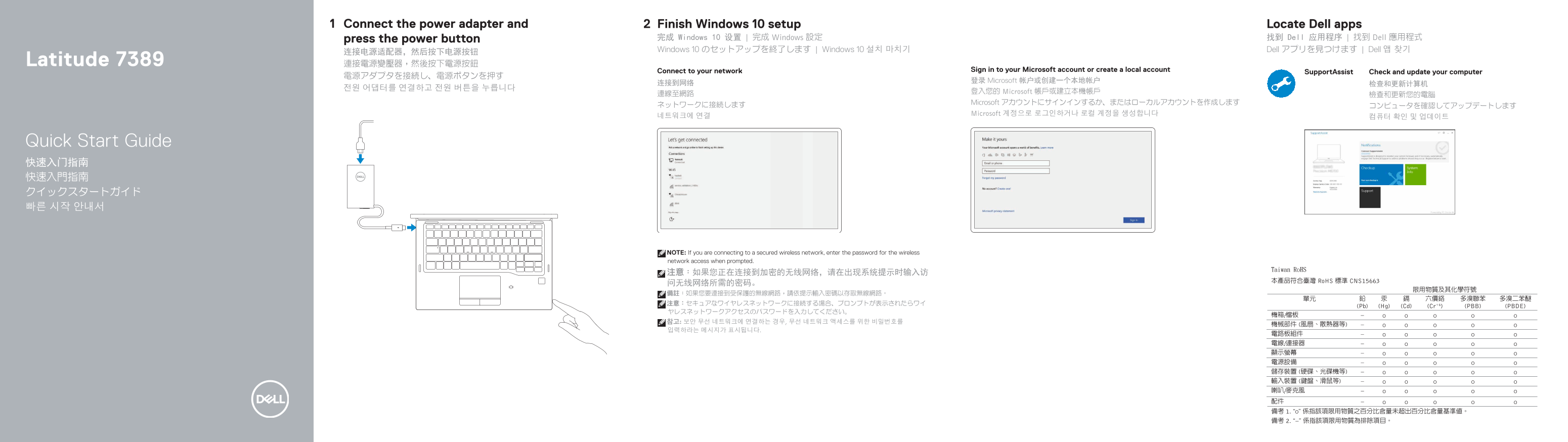
Page 1 Text Content
Connect the power adapter and Finish Windows 10 setup Locate Dell apps
press the power button 完成 Windows 10 设置 | 完成 Windows 設定 找到 Dell 应用程序 | 找到 Dell 應用程式 Windows 10 のセットアップを終了します | Windows 10 설치 마치기 Dell アプリを見つけます | Dell 앱 찾기
Latitude 7389 連接電源變壓器,然後按下電源按鈕
Connect to your network Sign in to your Microsoft account or create a local account
Support Assist Check and update your computer
登录 Microsoft 帐户或创建一个本地帐户
登入您的 Microsoft 帳戶或建立本機帳戶
Microsoft アカウントにサインインするか、またはローカルアカウントを作成します
Microsoft 계정으로 로그인하거나 로컬 계정을 생성합니다
Quick Start Guide 快速入门指南 快速入門指南 クイックスタートガイド 빠른 시작 안내서
NOTE: If you are connecting to a secured wireless network, enter the password for the wireless network access when prompted. 注意:如果您正在连接到加密的无线网络,请在出现系统提示时输入访 问无线网络所需的密码。 備註:如果您要連接到受保護的無線網路,請依提示輸入密碼以存取無線網路。 注意:セキュアなワイヤレスネットワークに接続する場合、プロンプトが表示されたらワイ ヤレスネットワークアクセスのパスワードを入力してください。 참고: 보안 무선 네트워크에 연결하는 경우, 무선 네트워크 액세스를 위한 비밀번호를 입력하라는 메시지가 표시됩니다.
Page Summary Contents For Dell Latitude 7389 2-in-1 Quick Install Guide
Manual Details
| Brand | Dell |
|---|---|
| Pages | 2 |
| File Size | 1010.79 KB |
| Published | July 02, 2026 |
Enter the captcha to get the download link:

Frequently Asked Questions
How do I begin setting up the Latitude 7389?
First connect the power adapter, then press the power button. You must sign in to a Microsoft account or create a local account.
What video output connectivity options are available on this laptop?
The model includes both an HDMI port and DisplayPort over USB Type-C for connecting external displays.
Are there any optional biometric or security features?
Optional hardware includes a fingerprint reader, cameras (IR), NFC sensor, smart card reader, and microphone.