Dell Inspiron XPS Setup Diagram User's Guide
Summary
Quick setup guide for a Dell Inspiron laptop featuring S-video TV-out, DVI-I connector, IEEE 1394, PC Card slot, module bay, track stick, touch pad, media control buttons, and multiple USB connectors. The document provides visual identification of all ports and controls, battery removal instructions, optional wireless network configuration steps, and guidance for accessing the Dell Inspiron Help file. It serves as a quick-reference card for initial device setup. Targeted at general consumers setting up their new Dell Inspiron laptop for the first time.
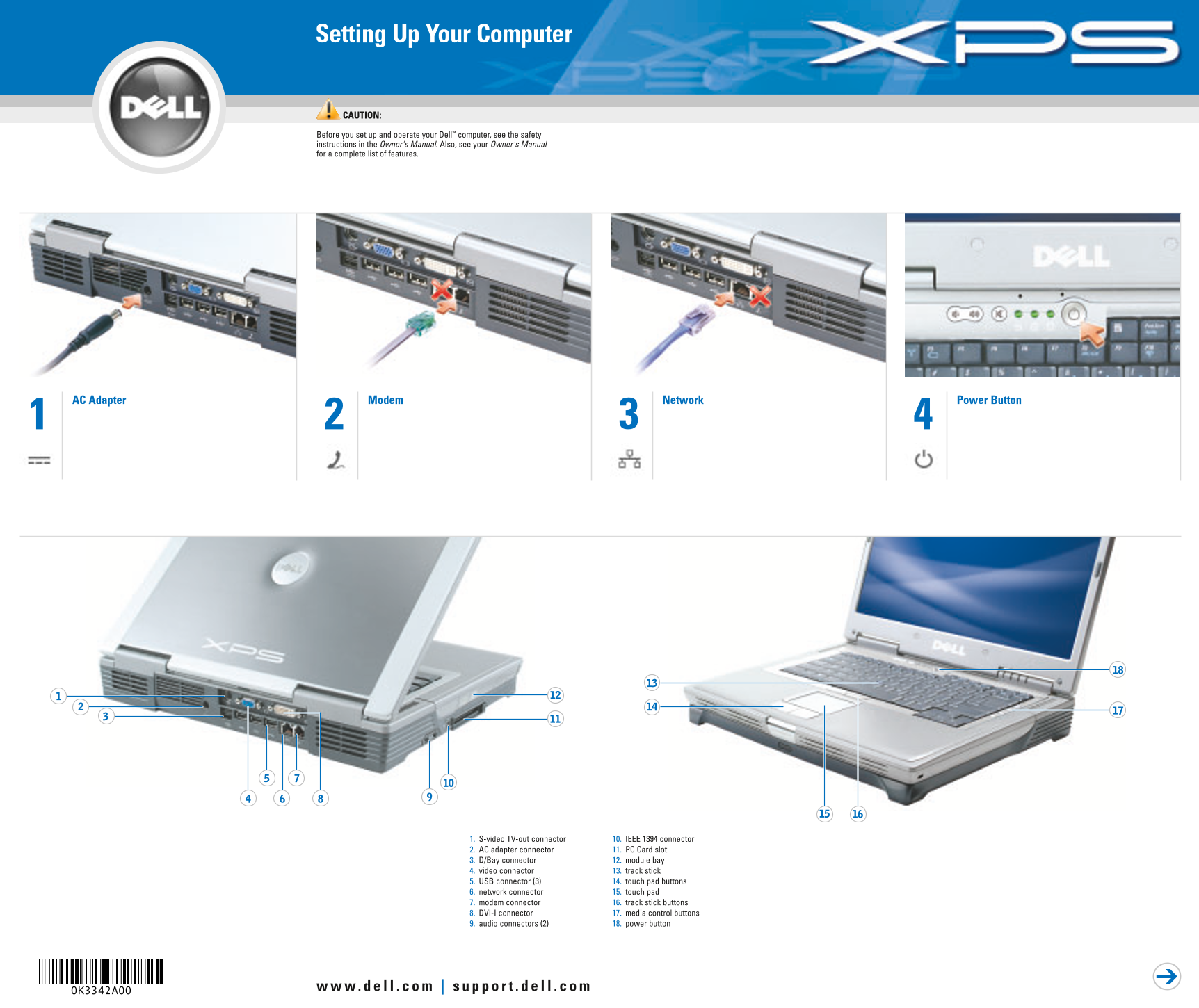
Page 1 Text Content
K3342am0.qxd 1/28/2004 9:08 AM Page 1
Setting Up Your Computer
CAUTION:
Before you set up and operate your Dell™ computer, see the safety instructions in the Owner's Manual. Also, see your Owner's Manual for a complete list of features.
AC Adapter Modem Network Power Button
1. S-video TV-out connector 10. IEEE 1394 connector 2. AC adapter connector 11. PC Card slot 3. D/Bay connector 12. module bay 4. video connector 13. track stick 5. USB connector (3) 14. touch pad buttons 6. network connector 15. touch pad 7. modem connector 16. track stick buttons 8. DVI-I connector 17. media control buttons 9. audio connectors (2) 18. power button
Page Summary Contents For Dell Inspiron XPS Setup Diagram User's Guide
Manual Details
| Brand | Dell |
|---|---|
| Pages | 2 |
| File Size | 182.16 KB |
| Published | June 27, 2026 |
Enter the captcha to get the download link:

Frequently Asked Questions
What is the first step before setting up a Dell computer?
See the safety instructions in your Owner's Manual for caution before setting up and operating the Dell computer.
How should I remove the rechargeable battery?
Slide the battery latch release and lift the battery out of the bay.
Where can I find help on using peripheral devices like printers?
See your Owner's Manual or use the Dell™ Inspiron™ Help file by clicking the Start button and selecting User’s guides.
What do I need to know about wireless network connections?
Ensure that your wireless router is enabled, right-click the connection icon, view available networks, and click Connect.