Dell Inspiron 510m Installation Diagrams
Summary
Dell laptop setup guide (2004) covering AC adapter, modem, and network connections, power button, wireless network configuration via Windows wireless connections icon, battery removal via bottom latch release, and component overview including S-video TV-out, IEEE 1394, PC Card slot, and infrared sensor.
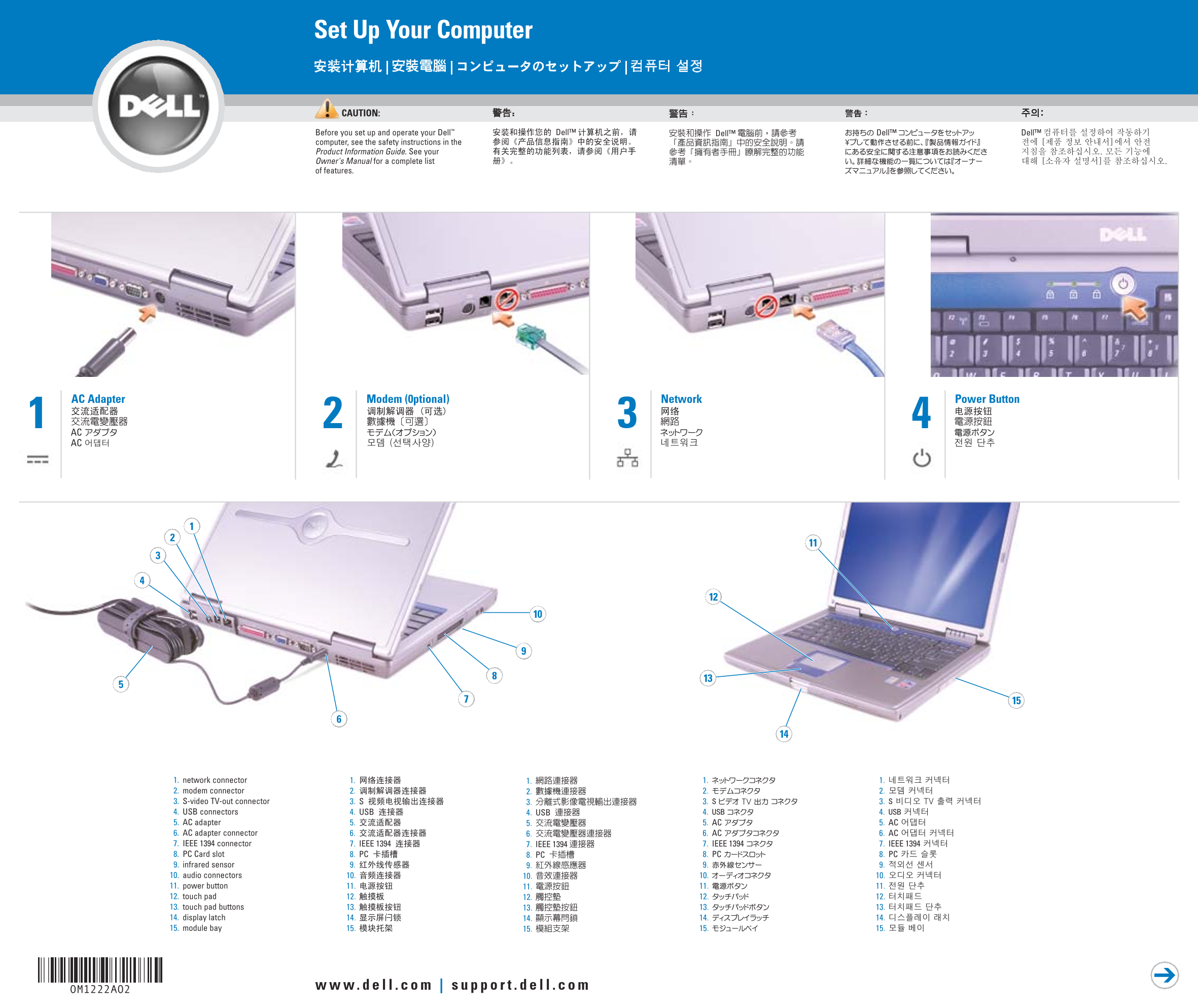
Page 1 Text Content
Set Up Your Computer
CAUTION:
Before you set up and operate your Dell™ computer, see the safety instructions in the Product Information Guide. See your Owner's Manual for a complete list of features.
AC Adapter Modem (0ptional) Network Power Button
1. network connector 2. modem connector 3. S-video TV-out connector 4. USB connectors 5. AC adapter 6. AC adapter connector 7. IEEE 1394 connector 8. PC Card slot 9. infrared sensor 10. audio connectors 11. power button 12. touch pad 13. touch pad buttons 14. display latch 15. module bay
Page Summary Contents For Dell Inspiron 510m Installation Diagrams
Manual Details
| Brand | Dell |
|---|---|
| Pages | 2 |
| File Size | 1.42 MB |
| Published | July 03, 2026 |
Enter the captcha to get the download link:

Frequently Asked Questions
What should I do before setting up and operating this Dell computer?
You must see the safety instructions provided in the Product Information Guide.
How can I find my Owner's Manual for printed copies or quick viewing?
Double-click the owner's manual icon on your Windows desktop to view it, or use the printer icon after setup to print it.
What are the steps for connecting to a wireless network?
Right-click the wireless connections icon, choose 'View Available Wireless Networks,' select your network, and click Connect.
Where can I find help with my Windows operating system?
Click the Start button and then click Help and Support for general assistance, or use the dedicated troubleshooting tips section.