Dell Inspiron 24 3452 Quick User Guide - Windows 7
Summary
This Quick Start Guide for the Dell Inspiron 24 3000 Series all-in-one desktop provides multilingual setup instructions covering easel and pedestal stand installation, keyboard and mouse setup, power cable connection, Windows setup completion, and network connectivity. It includes guidance on setting Windows passwords, protecting the computer, and accessing Dell Help Documentation for learning about features and advanced options. Suitable for home and small office desktop users.
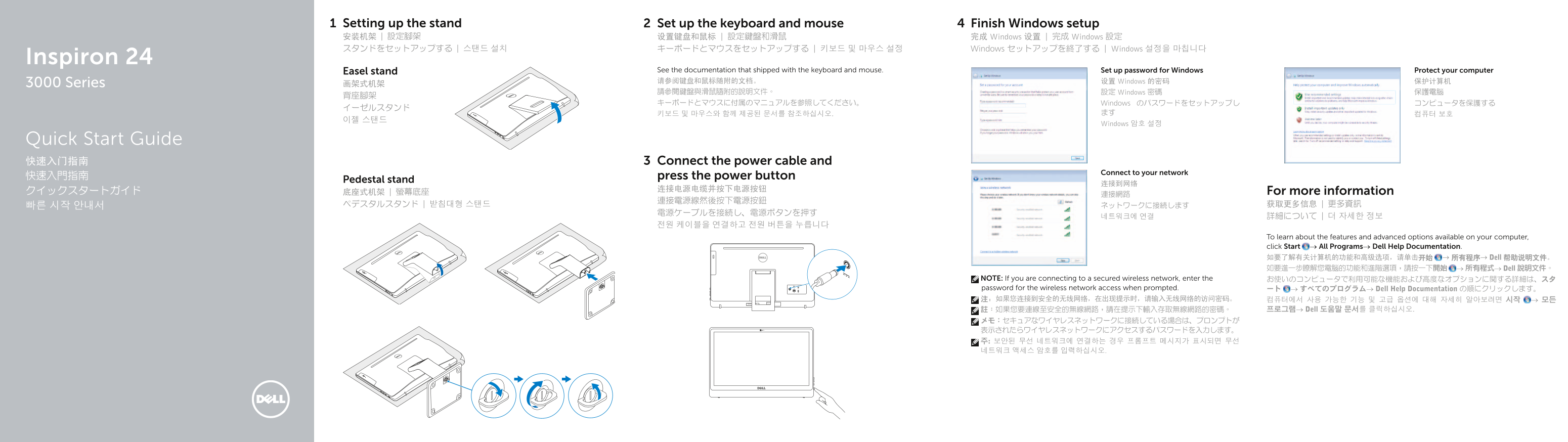
Page 1 Text Content
Setting up the stand Set up the keyboard and mouse Finish Windows setup 安装机架 | 設定腳架 设置键盘和鼠标 | 設定鍵盤和滑鼠 完成 Windows 设置 | 完成 Windows 設定 スタンドをセットアップする | 스탠드 설치 キーボードとマウスをセットアップする | 키보드 및 마우스 설정 Windows セットアップを終了する | Windows 설정을 마칩니다
Inspiron 24
Easel stand See the documentation that shipped with the keyboard and mouse. Set up password for Windows Protect your computer 请参阅键盘和鼠标随附的文档。 设置 Windows 的密码 保护计算机
3000 Series 画架式机架
請參閱鍵盤與滑鼠隨附的說明文件。 設定 Windows 密碼 保護電腦
キーボードとマウスに付属のマニュアルを参照してください。 Windows のパスワードをセットアップし コンピュータを保護する
Windows 암호 설정
Quick Start Guide
3快速入门指南 Connect the power cable and
Connect to your network
快速入門指南 press the power button
Pedestal stand
クイックスタートガイド 底座式机架 | 螢幕底座 For more information
To learn about the features and advanced options available on your computer, click Start → All Programs→ Dell Help Documentation. 如要了解有关计算机的功能和高级选项,请单击开始 → 所有程序→ Dell 帮助说明文件。 如要進一步瞭解您電腦的功能和進階選項,請按一下開始 → 所有程式→ Dell 說明文件。
NOTE: If you are connecting to a secured wireless network, enter the お使いのコンピュータで利用可能な機能および高度なオプションに関する詳細は、スタ password for the wireless network access when prompted. ート → すべてのプログラム→ Dell Help Documentation の順にクリックします。 注:如果您连接到安全的无线网络,在出现提示时,请输入无线网络的访问密码。 컴퓨터에서 사용 가능한 기능 및 고급 옵션에 대해 자세히 알아보려면 시작 → 모든
註:如果您要連線至安全的無線網路,請在提示下輸入存取無線網路的密碼。 프로그램→ Dell 도움말 문서를 클릭하십시오.
Page Summary Contents For Dell Inspiron 24 3452 Quick User Guide - Windows 7
Manual Details
| Brand | Dell |
|---|---|
| Pages | 2 |
| File Size | 367.70 KB |
| Published | July 01, 2026 |
Enter the captcha to get the download link:

Frequently Asked Questions
Where can I find advanced options for my computer?
Click Start → All Programs→ Dell Help Documentation.
How do I set up the initial peripherals and power?
Install the stand, set up the keyboard/mouse, connect the power cable, then press the power button.
What is required to connect the computer to a secured wireless network?
You must enter the password for the wireless network access when prompted during setup.
Are all ports available on every model?
No. The microphone feature varies depending on whether the display is touch-screen or non-touch screen.