Dell B2375dfw Quick Setup Guide
Summary
Dell B2375dfw/B2375dnf Mono MFP Quick Reference Guide provides essential information for operating Dell monochrome multifunction printers. It covers printer component identification, paper jam clearing locations, operator panel button functions, toner replacement, printer cleaning, wireless setup for the dfw model, and service tag location. The guide targets office users and IT support staff managing Dell multifunction printing devices in business environments.
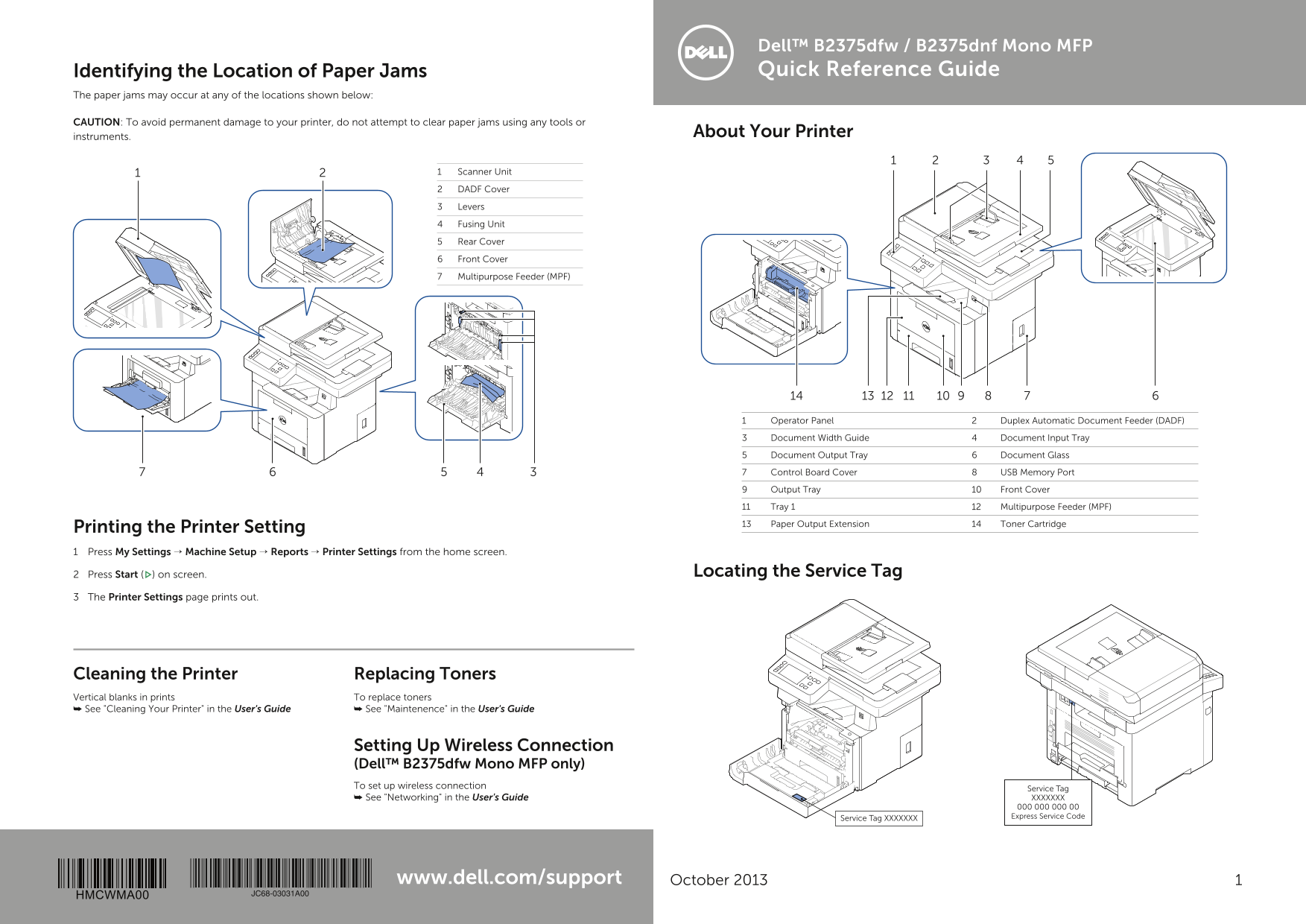
Page 1 Text Content
Dell™ B2375dfw / B2375dnf Mono MFP Identifying the Location of Paper Jams Quick Reference Guide
The paper jams may occur at any of the locations shown below:
CAUTION: To avoid permanent damage to your printer, do not attempt to clear paper jams using any tools or
instruments. About Your Printer
1 Scanner Unit
2 DADF Cover
3 Levers
4 Fusing Unit
5 Rear Cover
6 Front Cover
7 Multipurpose Feeder (MPF)
1 Operator Panel 2 Duplex Automatic Document Feeder (DADF)
3 Document Width Guide 4 Document Input Tray
5 Document Output Tray 6 Document Glass
7 Control Board Cover 8 USB Memory Port
9 Output Tray 10 Front Cover
11 Tray 1 12 Multipurpose Feeder (MPF)
13 Paper Output Extension 14 Toner Cartridge
Printing the Printer Setting 1 Press My Settings → Machine Setup → Reports → Printer Settings from the home screen.
2 Press Start ( ) on screen. Locating the Service Tag
3 The Printer Settings page prints out.
Cleaning the Printer Replacing Toners Vertical blanks in prints To replace toners ➥ See "Cleaning Your Printer" in the User's Guide ➥ See "Maintenence" in the User's Guide
Setting Up Wireless Connection (Dell™ B2375dfw Mono MFP only) To set up wireless connection Service Tag
➥ See "Networking" in the User's Guide XXXXXXX 000 000 000 00 Service Tag XXXXXXX Express Service Code
www.dell.com/support October 2013
HMCWMA00 JC68-03031A00
Page Summary Contents For Dell B2375dfw Quick Setup Guide
Manual Details
| Brand | Dell |
|---|---|
| Pages | 6 |
| File Size | 5.82 MB |
| Published | June 29, 2026 |
Enter the captcha to get the download link:

Frequently Asked Questions
What should I do if there is a paper jam?
See "Clearing Jams" in the User's Guide. Do not use tools or instruments to clear jams to prevent permanent damage.
How do I check toner status and replace it?
If the orange LED blinks, your toner cartridge might be low. To fully empty it, remove the old toner and install a new one.
What does the Status LED mean when it is Orange Blinking?
It means a minor error has occurred, waiting for the error to clear. If the problem resolves, the machine will resume operation.
How can I set up wireless connectivity on the B2375dfw?
Use the Wi-Fi/WPS function (Key 9) to easily configure the network connection without needing a computer.