# A B C D E F G H I J K L M N O P Q R S T U V W X Y Z

Dell Axim X50 Aktualizacja Informacji Owner's Manual

Summary

Dell Axim X50 Wireless LAN Security setup guide for Cisco LEAP authentication using Odyssey Client. Step-by-step instructions for configuring 802.1X network authentication with Cisco LEAP on Dell Axim X50 Pocket PC running Windows Mobile. Covers obtaining network name, association mode, and encryption method from network administrator, adding network profile in Odyssey Client, selecting EAP/LEAP authentication type, and entering user credentials. Notes that LEAP is not supported on peer-to-peer networks or low-end Axim X50 version.
📄 Preview 📖 Table of Contents Contents PAGE OF 18

Page 1 Text Content

.d ll.c | s t.d ll.c

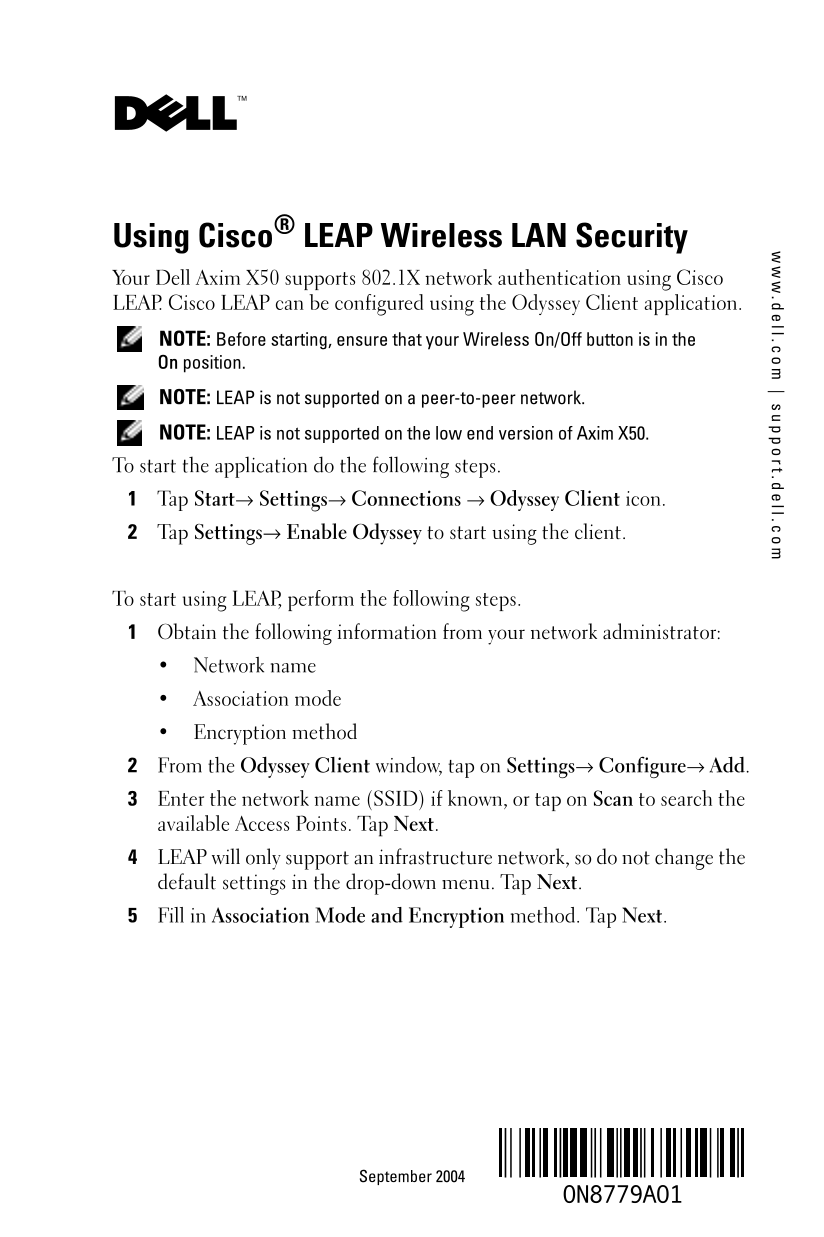
Using Cisco® LEAP Wireless LAN Security Your Dell Axim X50 supports 802.1X network authentication using Cisco LEAP. Cisco LEAP can be configured using the Odyssey Client application. NOTE: Before starting, ensure that your Wireless On/Off button is in the On position. NOTE: LEAP is not supported on a peer-to-peer network. NOTE: LEAP is not supported on the low end version of Axim X50. To start the application do the following steps. Tap Start→ Settings→ Connections → Odyssey Client icon. Tap Settings→ Enable Odyssey to start using the client.

To start using LEAP, perform the following steps. Obtain the following information from your network administrator:

Network name Association mode Encryption method From the Odyssey Client window, tap on Settings→ Configure→ Add. Enter the network name (SSID) if known, or tap on Scan to search the available Access Points. Tap Next. LEAP will only support an infrastructure network, so do not change the default settings in the drop-down menu. Tap Next. Fill in Association Mode and Encryption method. Tap Next.

September 2004

Page Summary Contents For Dell Axim X50 Aktualizacja Informacji Owner's Manual

Page 1 .d ll.c | s t.d ll.c Using Cisco® LEAP Wireless LAN Security Your Dell Axim X50 supports 802.1X network authentication using Cisco LEAP. Cisco LEAP can be configured using the Odyssey Client applicati...
Page 2 .d ll .c t. ll .c EAP/TTLS is the preselected EAP type. Tap Add and select EAP/LEAP in the window that opens up. Unless you have an authentication certificate to use TTLS and have configured your syst...
Page 3 .d ll.c | s t.d ll.c 使用 Cisco LEAP 无线 LAN 安全保护 Dell Axim X50 使用 Cisco LEAP 支持 802.1X 网络验证。Cisco LEAP 可使用 Odyssey 客户 机应用程序进行配置。 : 在开始之前,请确保无线开启 /关闭按钮位于 On(开启)位置。 : 对等网络不支持 LEAP。 : Axim X50 的低端版本不支持 LEA...
Page 4 .d ll .c t. ll .c 除非您有使用 TTLS 的验证证书并已将系统配置为支持 TTLS,否则请移除 EAP/TTLS。点击 Next(下一步)。 : 在 EAP/TTLS 未正确设置的情况下未将其移除将造成您的无线安 全系统无法正常工作。 输入用户名和密码。点击 Next(下一步)。 点击 Finish(结束)来完成 LEAP 配置。 点击 OK(确定)。 选择您从下拉式菜单中添加的...
Page 5 .d ll.c | s t.d ll.c Sécurité de réseau local sans fil Cisco® LEAP Votre Dell Axim prend en charge l'authentification réseau 802.1X à l'aide de Cisco LEAP. Cisco LEAP peut être configuré avec l'applic...
Page 6 .d ll .c t. ll .c Renseignez les champs Mode d'association et Méthode de cryptage. Tapez sur Suivant. EAP/TTLS est le type d'EAP présélectionné. Tapez sur Ajouter et sélectionnez EAP/LEAP dans la fenê...
Page 7 .d ll.c | s t.d ll.c Verwenden von Cisco® LEAP Wireless LAN- Sicherheit Der Dell Axim X50 unterstützt die 802.1X Netzwerkauthentifizierung mit- hilfe von Cisco LEAP. Cisco LEAP kann mithilfe der Anwen...
Page 8 .d ll .c t. ll .c Fügen Sie Association Mode and Encryption (Zuordnungs- und Verschlüsselungs-)Methode ein. Tippen Sie auf Weiter. EAP/TTLS wird als Voreinstellung des EAP-Typs angegeben. Tippen Sie a...
Page 9 .d ll.c | s t.d ll.c Uso della protezione per LAN senza fili Cisco® LEAP Il Dell Axim X50 supporta autenticazione di rete 802.1X utilizzando Cisco LEAP. Cisco LEAP può essere configurato utilizzando l...
Page 10 .d ll .c t. ll .c Inserire il metodo di Association Mode and Encryption (Modalità di associazione e cifratura). Toccare Avanti. EAP/TTLS è il tipo di EAP preselezionato. Toccare Add (Aggiungi) e scegl...
Page 11 .d ll.c | s t.d ll.c Cisco LEAP Wireless LAN セキュリティ お使いの Dell Axim X50 は、Cisco LEAP を使用した 802.1X ネットワーク 認証をサポートしています。Cisco LEAP は Odyssey Client アプリケーショ ンを使用して設定することができます。 メモ: 始める前に、お使いのワイヤレスのオン / オフボ...
Page 12 .d ll .c t. ll .c Association Mode and Encryption(アソシエーションモードと 暗号)方式を入力します。Next(次へ)をタップします。 EAP/TTLS は既に選択されている EAP タイプです。Add(追加)を タップして、開いたウィンドウにある EAP/LEAP を選択します。 TTLS を使用するための認証をお持ちで、お使いのシステムがそれをサ...
Page 13 .d ll.c | s t.d ll.c Korzystanie z zabezpieczeń sieci bezprzewodowej Cisco® LEAP Wireless LAN Security Komputer Dell Axim X50 obsługuje uwierzytelnianie zgodne ze standardem 802.1X z wykorzystaniem te...
Page 14 .d ll .c t. ll .c Technologia LEAP obsługuje wyłącznie sieci w trybie „infrastructure“, nie zmieniaj więc ustawień domyślnych w menu rozwijanym. Stuknij Next (Dalej). Uzupełnij dane dotyczące Trybu as...
Page 15 .d ll.c | s t.d ll.c Como usar a segurança de LAN sem fio Cisco® LEAP O Dell Axim X50 suporta autenticação de rede 802.1X usando Cisco LEAP. A Cisco LEAP pode ser configurada usando o aplicativo Odyss...
Page 16 .d ll .c t. ll .c Preencha os campos Modo de associação e Método de criptografia. Toque em Avançar. EAP/TTLS é o tipo de EAP pré-selecionado. Toque em Adicionar e selecione EAP/LEAP na janela que apar...
Page 17 .d ll.c | s t.d ll.c Cómo utilizar la seguridad LAN inalámbrica Cisco® LEAP El Axim X50 de Dell admite la autenticación de red 802.1X utilizando Cisco LEAP. Cisco LEAP puede configurarse utilizando la...
Page 18 .d ll .c t. ll .c Entre el método Modo de asociación y codificación. Puntee en Next (Siguiente). EAP/TTLS es el tipo EAP preseleccionado. Puntee en Add (Agregar) y seleccione EAP/LEAP en la ventana qu...

Manual Details

Brand Dell
Pages 18
File Size 560.76 KB
Published July 03, 2026
2 views

Enter the captcha to get the download link:

captcha

Frequently Asked Questions

Are there network types that LEAP cannot support?

LEAP is not supported on peer-to-peer networks, nor does it function on low-end versions of the Axim X50.

What crucial step should I take regarding EAP/TTLS during setup?

If you do not have an authentication certificate for TTLS, you must remove EAP/TTLS when configuring LEAP to prevent system failure.