Page 1
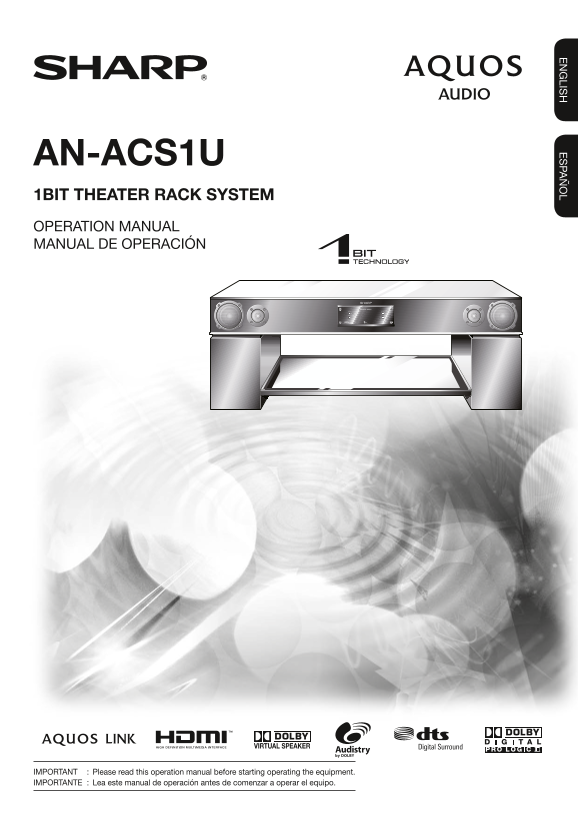
AN-ACS1U 1BIT THEATER RACK SYSTEM OPERATION MANUAL MANUAL DE OPERACIÓN SHARP ELECTRONICS CORPORATION Sharp Plaza, Mahwah, New Jersey 07430-2135 SHARP CORPORATION Printed in Malaysia Impreso en Malasia...
Page 2
AN-ACS1U_cover_1-4.indd 4-5 2008/01/07 18:08:31
Page 3
IS eneral Info rm atio Contents General Information Basic Operation IMPORTANT INFORMATION ........................... Listening to the playback sound .................. DEAR SHARP CUSTOMER ..............
Page 4
DEAR SHARP CUSTOMER Thank you for your purchase of the Sharp 1 BIT THEATER RACK SYSTEM. To ensure safety and many years of trouble-free operation of your product, please read the Important Safety Inst...
Page 5
eneral Info rm atio IMPORTANT SAFETY INSTRUCTIONS • Water and Moisture — Do not use this product near water - for example, near a bath tub, wash bowl, kitchen sink, or laundry tub; in a wet basement; ...
Page 6
IMPORTANT SAFETY INSTRUCTIONS • To prevent fi re or shock hazard, do not place the AC cord under the product or other heavy items. • Turn off the main power and unplug the AC cord from the wall outlet...
Page 7
eneral Info rm atio Precautions ■ General ■ Cooling fan • Please ensure that the equipment is positioned in a This unit is fi tted with a cooling fan at the rear for improved cooling. well-ventilated ...
Page 8
Accessories Please confi rm that the following accessories are included. Remote control (x1) “AA” size battery (x2) HDMI cable (x1) (UM/SUM-3, R6, HP-7 or similar) Pages 14-15 Optical digital cable (x...
Page 9
eneral Info rm atio Controls and indicators Main unit (front view) Top glass cover Front speaker (L-ch) Control/Display part Front speaker (R-ch) • The left-channel sound is reproduced here. • The rig...
Page 10
Controls and indicators Control part POWER VOLUME +/- • Switches the unit between on and off (stand-by). • Turns up/down the volume. Remote sensor Power indicator Pages 16•19 • Point the remote contro...
Page 11
eneral Info rm atio Controls and indicators Main unit (rear view) Wall spacer Amplifier part Wall spacer Page 11Page 11 Bass reflex duct (Do not insert any objects here.) Subwoofer Amplifi er part HDM...
Page 12
Controls and indicators Remote control Remote control transmitter POWER • Press to turn the power of the unit on and off (stand-by). INPUT • Press one of these buttons to select the input source. SOUN...
Page 13
rep aratio n fo r U se Installing the unit Before installation • Because this unit is extremely heavy, it must always be handled by at least two persons, to prevent the risk of injury and accidents. •...
Page 14
Installing the unit Positioning the unit in the room Choose the installation location of the unit so that there is enough room to position the TV, media player, or other components and to make the nec...
Page 15
rep aratio n fo r U se Connections • Before making connections, disconnect the power cords from all units. For details on Refer to the manual of the respective unit for detailed instructions. connecti...
Page 16
Connections Connecting a TV (with HDMI connector) AQUOS LINK Use both the optical digital cable and HDMI cable for the connection. To use the AQUOS LINK function (pages 24 - 27), connect the audio sig...
Page 17
rep aratio n fo r U se Connections Connecting a Blu-ray Disc player or similar (with HDMI connector) AQUOS LINK Use the HDMI cable for the connection. To HDMI output Blu-ray Disc player Cables to use ...
Page 18
AC power connection Connecting the AC power cord After checking that all the connections have been made correctly, connect the AC power cord to the AC outlet. Power indicator lights up in red. Lit in ...
Page 19
rep aratio n fo r U se Remote control Battery installation 1 Open the battery cover. Precautions for battery use: Open • Replace all old batteries with new ones at the same time. • Do not mix old and ...
Page 20
General control Subwoofer control The subwoofer level can be adjusted. Press SUBWOOFER LEVEL. • The current subwoofer level setting is shown. When you press the button again while the level is shown (...
Page 21
asic O eratio Listening to the playback sound 1 Turn on the connected equipment. 2 Press POWER to turn the power on. The power indicator lights up green. Lit in green 3 Select the source to be playbac...
Page 22
Enjoying surround sound (sound mode) This product incorporates decoders supporting the Dolby Digital system and DTS system. Dolby Digital Dolby Pro Logic One of the digital audio systems for theatrica...
Page 23
asic O eratio Enjoying surround sound (sound mode) Preset sound mode Select any of the 11 preset sound modes already set to the optimal sound quality levels. Select a desired sound mode by pressing on...
Page 24
Enjoying surround sound (sound mode) Dolby Virtual Speaker (DVS) sound mode The Dolby Virtual Speaker (DVS) creates virtual surrounds comparable to the 5.1ch sound produced by the 2.1ch speaker. When ...
Page 25
asic O eratio Enjoying surround sound (sound mode) Audistry sound mode Enjoy a variety of sounds by each or any combination of the 4 modes. Press the button for your desired mode. Display Press it aga...
Page 26
AQUOS LINK AQUOS LINK function ■ When connecting an HDMI CEC (Consumer Electronics Control)-enabled AQUOS TV, Blu-ray Disc player or other SHARP product, operation of these components in the system ca...
Page 27
asic O eratio AQUOS LINK AQUOS LINK Setup • Use the remote control of the AQUOS TV and point it towards the AQUOS TV for operation. Reproducing the sound of the AQUOS TV through the AQUOS AUDIO system...
Page 28
AQUOS LINK Reproducing AQUOS TV sound through the AQUOS AUDIO system • Use the remote control of the AQUOS TV and point it towards the AQUOS TV for operation. 1 Press POWER. • Along with the AQUOS TV,...
Page 29
asic O eratio AQUOS LINK 3 Use a to select “ON” and press ENTER. To cancel the setting Use b to select "OFF" and then press ENTER. Enabling the low power stand-by mode In the factory default...
Page 30
Troubleshooting chart Many potential problems can be resolved by the owner without calling a service technician. If something is wrong with this product, check the following before calling your author...
Page 31
eferences Error indications and warnings When you fail to perform operations properly, the following messages are displayed on the unit. Error message Possible Error • The cooling fan at the rear of t...
Page 32
Specifi cations As part of our policy of continuous improvement, SHARP reserves the right to make design and specifi cation changes for product improvement without prior notice. The performance specif...
Page 33
CONSUMER LIMITED WARRANTY (Valid for warranty service in the U.S. and PUERTO RICO only) CONSUMER LIMITED WARRANTY SHARP ELECTRONICS CORPORATION warrants to the first consumer purchaser that this Sharp...
Page 34
AN-ACS1U_en.indb 32 2008/01/07 18:06:43
Page 35
AN-ACS1U_cover_1-4.indd 4-5 2008/01/07 18:08:31
Page 36
AN-ACS1U 1BIT THEATER RACK SYSTEM OPERATION MANUAL MANUAL DE OPERACIÓN SHARP ELECTRONICS CORPORATION Sharp Plaza, Mahwah, New Jersey 07430-2135 SHARP CORPORATION Printed in Malaysia Impreso en Malasia...