# A B C D E F G H I J K L M N O P Q R S T U V W X Y Z

Roland CDX-1 DiscLab Addendum User's Manual

Summary

Comprehensive guide detailing advanced features for the CDX-1 unit's Ver. 1.5 update. This manual provides step-by-step instructions on sample manipulation—such as tempo compression and expansion—sequence editing, multitrack recording, and mastering tool adjustments. Users will learn how to synchronize the CDX-1 with external MIDI sequencers or drum machines. Essential for producers and music enthusiasts seeking full utilization of the unit's expanded performance capabilities.
📄 Preview 📖 Table of Contents Contents PAGE OF 24

Page 1 Text Content

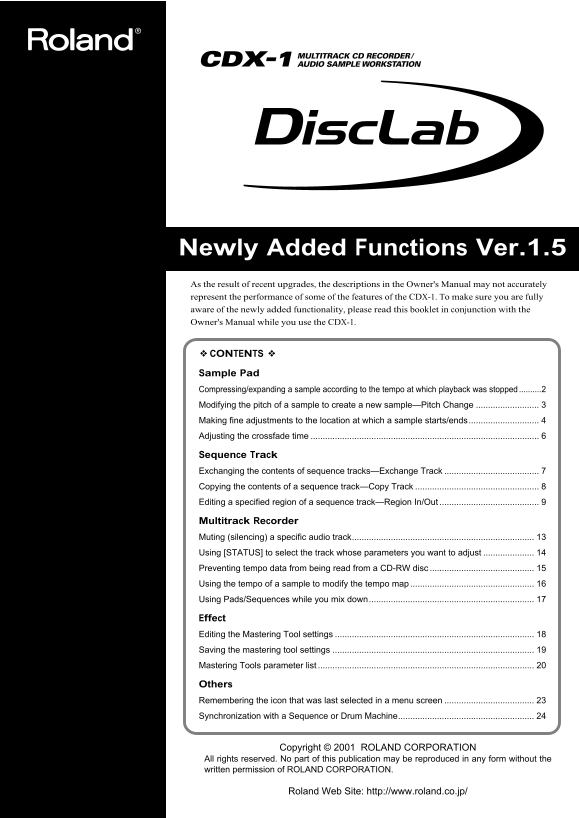
Newly Added Functions Ver.1.5 As the result of recent upgrades, the descriptions in the Owner's Manual may not accurately represent the performance of some of the features of the CDX-1. To make sure you are fully aware of the newly added functionality, please read this booklet in conjunction with the Owner's Manual while you use the CDX-1.

❖ CONTENTS ❖

Sample Pad Compressing/expanding a sample according to the tempo at which playback was stopped ..........2 Modifying the pitch of a sample to create a new sample—Pitch Change Making fine adjustments to the location at which a sample starts/ends............................. Adjusting the crossfade time

Sequence Track Exchanging the contents of sequence tracks—Exchange Track Copying the contents of a sequence track—Copy Track Editing a specified region of a sequence track—Region In/Out

Multitrack Recorder Muting (silencing) a specific audio track........................................................................... Using [STATUS] to select the track whose parameters you want to adjust Preventing tempo data from being read from a CD-RW disc Using the tempo of a sample to modify the tempo map Using Pads/Sequences while you mix down....................................................................

Effect Editing the Mastering Tool settings Saving the mastering tool settings Mastering Tools parameter list

Others Remembering the icon that was last selected in a menu screen Synchronization with a Sequence or Drum Machine........................................................

Copyright © 2001 ROLAND CORPORATION

All rights reserved. No part of this publication may be reproduced in any form without the written permission of ROLAND CORPORATION.

Roland Web Site: http://www.roland.co.jp/

Page Summary Contents For Roland CDX-1 DiscLab Addendum User's Manual

Page 1 Newly Added Functions Ver.1.5 As the result of recent upgrades, the descriptions in the Owner's Manual may not accurately represent the performance of some of the features of the CDX-1. To make sure y...
Page 2 Compressing/expanding a sample according to the tempo at which playback was stopped While playback is stopped, you can adjust the length of the sample according to the tempo of the location at which p...
Page 3 Modifying the pitch of a sample to create a new sample—Pitch Change You can modify the pitch of a sample to create a new sample. Pitch Change requires more 1. Press PAD RECORDING [TEMPO MATCH] twice. ...
Page 4 Making fine adjustments to the location at which a sample starts/ends When you arrange samples in a sequence track to create a song, you will sometimes need to make fine adjustments to the sample's st...
Page 5 Making fine adjustments to the location at which a sample starts/ends Using scrub to set a point—Scrub Preview Scrub Preview repeatedly plays an extremely brief region (45 milliseconds) either before ...
Page 6 Adjusting the crossfade time You can adjust the time over which two pads will be exchanged by the Pad Crossfade function (Owner's Manual; p. 71). 1. Press [UTILITY]. The Menu are displayed as icon. fi...
Page 7 Exchanging the contents of sequence tracks —Exchange Track A sequence track and its corresponding audio track cannot be played back at the same time. For example, sequence track A and audio tracks 1-2...
Page 8 Copying the contents of a sequence track —Copy Track The contents of a sequence track can be copied to another sequence track. When you execute the Copy Track operation, the entire 1. Press PAD SEQUEN...
Page 9 Editing a specified region of a sequence track —Region In/Out In the Sequence Play List screen, you can specify a region, then edit only that region. You can also edit multiple tracks at once. Specify...
Page 10 Editing a specified region of a sequence track Canceling an editing region To cancel an editing region that you've specified, perform the following. 1. Press PAD SEQUENCING [SEQ PLAY]. [SEQ PLAY] ligh...
Page 11 Editing a specified region of a sequence track Cutting Segments—Cut This operation cuts the phrases of the specified region. Any phrases that followed the region will be moved forward. 1. Specify the ...
Page 12 Editing a specified region of a sequence track Pasting to a Another Location—Paste This operation pastes the phrases of the specified region to another location. If there were any phrases in the paste...
Page 13 Muting (silencing) a specific audio track During playback, you can switch audio tracks between muted (silent) and playing statuses. An audio track whose [STATUS] was dark when playback began cannot be...
Page 14 Using [STATUS] to select the track whose parameters you want to adjust When you want to adjust an audio track's mixer settings (pan, equalizer), or loop effect settings, you can also press [STATUS] fo...
Page 15 Preventing tempo data from being read from a CD-RW disc When pads or sequences are stored in internal memory, you can specify that the tempo data of a song saved on a CD-RW disc not be loaded when you...
Page 16 Using the tempo of a sample to modify the tempo map Here's how you can easily modify the tempo map to match a drum loop sample on which your song is based. The tempo of a sample is displayed in the up...
Page 17 Using Pads/Sequences while you mix down You can play sequence tracks and pads while mixing down. This can be done in any combination: for example, you can mix down sequence tracks and pads together wi...
Page 18 Editing the Mastering Tool settings You can edit the mastering tool settings while you listen to the mixdown. Select one of the preset patches (P01–P21) that is closest to what you have in mind, and e...
Page 19 Saving the mastering tool settings You can assign a name (patch name) to the mastering tool settings you've edited, and save your settings. This procedure is a continuation of “Editing the mastering t...
Page 20 Mastering Tools parameter list The Mastering Tools is compressor that splits sounds into different frequency band to unify their volumes. Bass Cut Filter Enhancer Equalizer Input Expander * Below show...
Page 21 Mastering Tools parameter list IN (Input): Specify the frequency points at which the original sound will be divided, so that the expander/compressor can be applied independently to the low, mid, and h...
Page 22 Mastering Tools parameter list COMP (Compressor) *2: Compressor the entire output signals when the input volume exceeds a specified value. Effect On/Off (Effect On/Off) OFF, ON This parameter turns th...
Page 23 Remembering the icon that was last selected in a menu screen You can cause the icon that was last selected in the following menu screens to be remembered. This is convenient when you are repeatedly us...
Page 24 Synchronization with a Sequence or Drum Machine You can cause a MIDI sequencer or rhythm machine to operate in synchronization with the button operations of the CDX-1. 1. Use a MIDI cable to connect t...

Manual Details

Brand Roland
Pages 24
File Size 725.54 KB
Published June 02, 2026
82 views

Enter the captcha to get the download link:

captcha

Frequently Asked Questions

How can I adjust a sample's length to match a rhythm?

Use the 'Tempo Match Now' feature by pressing PAD RECORDING [TEMPO MATCH] twice, selecting the icon, and specifying desired number of beats.

What is the purpose of the 'Keep Last Menu' setting?

When ON, it remembers the last-selected menu icon when you access a new menu screen.

How do I set up synchronization with an external sequencer?

Connect a MIDI cable and navigate to MIDI settings. Set 'Sync Out' to 'MIDI CLK' and 'Out/Thru' to 'OUT'.

What is the limitation of sample expansion or compression?

If expanding or compressing level exceeds 134% or is less than 67%, the sample will not be made.