Ricoh MP 5001 Reference Guide
Summary
Master the multi-functionality of the Ricoh MP 5001 with this comprehensive guide designed for library staff and office professionals. Learn how to efficiently utilize all operational modes, including Copy, Scanner, Document Server, and Printer functions. The manual details advanced features such as automatic sizing, two-sided copying, customizable finishing options (stapling and punching), and high-quality scanning capabilities directly to folders or email. Streamline your document workflow with professional ease.
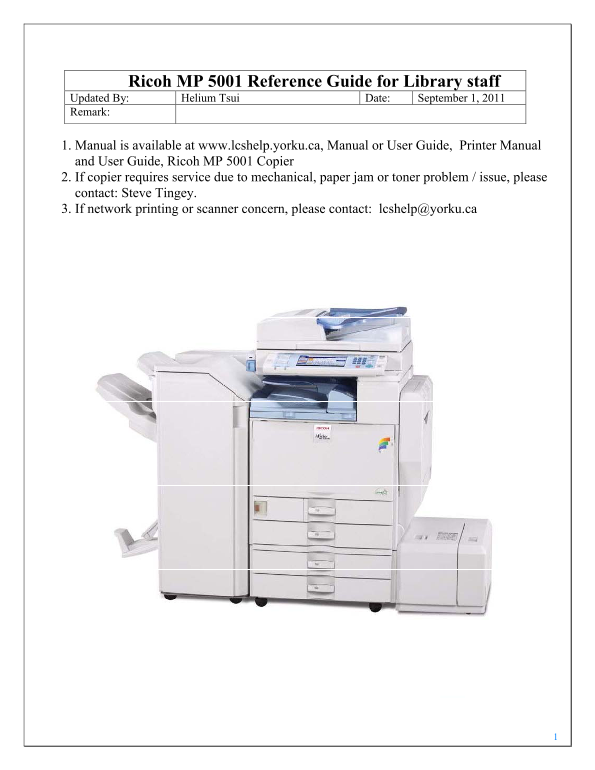
Page 1 Text Content
Ricoh MP 5001 Reference Guide for Library staff Updated By: Helium Tsui Date: September 1, 2011 Remark:
Page Summary Contents For Ricoh MP 5001 Reference Guide
Page 1
Ricoh MP 5001 Reference Guide for Library staff Updated By: Helium Tsui Date: September 1, 2011 Remark:
Page 2
Changing Modes The Ricoh MP 5001 can produce in a variety of modes. To toggle between the modes, use the equipment control panel on the front of the machine. The available modes are located on the ...
Page 3
Basic Copy Features 1. To make a copy, press the ‘Copy’ button located on the left hand side of the control panel. 2. Place your originals on the glass or in the automatic document feeder. Figure 1: D...
Page 4
Rotate Sort – Every other copy is rotated 90 degrees when delivered to the output tray. To use this ‘Rotate Sort’ feature, two paper trays must be loaded with the same size paper in a different orient...
Page 5
Paper Selection The paper select feature allows you to manually select the desired paper size for your copies. 1. Select ‘Paper Select’ on the basic copy interactive screen. 2. Select the appropriate ...
Page 6
Finishing The finishing option will allow stapling of copy sets as they are produced. 1. Place the originals in the automatic document feeder and select ‘Finishing’ on the interactive screen. Your loc...
Page 7
5.To switch between sheets, click the tabs for the appropriate area – Basic, Paper, Edit, Finishing, .... Once the print settings are established, click ‘OK’ to begin printing 6. Select ‘OK’ to begin ...
Page 8
Basic Scanning to Folder Features (not E-mail) Figure 1: Document is placed Face Up in the Document Feeder Figure 2: Document is placed Face Down on the Platen Glass
Manual Details
| Brand | Ricoh |
|---|---|
| Pages | 9 |
| File Size | 2.23 MB |
| Published | June 01, 2026 |
45 views
Enter the captcha to get the download link:
