Page 1
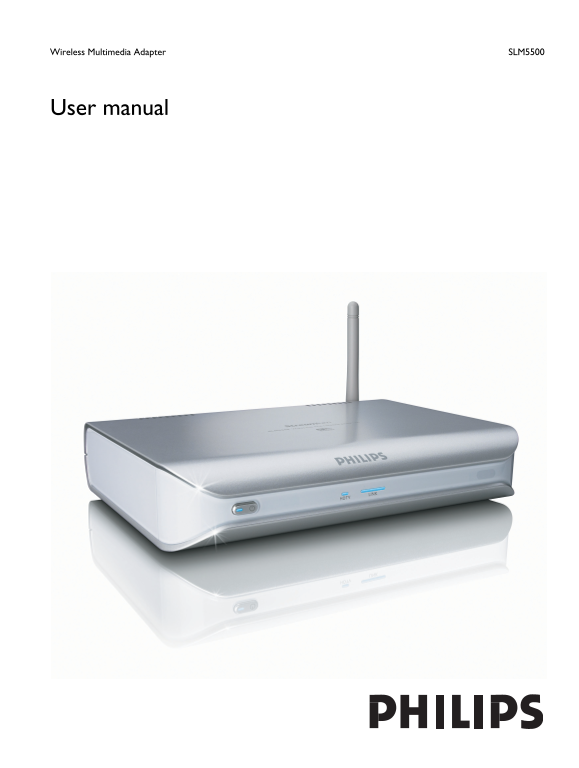
Wireless Multimedia Adapter SLM5500 User manual
Page 3
Contents EN What’s in the box..........................................................................................5 Your product......................................................................
Page 4
Configure...................................................................................................... Open the Settings menu.....................................................................
Page 5
What’s in the box EN elcome Quick start guide Install Connect Enjoy Remote control Quick start guide SLM5500 Wireless Multimedia Adapter 2x AA batteries Installation CD SCART cable Power cable What el...
Page 6
EN Your product Wireless multimedia adapter Watch downloaded movies Download and store movies on your PC then watch them on your TV from the comfort of your living room couch. No need to burn movies f...
Page 7
Before you start EN User manual Follow the procedures described in the user manual. Keep the installation CD for future reference. Tip The documents of the connected devices can contain additional inf...
Page 8
European regulations EN The product has been designed, tested and manufactured according to the European R&TTE directive 1999/5/EC. Under this directive, the product can be put into service in the...
Page 9
Need help? EN Troubleshooting Refer to page 34. Online help Refer to www.philips.com/support for: Interactive help Frequently asked questions Club Philips Refer to club.philips.com for: Interactive he...
Page 10
EN Overview Wireless multimedia adapter On/off light Shows the on/off status of the product. Off - Not connected to a power supply Red - Stand-by mode Blue - On On/off button Turns the product on and ...
Page 11
SCART port Connects a SCART cable to all types of TVs. Video output switch Left - The SCART port is used Right - The component video port is used Component video port Connects a video cable to a high-...
Page 12
Settings button Navigation - Opens and closes the Settings menu Info button Movies, music, pictures - Shows and hides extra information about the media file /i Text and digit entry Action Button Selec...
Page 13
Install EN Install the software Put the installation CD in the CD or DVD drive of the computer. Click on your preferred language. Click on Install. Click on Philips Media Manager. Follow the on-screen...
Page 14
Take a SCART to 3x RCA output adapter (not supplied). Take a stereo audio cable (2x RCA, not supplied). Plug the SCART to 3x RCA output adapter into the SCART port on the product. Plug the stereo audi...
Page 15
Install the power connection Take the power cable. EN Plug the connector of the power cable into the power socket of the product. Plug the power adapter into the power supply. The on/off light on the ...
Page 16
EN Enjoy Compression formats Before you share or play a media file, make sure that the product supports the compression format of the media file (refer to page 35). Digital Rights Management (DRM) DRM...
Page 17
Share a movie file Start the Philips Media Manager. EN Click on Movies. Click on Add Movies. Click on Add Files or Folders. Add the movie file. The properties of the movie file show. Play a movie file...
Page 18
Play the movie file with the supplied remote control. /i Action Button Start the movie file Go forward in the movie file (long) Go to the next movie file (short) Go back in the movie file (long) Go to...
Page 19
Play a music file Share the music file. EN Turn the product on. The home menu shows. Select the media file server that shares the music file and press OK. Home Network PMM (My PC) The media files menu...
Page 20
Share a picture file EN Start the Philips Media Manager. Click on Pictures. Click on Add Pictures. Click on Add Files or Folders. Add the picture file. The properties of the picture file show. Play a ...
Page 21
Play the picture slideshow with the supplied remote control. /i Action Button Start the picture slide show Go to the next picture Go to the previous picture Pause the picture slide show Stop the pictu...
Page 22
Overview /i Setup Language Configuration wizard Network wizard Factory defaults Preferences Slide show interval TV settings TV Shape TV System Image quality Screen saver Network settings View Device n...
Page 23
Start the configuration wizard The configuration wizard starts an automatic process that allows you to configure the EN settings of the product again. Use the network wizard to configure the network s...
Page 24
Restore the factory default values EN Open the Settings menu. Select Setup and press OK. Settings Setup Language The Setup menu shows. Preferences Configuration wizard Network settings Network wizard ...
Page 25
Select TV settings and press OK. Preferences Slide show interval TV Shape The TV settings menu shows. TV settings TV System Image quality Screen saver Select TV Shape and press OK. TV settings TV Shap...
Page 26
Select TV System and press OK. TV settings TV shape PAL The TV system menu shows. EN TV system NTSC Select the preferred item and press OK. Image quality /i Item Description PAL Sets the TV system of ...
Page 27
NTSC, TV connected to SCART port Item Description EN Standard-definition Standard-definition (480i) (480 lines, interlaced @ 60 Hz) Enhanced-definition Not available (480p) High-definition Not availab...
Page 28
Select View and press OK. Network settings View Device name The View menu shows. EN Change IP details Select Device name and press OK. Connection method The device name shows. Wireless details View th...
Page 29
View the wireless details Open the Settings menu. EN Select Network settings and press OK. Settings Setup View The Network settings menu shows. Change Preferences Network settings Internet services Pr...
Page 30
Change the IP assignment EN Open the Settings menu. Select Network settings and press OK. Settings Setup View The Network settings menu shows. Change Preferences Network settings Internet services Pro...
Page 31
Change the connection method Open the Settings menu. EN Select Network settings and press OK. Settings Setup View The Network settings menu shows. Change Preferences Network settings Internet services...
Page 32
Register for Internet services EN Open the Settings menu. Select Internet services and press OK. Settings Setup Register The Internet services menu shows. Preferences Software upgrade Network settings...
Page 33
Select Internet services and press OK. Settings Setup Register The Internet services menu shows. Preferences Software upgrade Network settings Bandwidth Internet services Product info Select Bandwidth...
Page 34
EN Troubleshooting Problems and tips Problem Tip No reaction to the supplied remote control Connect the power adapter to the power supply. Point the remote control at the product. Insert the batteries...
Page 35
Technical data EN Video playback /i Compression formats Div X 3.11, Div X 4, Div X 5, MPEG1, MPEG2, MPEG4, Xvi D, WMV, WMV-DRM HD-MPEG2 (on wired network) Audio playback /i Compression formats MP3, PC...
Page 36
Dimensions /i Product dimensions (Wx Dx H) 207 x 152 x 40 mm Product weight 0.84 kg Power /i Mains power AC 100-240 V 50-60 Hz On/Off switch Power consumption 15 W (2.5 W stand-by) Power LED indicator...
Page 37
Information EN Respect copyrights The making of unauthorised copies of copy-protected material, including computer Be responsible Respect copyrights programmes, files, broadcasts and sound recordings,...
Page 38
Wireless transmission EN The product transmits and receives radio waves when it is switched on. The product complies with the standards that are defined for it. The quality of the image can be influen...
Page 39
Glossary EN Terms and definitions Ad-hoc network A direct connection between two devices. For example, a connection between a computer and the product. Codec Coder-decoder. A program that can decode a...
Page 40
Specifications are subject to change without notice. Trademarks are the property of Koninklijke Philips Electronics N.V. or their respective owners. 2006 © Koninklijke Philips Electronics N.V. All rig...