Page 1
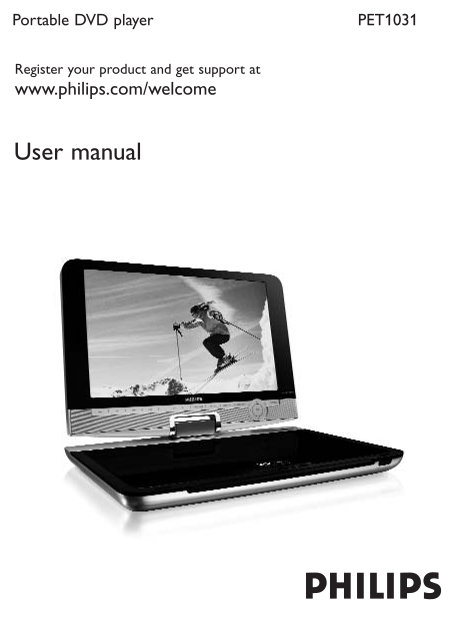
PET1031Portable DVD player Register your product and get support at www.philips.com/welcome User manual
Page 5
English Congratulations on your purchase and welcome to Philips! To fully benefit from the support that Philips offers,register your product at www.philips.com/welcome. Content Control elements and 2....
Page 6
Control elements and functional components 1.1 Main unit controls (see figure 1) 2; Start / pause / resume playback Press once to stop playback and store the stop position. Press twice to stop playbac...
Page 7
S VIDEO S video output COMP. OUT Component video output DC IN 9V-12V Power supply socket 1.6 Remote Control (see figure 6) MENU Display MENU page 3, 4, 1, Up / down / left / right navigation key OK Co...
Page 8
Introduction 2.1 Your portable DVD player Your portable DVD player plays digital video discs conforming to the universal DVD Video standard.With it, you will be able to enjoy full-length movies with t...
Page 9
2.4 Playable disc formats In addition to DVD-Video disc, you will also be able to play all Video CDs, CDs, CDR, CDRW,DVD±R and DVR±RW. 2.4.1 DVD-Video Depending on the material on the disc (a movie, v...
Page 10
2.4.6 About SD Memory Card SD Memory Card is a slim and compact bridge media linking various kinds of digital equipment through its easy connectivity.The card's control circuitry allows data to be rea...
Page 11
2.6.1 Music: This device only supports unprotected music with the following file extension: .mp3 .wma (vary with model) Music bought from on-line music stores are not supported because they are secure...
Page 12
When connecting with car power (cigarette lighter) adaptor, be sure the input voltage of the adaptor is identical with car voltage. Unplug the AC adaptor from the outlet when the unit is not used for ...
Page 13
Hearing Safety Listen at a moderate volume. Using headphones at a high volume can impair your hearing.This product can produce sounds in decibel ranges that may cause hearing loss for a normal person,...
Page 14
Important (for models with by-packed headphones): Philips guarantees compliance with the maximum sound power of its audio players as determined by relevant regulatory bodies only with the original mod...
Page 15
Copyright information “Div X, Div X” Certified, and associated logos are trademarks of Div X, Inc. and are used under license.” All other brand and product names are trademarks of their respec- tive c...
Page 16
CAUTION Batteries contain chemical substances, so they should be disposed of properly. Batteries shall not be exposed to excessive heat such as sunshine, fire or the like. Danger of explosion if batte...
Page 17
The SETUP menu includes: General Language Set On Screen Display (OSD) languages PBC settings Set Playback Control function ON/OFF.This fea- ture is available for Super VCD. Power save Set Power Saving...
Page 18
Fast backward / Fast forward Keep pressing or to initiate backward/forward when 2x is shown on screen, press J( or )K briefly to change speed to 4x, 8x, 16x, 32x or resume normal playback.You may also...
Page 19
Pause Press 2; to pause playback.You can resume playback by pressing 2; again Previous/Next Briefly press J( or )K once or several times to select your desired track Fast backward / Fast forward Keep ...
Page 20
switch on the set. Insert the (S)VCD into the disc slot on the right side of the player. If PBC is on, the disc index menu will appear on the screen. Use numeric keypad 0-9 to input your selection or ...
Page 21
Shuffle Press OPTIONS key to turn shuffle playback on or off Stop Briefly press 9 to stop playback 5.6 Playback Music MP3/WMA-CD Briefly press POWER on the main control of the player to switch on the ...
Page 22
Repeat Press OPTIONS key to select Repeat 1 track or Repeat all tracks Shuffle Press OPTIONS key to turn shuffle playback on or off Stop Briefly press 9 to stop playback 5.7 Playback Picture-CD The pl...
Page 23
Zoom Zoom in the screen, and then use the navigation keys to pan the screen.The function is available by pressing either the ZOOM or OPTIONS key Stop Briefly press 9 on the right side of the player to...
Page 24
At the end of the playback, unplug the USB flash drive or USB memory card from the player Addition Functions 6.1 DISPLAY Menu When you press DISPLAY during playback, the following menu will appear and...
Page 25
6.2 Connection 6.2.1 Headphone Connect the headphone to either one of the headphone jacks on the side of the player. 6.2.2 TV You can connect the player to a TV and enjoy your DVD. White Red Yellow 6....
Page 26
TIP Make sure the metal contact of the card to be inserted is facing down. 6.2.5 S Video To use S Video, connect as illustrated below. White 6.2.6 Component Video(YPb Pr/YCb Cr) Component Video connec...
Page 27
Press OPTION. Press 3 or 4 to select SOURCE, then press 2 to enter its sub-menu. Press 3 or 4 to select YPb Pr or YCb Cr according to your TV setting. Press OK to confirm. To exit the component video ...
Page 28
Disc can’t be played Ensure the disc label is upwards. Clean the disc. Check if the disc is defective by trying another disc. The player does not Aim the remote control directly at the respond to the ...
Page 29
Technical data Dimensions 27 x 19 x 3.8 cm 10.6 x 7.5 x 1.5 inches Weight 1.5 kg / 3.3 lb Power supply DC 9-12V 2.2A Power Consumption ≤20W Operating temperature range Laser wavelength 650nm Video sys...
Page 30
Meet Philips at the Internet http://www.philips.com Specifications are subject to change without notice. Trademarks are the property of Royal Philips Electronics N.V. 2007 or their respective owners R...