Page 1
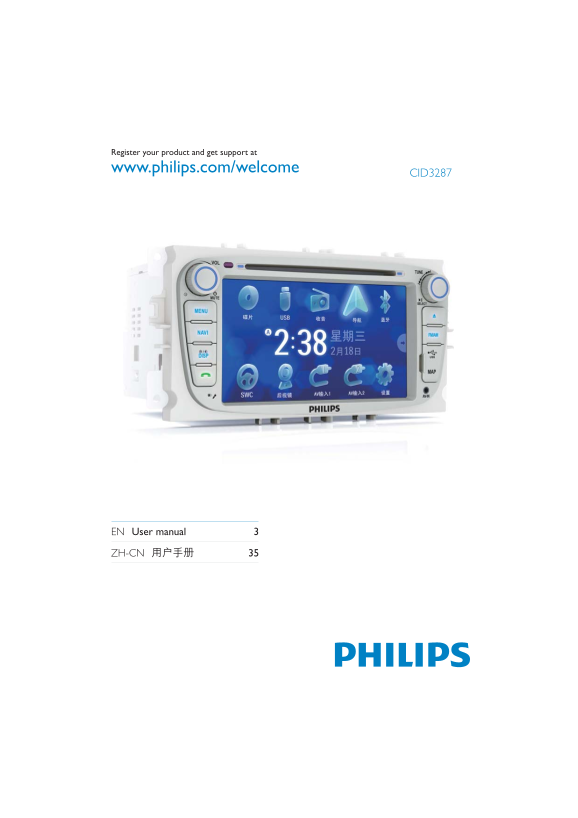
Register your product and get support at www.philips.com/welcome CID3287 EN User manual ZH-CN
Page 2
Contents Important Play with Bluetooth device Safety Pair the Bluetooth-enabled devices Notice Make a call Receive call Listen to music from Bluetooth device Your in-car entertainment system Adjust Bl...
Page 3
Important Notice Safety The making of unauthorized copies of Read and understand all instructions copy-protected material, including computer before you use the apparatus. If damage is caused by failu...
Page 4
Environmental information Your in-car All unnecessary packaging has been omitted. We have tried to make the packaging easy to entertainment separate into three materials: cardboard (box), polystyrene ...
Page 5
What’s in the box Check and identify the contents of your package: Main unit Power connector CMMB cable AV out cable CDC/Control/Camera wire GPS antenna AV IN cable Antenna connector Screen cleaning c...
Page 6
Overview of the main unit Disc slot Built-in microphone TUNE/ SELECT Skip to the previous or next title, Answer phone. chapter, or track. Dial number. Search backward/forward at DISP/ different speeds...
Page 7
Note on the power supply lead (yellow) Get started When you connect other devices to this system, ensure that the rating of the car circuit is higher than the total fuse value of all the connected dev...
Page 8
Fix the unit onto the dashboard with screws. Reconnect the negative terminal of the car battery.
Page 9
la ck re /w it Connect wires rp le /w it Caution rp le /b la ck Ensure that all loose leads are insulated with re y/ la ck electrical tape. it /b la ck re /b la ck Check the car’s wiring carefully, th...
Page 10
Touch a language to select. Touch or to set year, month and day. The OSD language is changed to the » Set clock mode selected language immediately. Touch [Time mode]. To turn off the unit, press for 3...
Page 11
Use map Upgrade the navigation map Turn off the car audio system. Open the MAP card cover. Press the map card until you hear a click You may need to upgrade the map before sound. using it (see “Upgrad...
Page 12
Use navigation Upgrade the navigation map map Turn off the car audio system. Open the MAP card cover. Press the map card until you hear a click sound. Take out the card and bring it to the You may nee...
Page 13
Listen to radio Tune to a radio station Touch the upper left corner to display home menu. Touch to clear the last entered number. Touch [Radio]. Touch to clear all the entered Band and frequency infor...
Page 14
Touch one of the channels 01 to 06 to Play save the select band. Load discs You can play video, audio or images stored on the following discs: DVD video, DVD-R, DVD-RW VCD Audio CD, CD-R, CD-RW Store ...
Page 15
Connect USB device Note Ensure that the device contains playable content. Open the USB door. For DVD movie, if a menu appears, press Connect the supplied USB cable to to start play. socket and the USB...
Page 16
Repeat Touch to return to playlist menu. Touch to display all available picture During play, you can select different repeat play folders. modes. Touch a folder, then touch or to select For DVD/VCD mo...
Page 17
For audio CD: is highlighted : start random play. Touch to select: turns gray: cancel random play. -1: play the current track repeatedly. : play all tracks repeatedly. -OFF: cancel repeat play. Select...
Page 18
Zoom Play with You can zoom in pictures for a close view. Bluetooth device During view pictures, touch anywhere except for the upper left corner to display menu on the screen, if necessary. You can ma...
Page 19
[Missed calls] [Received calls] Disconnect Bluetooth devices [Dialed calls] To disconnect one device, touch (red). [Phone book] (green) is displayed. [Sim phone book] [Local phone book] Or touch to di...
Page 20
Switch phone call to the mobile Adjust Bluetooth settings If you do not want your passenger to hear your You can change below Bluetooth settings: incoming call, you can switch the call to the [Bluetoo...
Page 21
Adjust sound Adjust volume Turn clockwise to increase volume. Turn anti-clockwise to reduce Touch or to select an EQ. volume. Touch or to adjust below settings: [Bass] bass range: -14 to +14. [Mid] mi...
Page 22
Touch F, R, , or R to adjust fader/balance Adjust settings value. [Fade]fader range: +24 to -24. (F = front speaker, R = rear speaker) [Balance] balance range: -24 to +24. Display system setup menu (L...
Page 23
General Options Description General Options Description settings settings [Radio [USA], Select one that [Beep] [On] Turn on the region] [S.Amer-1], matches your beep sound. [Arabia], location. Each ti...
Page 24
[User]: Choose a picture as wallpaper. Touch an option repeatedly to select: If [User] is selected, a new window is displayed. Sound Options Description Press or select a picture from settings the lis...
Page 25
Touch an option repeatedly to select: Adjust Bluetooth settings Video Options Description Touch [Bluetooth]. settings [Aspect [Full] For widescreen ratio] display. [Normal] For normal display. [Video ...
Page 26
Adjust language settings Adjust volume settings Touch [Language]. You can set different volume for different modes. Touch [Volume]. The volume setting sub-menu is » displayed. Touch an option repeated...
Page 27
DVD rating Options Description Others [Set Set password to password] restrict the play of discs. The default password is 0000. Listen to other devices [Rating [Kid safe] Acceptable for level] children...
Page 28
Reset When the unit hangs up, you can reset it. Press RESET with a ball-point pen or similar tool. If the fuse gets damaged immediately after it has been replaced, there may be an internal malfunction...
Page 29
Product Disc player information System DVD / CD audio / MP3 system Frequency response 20 Hz - 20k Hz Signal/noise ratio >75d B Total harmonic Less than 1% distortion Product information is subject ...
Page 30
Bluetooth example, Word documents (.doc) or MP3 Communication Bluetooth Standard not played. system version 2.0 Output Bluetooth Standard Power Class 2 .m4p, .mp4, .aac) Maximum Line of sight approx. ...
Page 31
Troubleshooting Video DVD settings do not match with the DVD. Adjust video DVD settings. Video connection is improper. Check the connections. Warning Noise in broadcasts. Never remove the casing of th...
Page 32
The system is already connected with Glossary another Bluetooth-enabled device. Disconnect that device or all other connected devices and then try again. The paired mobile phone connects and disconnec...
Page 33
ZH-CN
Page 34
© 2010 Koninklijke Philips Electronics N.V. All rights reserved. Document order number: CID3287_93_UM_V1.0