Page 1
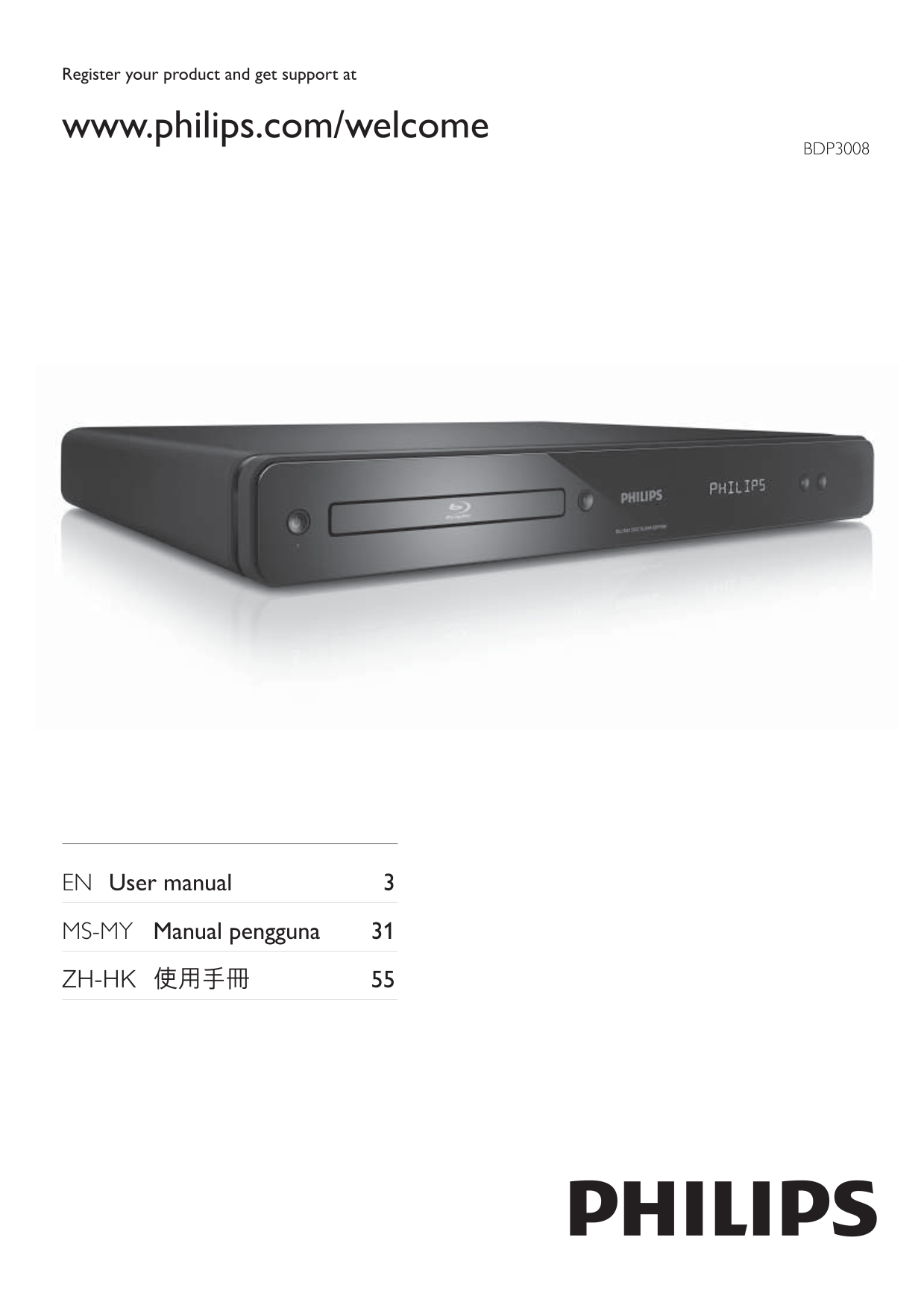
Register your product and get support at www.philips.com/welcome BDP3008 EN User manual 3 MS-MY Manual pengguna 31
Page 2
Contents 1 Important 4 7 Additional Information 20 Safety and important notice 4 Update software 20 Care 21 2 Your product 5 Specifi cations 21 Feature highlights 5 Product overview 6 8 Troubleshootin...
Page 3
1 Important Copyright notice This product Safety and important notice incorporates copyright protection technology that is protected by method claims of certain U.S. Warning patents and other intellec...
Page 4
6,487,535 & other U.S. and worldwide patents issued & pending. DTS and DTS 2.0+Digital Out are registered trademarks and the DTS logos, Symbol Philips does not guarantee 100% interoperability ...
Page 5
Product overview Main unit Front panel Description Turn on this product or switch to • display standby mode. LOADING Loading a disc. Disc compartment UNSUPP The disc is not supported. BD Blu-ray disc ...
Page 6
Remote control TOP MENU BD: Display the top menu. DVD: Display the title menu. Access the home menu.• DISC MENU / POP-UP MENU BD: Access or exit the pop-up menu. DVD: Access or exit the disc menu. OK ...
Page 7
OPTIONS Access options for the current activity or • selection. You must connect this product directly to a TV.• Color buttons BD: Select tasks or options. Option 1: Connect to the HDMI jack HDMI Sele...
Page 8
Option 2: Connect to the component Option 3: Connect to the composite video jack video jack Pb Y Pr AUDIO IN VIDEO IN AUDIO IN 1 Connect a composite video cable to: the • VIDEO jack on this product. t...
Page 9
Connect analogue stereo system 1 Connect the USB device to the USB jack on this product. AUDIO IN This product cannot play any audio/video/photo fi le stored on a USB device. Connect a USB device only...
Page 10
Select menu display language If this product is connected to a HDMI CEC compliant • TV, skip this setting. It switches automatically to the same OSD menu language as per your TV setting (if the langua...
Page 11
6 Once connected, an IP address is obtained 5 Play automatically. If no IP address is obtained, select • Play a disc [Retry] and press OK to try to obtain the IP address again. 7 Select [Finish] in th...
Page 12
Play video Control video play Some operations may not work with some discs. See the • 1 Play a title. information accompanying the disc for details. 2 Use the remote control to control the play. Displ...
Page 13
Zoom in/out 3 Press the Navigation buttons (v V) to shift the subtitle, then press OK. 1 During play, press OPTIONS. The play options menu is displayed.» 2 Select [Zoom] in the menu, then press OK. Ti...
Page 14
Enjoy BD-LIVE Play music (Applicable only to a disc that enables BD-Live bonus content.) Control a track Additional contents (such as movie trailers, 1 Play a track. subtitles, etc.,) can be downloade...
Page 15
Play photo Play musical slideshow Create a musical slideshow to play simultaneously Play photo as slideshow MP3/WMA music fi les and JPEG photo fi les. You can play JPEG photos (fi les with .jpeg or ....
Page 16
[Subtitle] Select a subtitle language for disc play. [Disc Menu] If the setting is not compatible with your TV, a blank • screen appears. Wait for 10 seconds for auto recovery, Select a language for d...
Page 17
Audio Setup [Bitstream] - Select the original audio to experience Dolby or DTS audio (BD-video 1 Press . special sound effect is disabled). 2 Select [Settings], then press OK. 3 Select [Audio Setup], ...
Page 18
[Parental Control] Easy Link Setup Restrict access to discs that are unsuitable for children. 1 Press . These types of discs must be recorded with ratings. To access, enter your last set password or ‘...
Page 19
Advanced Setup [Clear Memory] 1 Press . 2 Select [Settings], then press OK. 3 Select [Advanced Setup], then press . When you clear the local storage, previous download of • BD-Live bonus contents is n...
Page 20
Update software via network Specifi cations 1 Set up the network connection (see “Get started’ > “Set up network”). Note 2 In the Home menu, select [Settings] > Specifi cation and design are sub...
Page 21
Power consumption: 25W• Picture Power consumption in standby mode: 0.5W• No picture. Dimensions (w x h x d): 435 x 62 x 237 (mm) • See TV manual for correct video input channel • Net Weight: 2.5 kg• s...
Page 22
9 Glossary Disc cannot be played. Ensure that the disc is correctly loaded.• Ensure that this product supports the disc. See • ‘Specifi cations’. Ensure that this product supports the region • Aspect ...
Page 23
DTS Digital Theatre Systems. A surround sound system for providing 5.1 channels of discrete digital audio MP3 in consumer electronics products and software fi le format with a sound data compression c...
Page 24
Open Source Software This product contains the following open source software packages, which are subject to their respective licenses. 1. Zlib general purpose compression library See http://www.zlib....
Page 25
The authors make NO WARRANTY or representation, either express or implied, with respect to this software, its quality, accuracy, merchantability, or fi tness for a particular purpose. This software is...
Page 26
IN CONTRACT, STRICT LIABILITY, OR TORT (INCLUDING NEGLIGENCE OR OTHERWISE) ARISING IN ANY WAY OUT OF THE USE OF THIS SOFTWARE, EVEN IF ADVISED OF THE POSSIBILITY OF SUCH DAMAGE. This product includes ...
Page 27
NOTICE SOFTWARE END USER LICENSE AGREEMENT THIS SOFTWARE END USER LICENSE AGREEMENT (“THIS AGREEMENT”) IS A LEGAL AND BINDING AGREEMENT BETWEEN YOU (EITHER AN INDIVIDUAL OR ENTITY) AND PHILIPS CONSUME...
Page 28
such license, also download revocation lists onto your Device on behalf of Secure Content Owners, which may disable your Device’s ability to copy, store, display, transfer, and/or play Secure Content....
Page 29
10. NO OTHER WARRANTIES. EXCEPT AS SET FORTH ABOVE, PHILIPS AND ITS LICENSORS DO NOT WARRANT THAT THE SOFTWARE WILL OPERATE ERROR FREE OR UNINTERRUPTED, OR WILL MEET YOUR REQUIREMENTS. YOU ASSUME ALL ...
Page 30
© 2009 Koninklijke Philips Electronics N.V. All rights reserved. BDP3008_98_UM_V1.0_931