Page 1
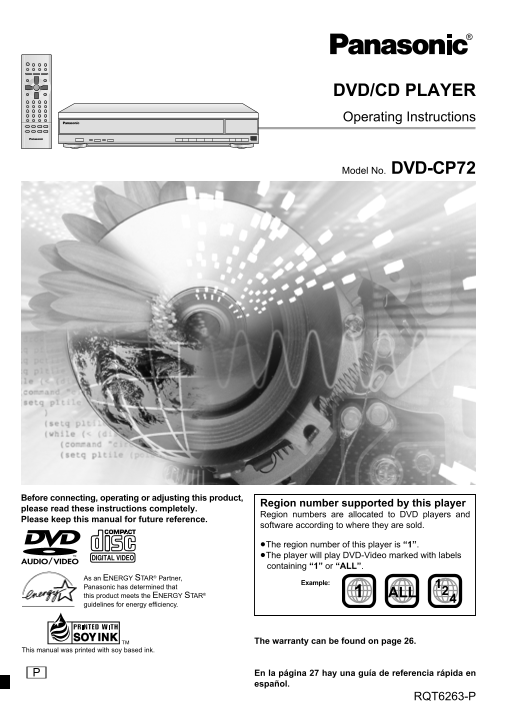
DVD/CD PLAYER Operating Instructions Model No. DVD-CP72 Before connecting, operating or adjusting this product, Region number supported by this player please read these instructions completely. Region...
Page 2
Dear customer Table of contents et ti ta rt ed Thank you for purchasing this product. For optimum performance and safety, please read these instructions carefully. Getting started Accessories Operatio...
Page 3
CAUTION! THIS PRODUCT UTILIZES A LASER. USE OF CONTROLS OR ADJUSTMENTS OR PERFORMANCE OF PROCEDURES OTHER THAN THOSE SPECIFIED HEREIN MAY RESULT IN HAZARDOUS RADIATION EXPOSURE. CAUTION: TO REDUCE THE...
Page 4
IMPORTANT SAFETY INSTRUCTIONS et ti ta rt ed Read these operating instructions carefully before using the unit. Follow the safety instructions on the unit and the safety precautions listed below. Keep...
Page 5
Disc information Discs that can be played DVD-RAM discs DVD-RAM discs must meet the following conditions for this unit to be able Disc type Logo Indication in these to play them. operating instruction...
Page 6
Connection et ti ta rt ed Connection to a television This page explains how to connect the unit to a television and set it up so you hear the audio through the television’s speakers. To get the full b...
Page 7
Home Theater—Enjoying more powerful sound Enjoy the powerful movie theater and hall-like sound available with multiple channel audio found on DVDs by connecting an amplifier and speakers. There are tw...
Page 8
et ti ta rt ed Control reference guide Standby/on button (POWER Í) Skip buttons (:, 9 SKIP) POWER SLEEP SETUP OPEN/CLOSE Stop button (∫ STOP) Pause button (; PAUSE) SLOW/SEARCHSKIP Top menu, Direct na...
Page 9
POWER [6][2] SLEEP SETUP OPEN/CLOSE [1] ≥ 1 SLOW/SEARCHSKIP STOP PAUSE PLAY NAVIGATOR PLAYLISTDIRECT MENUTOPMENU POWER / I PROGRESSIVE AUDIO EXCHANGE DISC DISC SKIP CLOSE OPEN/ OUT ONLY ≥[4][3] [6][5]...
Page 10
Basic play as ic er at io Changing the display on the main unit POWER SLEEP SETUP OPEN/CLOSE \RAM\ \DVD-A\ \DVD-V\ [VCD] [CD] [WMA] [MP3] POWER Í Press [FL SELECT]. SLOW/SEARCHSKIP :, 9 6, 5 Each time...
Page 11
Skipping items Resume function \RAM\ \DVD-A\ \DVD-V\ [VCD] [CD] [WMA] [MP3] \RAM\ \DVD-A\ \DVD-V\ [VCD] [CD] [WMA] [MP3] You can skip chapters on DVD-Video, tracks on DVD-Audio, CDs and (When the elap...
Page 12
Basic play as ic er at io Selecting still pictures—Page Skip POWER SLEEP SLEEP SETUP OPEN/CLOSE [DVD-A] SLOW/SEARCHSKIP :, 9 During play or while paused STOP PAUSE PLAY Press [PAGE]. NAVIGATOR PLAYLIS...
Page 13
Using menus to play WMA/MP3 discs and CD text [WMA] [MP3]: This unit can play WMA (Windows Media Audio) and MP3 Using the tree screen to find a group [WMA] [MP3] files recorded on CD-R/RW with a compu...
Page 14
Playing the programs on DVD-RAM va ce er at io Using the play list menu POWER You can play a group of scenes, a play list, created on other equipment SLEEP SETUP OPEN/CLOSE such as a DVD video recorde...
Page 15
Convenient features Subtitles POWER [DVD-A] [DVD-V] : You can change the subtitle language and turn the SLEEP SETUP OPEN/CLOSE subtitles on and off. SLOW/SEARCHSKIP [RAM\ : You can turn the subtitles ...
Page 16
Convenient features va ce er at io When Sequential Mode is off POWER \RAM\ \DVD-A\ \DVD-V\ [VCD] [CD] [WMA] [MP3] SLEEP SETUP OPEN/CLOSE You can program all the items on a disc in the play position. S...
Page 17
Random play [RAM\ [DVD-A\ \DVD-V\ [VCD] [CD] [WMA] [MP3] (When the elapsed play time is displayed) When Sequential Mode is on Repeat play \RAM\ \DVD-A\ [VCD] [CD] [WMA] [MP3] During play You can play ...
Page 18
Using On-Screen Menu Icons va ce er at io Disc information POWER SETUP OPEN/CLOSE e.g. DVD-Video SLEEP SLOW/SEARCHSKIP STOP PAUSE PLAY NAVIGATOR PLAYLISTDIRECT MENUTOPMENU e.g. WMA/MP3 disc 3,4,2, 1 1...
Page 19
Unit information Play Menu Audio Menu e.g. DVD-Video e.g. DVD-Video SP OFF OFF A-B Repeat [RAM] [DVD-A] \DVD-V\ [VCD] [CD] [WMA] [MP3] (➡ page 17) Advanced Surround (VSS) [RAM] \DVD-V\ [VCD] [ENTER] (...
Page 20
Using On-Screen Menu Icons va ce er at io Unit information \RAM\ \DVD-A\ \DVD-V\ [VCD] Picture Menu When PROGRESSIVE OUT indicator is off When PROGRESSIVE OUT indicator is on 480P Auto1 480I ∫ User mo...
Page 21
Changing settings This chart shows the settings for this unit. Change the settings to suit your preferences and to suit the unit to the environment in which it is being used. These settings are retain...
Page 22
Changing settings va ce er at io Press [2, 1] to select the menu’s tab. The screen changes to display the menu. POWER SETUP SLEEP SETUP OPEN/CLOSE Disc Video Audio SLOW/SEARCHSKIP STOP PAUSE PLAY NAVI...
Page 23
Digital output Speaker presence and size (a) [DVD-A] [DVD-V] 1. Press [3, 4, 2, 1] to select the item and press [ENTER]. Change the settings when you have connected equipment through this 2. Press [3,...
Page 24
Troubleshooting guide ef er en ce Before requesting service, make the below checks. If you are in doubt about some of the check points, or if the remedies indicated in the chart do not solve the probl...
Page 25
Sound Page No sound. ≥Check the connections. 6, 7 Distorted sound. ≥Check the volume on the equipment you have connected. ≥Ensure that the input settings on the other equipment are correct. ≥Turn Adva...
Page 26
Limited Warranty ef er en ce Panasonic Consumer Electronics Company, Panasonic Sales Company, Division of Matsushita Electric Division of Matsushita Electric Corporation of America of Puerto Rico, Inc...
Page 27
Guía de referencia rápida en español Conexión a un televisor Reproducción básica [RAM] [DVD-A] [DVD-V] [VCD] [CD] [WMA] [MP3] Cable de audio/vídeo Rojo(R) Preparación Blanco(L) Encienda el televisor y...
Page 28
Specifications Signal system: NTSC Audio performance: Operating temperature range: i5 to i35 o C (i41 to i95 o F) (1) Frequency response: Operating humidity range: 5 to 90 % RH (no condensation) ≥DVD ...