LINKSYS WRVS4400N User Guide and Manual
Summary
Get comprehensive setup instructions for your advanced Wi-Fi router system. This manual guides new users through every step of network deployment, covering everything from physical modem connections and basic connectivity testing to detailed wireless configuration using secure standards like WPA2. It is essential reading for home or small office owners needing a reliable, customized internet solution and hands-on troubleshooting support.
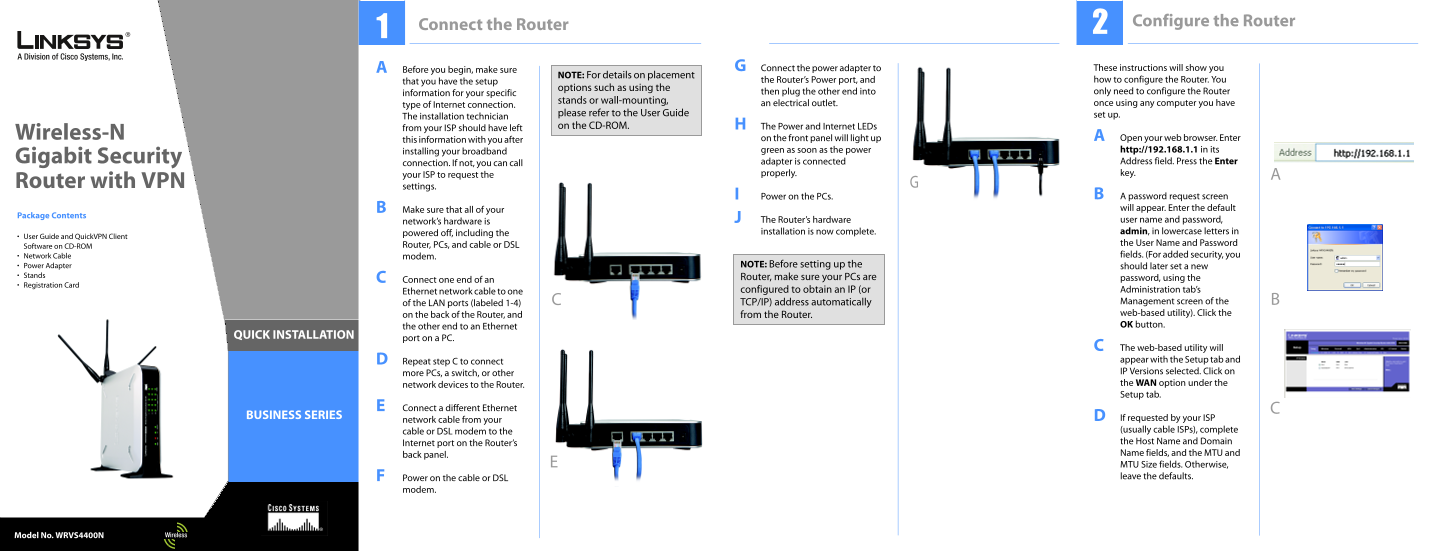
Page 1 Text Content
Connect the Router Configure the Router
Before you begin, make sure Connect the power adapter to These instructions will show you
NOTE: For details on placement
that you have the setup the Router’s Power port, and how to configure the Router. You
options such as using the
information for your specific then plug the other end into only need to configure the Router
stands or wall-mounting,
type of Internet connection. an electrical outlet. once using any computer you have
please refer to the User Guide set up.
The installation technician
on the CD-ROM. The Power and Internet LEDs
from your ISP should have left
Wireless-N on the front panel will light up Open your web browser. Enter
this information with you after
installing your broadband green as soon as the power http://192.168.1.1 in its
Gigabit Security adapter is connected Address field. Press the Enter
connection. If not, you can call
your ISP to request the properly. key.
Router with VPN settings.
Power on the PCs. A password request screen Make sure that all of your will appear. Enter the default
Package Contents
network’s hardware is The Router’s hardware user name and password, powered off, including the installation is now complete. admin, in lowercase letters in
User Guide and Quick VPN Client
Router, PCs, and cable or DSL the User Name and Password
Software on CD-ROM
Network Cable modem. fields. (For added security, you
Power Adapter NOTE: Before setting up the should later set a new
Stands Router, make sure your PCs are
Connect one end of an password, using the
Registration Card
Ethernet network cable to one configured to obtain an IP (or Administration tab’s of the LAN ports (labeled 1-4) TCP/IP) address automatically Management screen of the on the back of the Router, and from the Router. web-based utility). Click the the other end to an Ethernet OK button.
QUICK INSTALLATION
port on a PC.
The web-based utility will Repeat step C to connect appear with the Setup tab and more PCs, a switch, or other IP Versions selected. Click on network devices to the Router. the WAN option under the Setup tab.
Connect a different Ethernet
BUSINESS SERIES If requested by your ISP
network cable from your
cable or DSL modem to the (usually cable ISPs), complete Internet port on the Router’s the Host Name and Domain back panel. Name fields, and the MTU and MTU Size fields. Otherwise, Power on the cable or DSL leave the defaults.
modem.
Model No. WRVS4400N Model No.Model No. Wireless
Page Summary Contents For LINKSYS WRVS4400N User Guide and Manual
Manual Details
| Brand | Linksys |
|---|---|
| Pages | 2 |
| File Size | 928.01 KB |
| Published | May 26, 2026 |
Enter the captcha to get the download link:

Frequently Asked Questions
What kind of internet connection does this router support?
It supports DSL, cable modem, or general Ethernet connections.
How do I start the setup process after connecting the cables?
Open a web browser and enter http://192.168.1.1 in the address bar to access the web utility.
What should I change before finalizing the setup for security?
Change the default SSID (linksys) to a unique name and secure it using WPA2-Personal or Mixed encryption.
Does the physical installation guide specific advice for mounting?
The manual directs users to refer to the User Guide for placement, stands, or wall-mounting considerations.
If I don't have a static IP address, what should I select in DHCP settings?
Select 'DHCP' and ensure 'Automatic Configuration' is enabled if your ISP assigns an IP dynamically.