Page 1
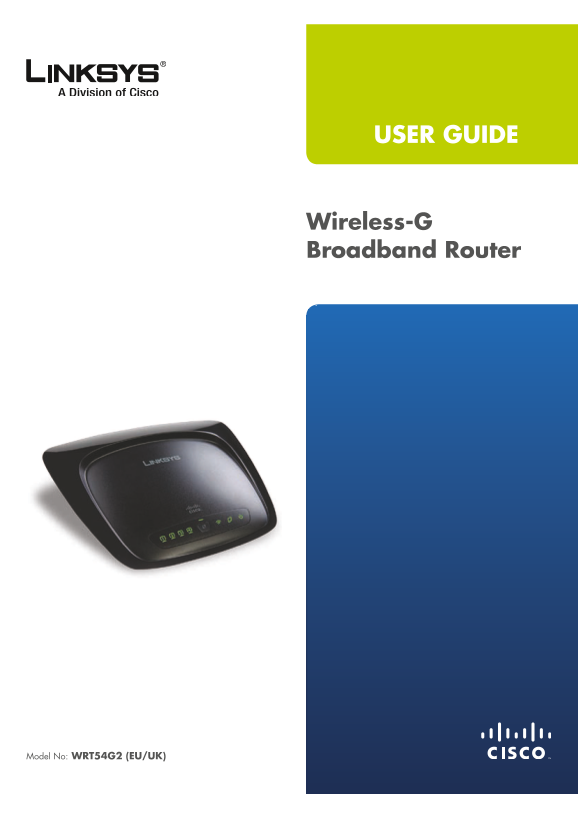
USER GUIDE Wireless-G Broadband Router Model No: WRT54G2 (EU/UK)
Page 2
About This Guide About This Guide Icon Descriptions While reading through the User Guide you may see various icons that call attention to specific items. Below is a description of these icons: NOTE: T...
Page 3
Table of Contents Chapter 1: Product Overview Front Panel. Back Panel . . . . . . . . . . . . . . . . . . . . . . . . . . . . . . . . . . . . . . . . . . . . . . . . . . 1 Placement Positions Chapter ...
Page 4
Table of Contents Industry Canada Statement . . . . . . . . . . . . . . . . . . . . . . . . . . . . . . . . . . . . . . .27 Avis d’Industrie Canada. .27 Wireless Disclaimer . . . . . . . . . . . . . ....
Page 5
Chapter Product Overview Chapter 1: Wireless (Green) The Wireless LED lights up when the wireless feature is enabled. If the LED Product Overview is flashing, the Router is actively sending or receivi...
Page 6
Chapter Product Overview Wall-Mounting Placement Follow these instructions: 1. Determine where you want to mount the Router. Make The Router has two wall-mount slots on its bottom sure that the wall y...
Page 7
Chapter Wireless Security Checklist Chapter 2: 4. Enable encryption Wireless Security Checklist Encryption protects data transmitted over a wireless network. Wi-Fi Protected Access (WPA/WPA2) and Wire...
Page 8
Chapter Advanced Configuration Chapter 3: Setup > Basic Setup The first screen that appears is the Basic Setup screen. This Advanced Configuration allows you to change the Router’s general settings...
Page 9
Chapter Advanced Configuration Static IP will automatically re-establish your connection. To use this option, select Keep Alive. In the Redial Period field, If you are required to use a permanent IP a...
Page 10
Chapter Advanced Configuration L2TP Connect on Demand: Max Idle Time You can configure the Router to cut the Internet connection after it has been L2TP is a service that applies to connections in Isra...
Page 11
Chapter Advanced Configuration Network Setup Static DNS (1-3) The Domain Name System (DNS) is how the Internet translates domain or website names into The Network Setup section changes the settings on...
Page 12
Chapter Advanced Configuration Dyn DNS.org Setup > MAC Address Clone A MAC address is a 12-digit code assigned to a unique piece of hardware for identification. Some ISPs will require you to regist...
Page 13
Chapter Advanced Configuration Subnet Mask The Subnet Mask determines which portion of a Destination LAN IP address is the network portion, and which portion is the host portion. Default Gateway This ...
Page 14
Chapter Advanced Configuration Basic Wireless Settings Wi-Fi Protected Setup There are three methods available. Use the method that applies to the client device you are configuring. Wireless > Basi...
Page 15
Chapter Advanced Configuration 3. After the client device has been configured, click WPA Personal OK. Then refer back to your client device or its documentation for further instructions. NOTE: If you ...
Page 16
Chapter Advanced Configuration RADIUS Server Address Enter the IP Address of the WPA Algorithm WPA2 supports two encryption RADIUS server. methods, TKIP and AES, with dynamic encryption keys. Select t...
Page 17
Chapter Advanced Configuration Passphrase Enter a Passphrase to automatically generate Wireless MAC Filter WEP keys. Then click Generate. Wireless MAC Filter To filter wireless users by MAC Address, K...
Page 18
Chapter Advanced Configuration manufacturer of your wireless products. To turn on the Frame Burst option, select Enable. The default is Disable. Beacon Interval The default value is 100. Enter a value...
Page 19
Chapter Advanced Configuration Security > Firewall Security > VPN Passthrough The Security > Firewall screen is used to configure a firewall The Security > VPN Passthrough screen allows yo...
Page 20
Chapter Advanced Configuration select a PC by MAC Address or IP Address. You can also enter a range of IP Addresses if you want this policy to affect a group of PCs. After making your changes, click S...
Page 21
Chapter Advanced Configuration To modify a service, select it from the list on the right. Application In this field, enter the name you wish to give Change its name, protocol setting, or port range. T...
Page 22
Chapter Advanced Configuration Forwarded Range Qo S For each application, list the forwarded port number Enable/Disable To enable Qo S, select Enable. Otherwise, range. Check with the Internet applica...
Page 23
Chapter Advanced Configuration Application Priority Application Priority Qo S manages information as it is transmitted and received. Depending on the settings of the Qo S screen, this feature will ass...
Page 24
Chapter Advanced Configuration Administration > Log The Router can keep logs of all traffic for your Internet connection. The Ping Test Administration > Log Traceroute Test Log Traceroute To tes...
Page 25
Chapter Advanced Configuration Administration > Upgrade Firmware Status > Router The Administration > Upgrade Firmware screen allows you The Status > Router screen displays the Router’s cu...
Page 26
Chapter Advanced Configuration Status > Local Network Status > Wireless The Status > Local Network screen displays the status of The Status > Wireless screen displays the status of your yo...
Page 27
Appendix Troubleshooting When you double-click the web browser, you are Appendix A: prompted for a username and password. If you want to get rid of the prompt, follow these instructions. Troubleshooti...
Page 28
Appendix Specifications Appendix B: Specifications Model WRT54G2 Standards IEEE 802.3, IEEE 802.3u, IEEE 802.11g, IEEE 802.11b Ports Internet: One 10/100 RJ-45 Port LAN: Four 10/100 RJ-45 Switched Por...
Page 29
Appendix Warranty Information network on which the product or software is used will be Appendix C: free of vulnerability to intrusion or attack. The product may include or be bundled with third party ...
Page 30
Appendix Warranty Information and a copy of your dated proof of original purchase when returning your product. Products received without a RMA number and dated proof of original purchase will be rejec...
Page 31
Appendix Regulatory Information Appendix D: Industry Canada Statement This Class B digital apparatus complies with Canadian Regulatory Information ICES-003 and RSS210. Operation is subject to the foll...
Page 32
Appendix Regulatory Information Wireless Disclaimer The maximum performance for wireless is derived from IEEE Standard 802.11 specifications. Actual performance can vary, including lower wireless netw...
Page 33
Appendix Regulatory Information Declaration of Conformity with Regard to Dit apparaat voldoet aan de essentiele eisen Nederlands en andere van toepassing zijnde bepalingen EU Directive 1999/5/EC (R&am...
Page 34
Appendix Regulatory Information The following standards were applied during the National Restrictions assessment of the product against the requirements of the Directive 1999/5/EC: This product may be...
Page 35
Appendix Regulatory Information France Product Usage Restrictions For 2,4 GHz, the product should not be used outdoors This product is designed for indoor usage only. Outdoor in the band 2454 - 2483,5...