Page 1
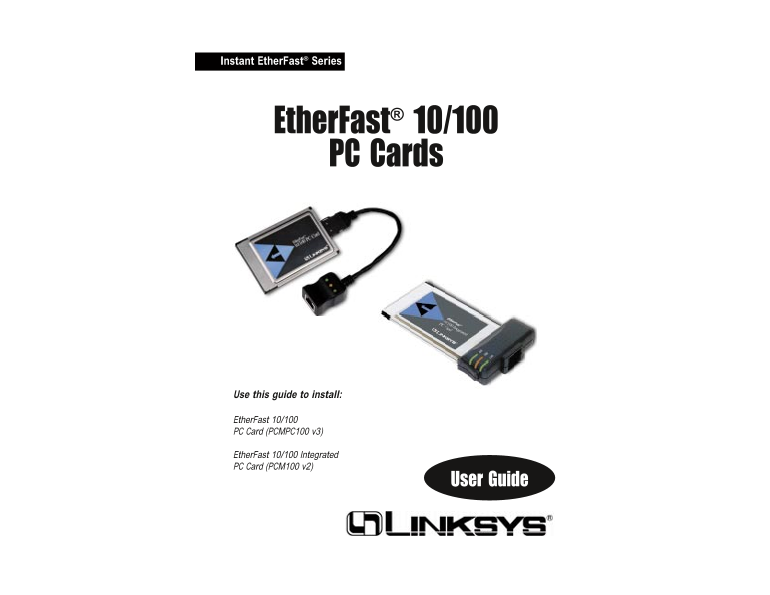
Instant Ether Fast® Series Ether Fast® 10/100 PC Cards Use this guide to install: Ether Fast 10/100 PC Card (PCMPC100 v3) Ether Fast 10/100 Integrated PC Card (PCM100 v2) User Guide
Page 2
COPYRIGHT & TRADEMARKS Copyright © 2001 Linksys, All Rights Reserved. Ether Fast is a registered trademark of Linksys. Microsoft, Windows, and the Windows logo are registered trademarks of Microso...
Page 3
Instant Ether Fast® Series Ether Fast® 10/100 PC Cards Table of Contents Introduction Introduction The Linksys Ether Fast 10/100 PC Cards The Linksys Ether Fast 10/100 Cards About Fast Ethernet Welcom...
Page 4
Instant Ether Fast® Series Ether Fast® 10/100 PC Cards About Fast Ethernet Package Contents for the Ether Fast 10/100 Integrated PC Card (PCM100 V2) In recent years, Fast Ethernet has emerged as the f...
Page 5
Instant Ether Fast® Series Ether Fast® 10/100 PC Cards Getting to Know the Ether Fast Installing the Ether Fast 10/100 PC Cards 10/100 PC Cards LEDs Getting the Right Cable Link The LED will illuminat...
Page 6
Instant Ether Fast® Series Ether Fast® 10/100 PC Cards About the Software Note: Plug-and-Play operating systems like Windows 98, Windows 95 OSR2, (also known as Windows 95 Version B) Millennium , and ...
Page 7
Instant Ether Fast® Series Ether Fast® 10/100 PC Cards Network Driver Setup How to Use the 10/100 PC Card’s Enabler for DOS-Based Network Operating Systems Follow these instructions carefully. You can...
Page 8
Instant Ether Fast® Series Ether Fast® 10/100 PC Cards 2. While the Update Device Driver Wizard window is visible, put the Linksys Windows 95 Installation and Setup Ether Fast 10/100 PC Card Driver Di...
Page 9
Instant Ether Fast® Series Ether Fast® 10/100 PC Cards If Windows asks you to supply a file containing the letters “pc100”, type If other components are “a:\” in the box that pops up as shown below. C...
Page 10
Instant Ether Fast® Series Ether Fast® 10/100 PC Cards 9. Click on the Identification 14. Once Windows is done copying the necessary files, the System Settings tab. Type the name of your Change window...
Page 11
Instant Ether Fast® Series Ether Fast® 10/100 PC Cards 2. While the Update Device Driver Wizard window is visible, put the Windows 98 Installation and Setup Ether Fast 10/100 PC Card Driver Disk into ...
Page 12
Instant Ether Fast® Series Ether Fast® 10/100 PC Cards 5. Windows will begin searching your drives for the correct device drivers. When asked if you want to restart your computer, click No. Once you a...
Page 13
Instant Ether Fast® Series Ether Fast® 10/100 PC Cards 11. Click on the 16. Once Windows is done copying the necessary files, the System Settings Identification tab. Type Change window appears. Remove...
Page 14
Instant Ether Fast® Series Ether Fast® 10/100 PC Cards 4. If you are asked to supply a path for the driver, type A:\WINME in the Windows Millennium Installation drop-down box that appears and click Ne...
Page 15
Instant Ether Fast® Series Ether Fast® 10/100 PC Cards 6. When the following window appears, click Finish. When you are asked if you want to restart your computer, remove any Driver Disks from the flo...
Page 16
Instant Ether Fast® Series Ether Fast® 10/100 PC Cards 3. Click on the Select from list... button to select a network adapter. 6. The adapter will be added to the list of installed Network Adapters. C...
Page 17
Instant Ether Fast® Series Ether Fast® 10/100 PC Cards 8. A list of services will appear. Click Next to approve these services, fol- 11. Windows NT will copy the necessary network drivers to your PC. ...
Page 18
Instant Ether Fast® Series Ether Fast® 10/100 PC Cards 13. When asked if you want to restart your computer, remove the Driver Disk Installing the Ether Fast Network Driver if Networking is and click Y...
Page 19
Instant Ether Fast® Series Ether Fast® 10/100 PC Cards 3. When the list of available network adapters appears, select Linksys Ether Fast 5. When the following window appears, select Linksys Ether Fast...
Page 20
Instant Ether Fast® Series Ether Fast® 10/100 PC Cards 8. Click on the Protocols tab. Add any protocols you Windows 2000 Installation and require by clicking the Add button. Setup Note: If you install...
Page 21
Instant Ether Fast® Series Ether Fast® 10/100 PC Cards 3. Windows will display the installation screen next. Make sure that the radio 5. Windows should display the Driver Files Search Results box. Not...
Page 22
Instant Ether Fast® Series Ether Fast® 10/100 PC Cards 7. After copying all the files, Windows will display the following screen. This screen means that the device driver has been properly installed. ...
Page 23
Instant Ether Fast® Series Ether Fast® 10/100 PC Cards 5. On the Access Control Tab, User Level Access is selected, but Shared Level 10. In Network Neighborhood you can only see computers running the ...
Page 24
Instant Ether Fast® Series Ether Fast® 10/100 PC Cards 6. If you want to assign access passwords, type the passwords into the Appendix Password boxes. 7. When you're done, click on the Apply button, f...
Page 25
Instant Ether Fast® Series Ether Fast® 10/100 PC Cards Novell Net Ware 3.x Client Setup for windows 98 or 95 Windows 98 or 95 Client for windows NT The instructions below explain how to set up the reg...
Page 26
Instant Ether Fast® Series Ether Fast® 10/100 PC Cards 4. Remove any instance of the name Linksys in the box. This includes Starting Over in Windows 95 and 98 IPS/SPX…Linksys, Net BEUI…Linksys, and TC...
Page 27
Instant Ether Fast® Series Ether Fast® 10/100 PC Cards 7. Return to the Windows Control Panel. Double-click on the System Icon. Starting Over in Windows 2000 The System Properties window will appear. ...
Page 28
Instant Ether Fast® Series Ether Fast® 10/100 PC Cards 8. Right-click on the Linksys Ether Fast 10/100 PC Card again. This time, Manually Installing Network Components in Windows select Uninstall. The...
Page 29
Instant Ether Fast® Series Ether Fast® 10/100 PC Cards Twisted-Pair Cabling Linux, Open Source and Beta Operating Systems Linksys does not provide technical support for Linux, BSD, or other free- Ther...
Page 30
Instant Ether Fast® Series Ether Fast® 10/100 PC Cards Crimping Your Own Network Cables 10/100 PC Card Specifications Model Number: PCMPC100 v3 System: PCMCIA-compliant PC Straight-Through Cabling S...
Page 31
Instant Ether Fast® Series Ether Fast® 10/100 PC Cards 10/100 Integrated PC Card Specifications Customer Support Linksys Warranty Information Model Number: PCM100 v3 Linksys guarantees that every Ethe...
Page 32
http:/ /www.l inksys.com © Copyright 2001 Linksys, All Rights Reserved.