Page 1
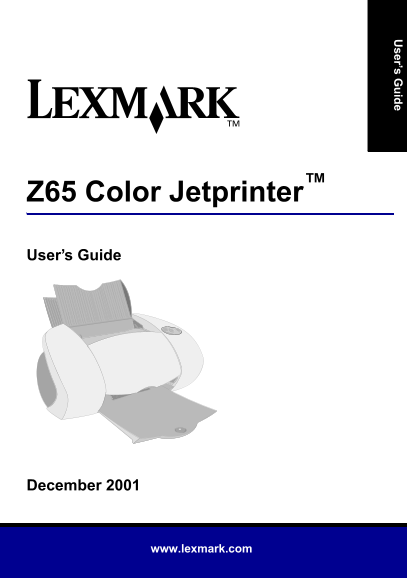
ser’s G id Z65 Color Jetprinter™ User’s Guide December www.lexmark.com
Page 2
Edition: December UNITED STATES GOVERNMENT ENERGY STAR RESTRICTED RIGHTS The following paragraph does not apply The EPA ENERGY STAR office equipment This software and documentation are to any country ...
Page 3
Contents Learning about your printer .............................................. Understanding the printer parts .....................................................1 Using the software to select ...
Page 4
Learning about your printer Understanding the printer parts Printing is easier than ever before. Your printer can automatically align your cartridges and detect the type of paper you have loaded into ...
Page 5
USB cable connector Power supply connector Using the software to select your printer settings Print Properties (Windows only) With your document open, click File Use the Quality/ I Want To menu Print ...
Page 6
Print dialog box and Page Setup dialog box (Macintosh only) With your document open, With your document open, click File Print. click File Page Setup. Note: Your software screens may appear slightly d...
Page 7
Using the software to meet your printing needs Use the Lexmark Z65 Solution Center (Windows), Lexmark Z65 Control Panel (Mac OS 8.6 to 9.2), or Lexmark Z65 Utility (Mac OS X) for: Aligning and maintai...
Page 8
Printing from paper tray 1 From paper tray 1, you can print on any supported paper type, such as plain, coated, photo, or glossy paper, transparencies, envelopes, labels, iron-on transfers, or banner ...
Page 9
Make sure you do not push the paper too far into the printer. For example, A4 and letter size paper should extend beyond the top of paper tray 1. Make sure the paper tray 1 button is selected. Paper t...
Page 10
Printing from paper tray 2 From paper tray 2, you can print on A4 or letter size paper. This paper tray does not have a paper type sensor, so you will need to select a paper type in the printer softwa...
Page 11
Follow the steps for your operating system to open the printer software and print your document. Mac OS X version Windows Mac OS 8.6 to 9.2 10.0.3 to 10.1 With your document With your With your open, ...
Page 12
Printing for fun To learn how to print a photo card using Windows operating systems, see page 10. For information about printing other projects, see page 12. Booklet Greeting card Print on both sides ...
Page 13
Printing a digital photo on a photo card (Windows) Load up to 10 photo cards vertically against the right side of paper tray 1. When you load photo cards, make sure: You carefully read the instruction...
Page 14
Open your digital photo in your photo application. When you are ready to print your photo, click File Print Properties or Preferences. From the I Want To menu, click Print a photograph. I Want To menu
Page 15
The Print a Photograph screen appears. From Step 1 on the screen, select a print quality. From Step 2 on the screen, select a paper size, and then click OK. From the Paper Setup tab, make sure Paper S...
Page 16
Troubleshooting checklist Is the power supply firmly attached to your printer and an electrical outlet? Are both your printer and computer on? Is your printer cable securely attached at both ends? Did...
Page 17
Is your printer connected to your computer through an external device, such as a USB hub, switch box, scanner, or fax machine? If not, see “Setup troubleshooting” on page 15 for help. If it is, follow...
Page 18
Setup troubleshooting Refer to the Lexmark Solution Center (see page 4) or the Online User’s Guide (see page 4) for help solving problems you may have after setting up your printer, such as: Slow prin...
Page 19
The Search Results: No Printer Attached screen appeared. (Windows only) Note: Your screen may appear slightly different from the one shown depending on your operating system. See if checking the items...
Page 20
The alignment page did not print. Make sure: You completely removed the sticker and transparent tape from the back and bottom of both print cartridges. You installed the black cartridge (P/N 82) in th...
Page 21
When I inserted the printer software CD, nothing happened. (Windows) First, see if checking the items on page 13 solves the problem. Then: Close all open software applications. Restart your computer. ...
Page 22
When I inserted the printer software CD, nothing happened. (Macintosh) First, see if checking the items on page 13 solves the problem. Then: Close all open software applications. Reinsert the printer ...
Page 23
My document did not print. (Windows) First, see if checking the list on page 13 solves the problem. Make sure the printer is set to use the correct port. Since you are using a USB cable, the printer s...
Page 24
My document did not print. (Mac OS 8.6 to 9.2) First, see if checking the list on page 13 solves the problem. Make sure your printer is selected in Chooser: From the Apple menu, choose Chooser. In the...
Page 25
My document did not print. (Mac OS X version 10.0.3 to 10.1) First, see if checking the list on page 13 solves the problem. Check the printer status: From the Dock, click the Finder icon. From the Fin...
Page 26
A paper tray light is blinking. A communications error message appeared. Your printer may be out of paper or First, see if checking the list on page the paper may be jammed. Make solves the problem. s...
Page 27
If the suggestions in this chapter did not solve your printing problem, uninstall and then reinstall the printer software. My printer is still not working. (Windows) Uninstall the printer software Fro...
Page 28
My printer is still not working. (Macintosh) Uninstall the printer software Insert the printer software CD. When the Lexmark printer software installation screen appears, click Uninstall. Follow the i...
Page 29
Index alignment page, troubleshooting . . 17 Page Setup dialog box (Macintosh) avoiding paper jams . . . . . . . . . . . 5, 7 paper guide, adjusting . . . . . . . . . 5, 7 paper jam, avoiding . . . . ...
Page 30
Solution Center . . . . . . . . . . . . . . . safety information . . . . . . . . . . . . . . . . ii selecting a paper tray . . . . . . . . . . 6, 7 sensor, paper type . . . . . . . . . . . . 1, 5 test...
Page 31
Statement of Limited Warranty Before you present this product for warranty Limitation of liability service, remove all print cartridges, Lexmark International, Inc. Lexington, Your sole remedy under t...
Page 32
Lexmark and Lexmark with diamond design are trademarks of Lexmark International, Inc., registered in the United States and/or other countries. Color Jetprinter is a trademark of Lexmark International,...