Page 1
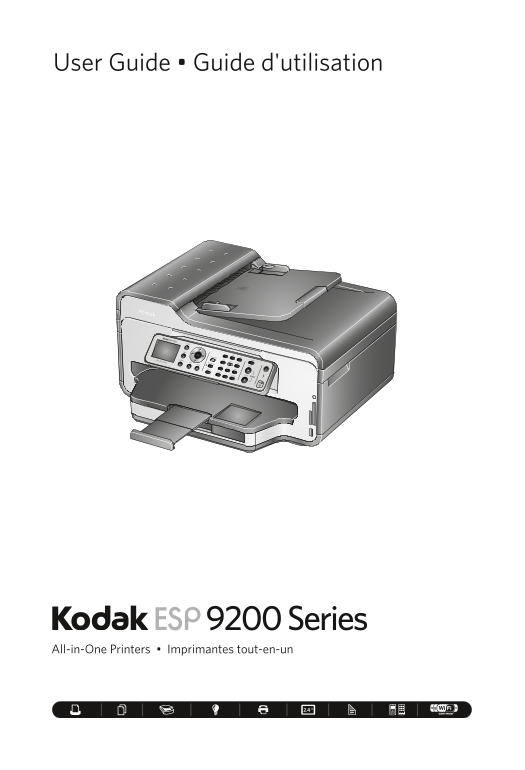
User Guide • Guide d'utilisation 9200 Series All-in-One Printers • Imprimantes tout-en-un
Page 2
2 KODAK ESP 9250 All-in-One Printer Your KODAK All-in-One Printer combines ease-of-use and affordable inks to provide high-quality pictures and documents. Resources Support is available! Go to www.kod...
Page 3
Table of contents 1 Printer Overview Components............................................................................................................................................1 Control pan...
Page 4
1 Printer Overview This printer lets you print, copy, scan, and fax pictures and documents. Components Control panel Front USB port Automatic document feeder (ADF) MS/XD/SD card slot ADF paper-edge gu...
Page 5
KODAK ESP 9200 Series All-in-One Printer Control panel Feature Description LCD Displays pictures, messages, and menus Copy button Displays the Copy Options menu Fax button Lets you enter a phone numbe...
Page 6
Printer Overview Feature Description Numeric keypad Used to dial a phone number or a Quick Dial number for faxing; to enter information and Quick Dial settings into the fax phonebook; to specify a qua...
Page 7
KODAK ESP 9200 Series All-in-One Printer Paper types You can use: Plain paper — 20 to 24 lb / 75 to 90 gsm Photo paper — 6.5 to 12 mils (up to 290 gsm) Card stock — 110 lb / 200 gsm, max Envelopes — 2...
Page 8
Printer Overview 2. Make sure the left paper-edge guide is to the far left. 3. Move the front paper-edge guide forward. Left paper- edge guide Paper tray extender Front paper-edge guide NOTE: For pape...
Page 9
KODAK ESP 9200 Series All-in-One Printer 7. Push in the main paper tray until it clicks into place, and lower the output tray. 8. Pull out the output tray extender until it is fully extended. 9. Lift ...
Page 10
Printer Overview Loading photo paper The photo paper tray capacity is 40 sheets of photo paper. To load photo paper: 1. Raise the output tray, and pull out the photo paper tray. 2. Move the left paper...
Page 11
2 Basic Functions This chapter describes how to print, copy, scan, and fax using the factory default settings on your printer. NOTE: To reset your printer to the factory default settings: 1. Press Hom...
Page 12
Basic Functions Using the ADF You can load up to 30 originals (20 to 24 lb / 75 to 90 gsm plain paper) in the automatic document feeder (ADF). The ADF accepts originals from 6.9 x 9.8 in. / 18 x 25 cm...
Page 13
KODAK ESP 9200 Series All-in-One Printer 4. Choose the pages to print, number of copies, etc, then click OK (on a computer with WINDOWS OS) or Print (on a computer with MAC OS). Printing pictures You ...
Page 14
Basic Functions To print a picture from a memory card or USB-connected device: 1. Insert the memory card into the appropriate slot, or connect the digital camera or portable drive to the front USB por...
Page 15
KODAK ESP 9200 Series All-in-One Printer Copying To make a copy: 1. Place the original(s) in the automatic document feeder or on the scanner glass. 2. Press Home. 3. Press or to select Copy Document o...
Page 16
Basic Functions Faxing Before sending or receiving faxes, make sure that a wall phone line is plugged into the Line in port on the back of the printer. Sending faxes To send a fax: 1. Press Fax. 2. En...
Page 17
3 Troubleshooting Basic troubleshooting Some problems can be resolved quickly by power cycling the printer: Turn off your printer. Wait five seconds. Turn on the printer. Use the following information...
Page 18
Troubleshooting Problem Possible Solutions Ink cartridge • Check that KODAK Ink Cartridge(s) are installed. Do not use non-Kodak brand or refilled ink cartridges. Remove, then install the cartridges a...
Page 19
4 Safety and Warranty Information Safety information Always follow all warnings and instructions marked on the product. Use only the power source indicated on the product regulatory label. Use only th...
Page 20
Safety and Warranty Information Warranty Information Limited Warranty Kodak warrants Kodak consumer electronic products and accessories (“Products”), excluding batteries, to be free from malfunctions ...
Page 21
KODAK ESP 9200 Series All-in-One Printer Your Rights Some states or jurisdictions do not allow exclusion or limitation of incidental or consequential damages, so the above limitation or exclusion may ...
Page 22
© Eastman Kodak Company, 2010 Rochester, NY 14650 MC/MR/TM: Kodak, ESP, and Easy Share. Eastman Kodak Company is an authorized licensee of the Compact Flash trademark. 1K5985 Printed in China